Physical Address
304 North Cardinal St.
Dorchester Center, MA 02124
Physical Address
304 North Cardinal St.
Dorchester Center, MA 02124
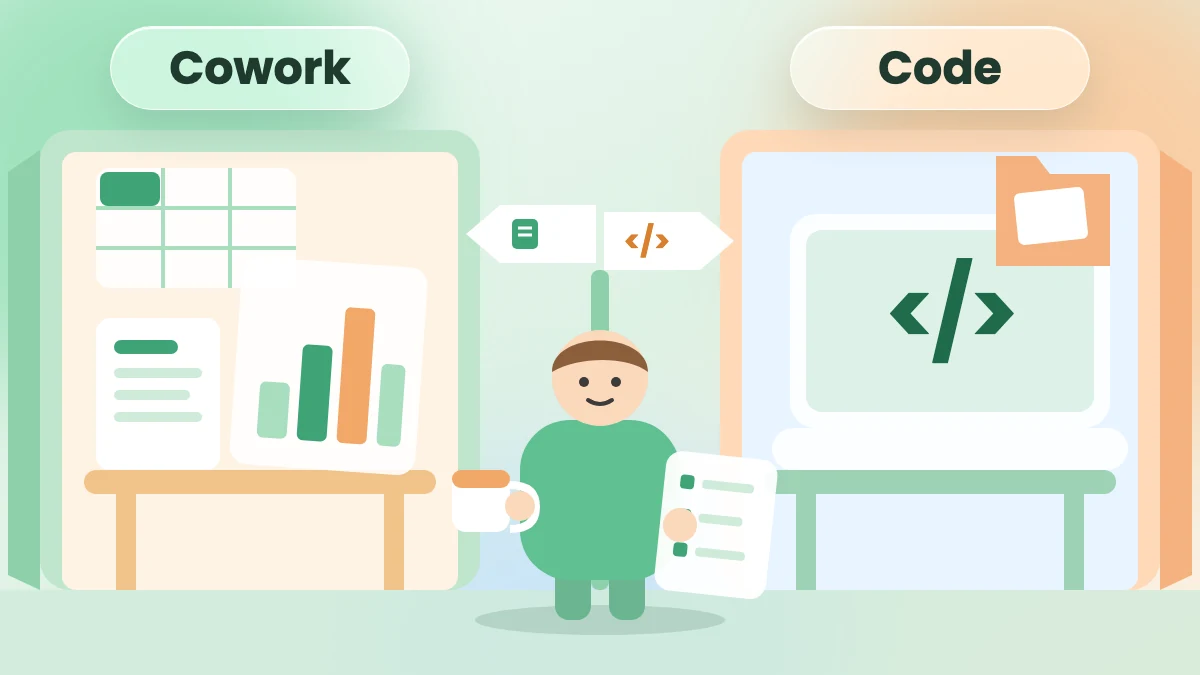
Not sure whether to open Cowork or Claude Code? Here are 5 simple differences, a which-job table and one task done in both, with prompts to copy.
You pay for Claude to save time. Then you open the app and find more than one way to work: Chat, Cowork and a Code tab. You have a real job waiting, and you’re not sure which one fits it. So you search for claude cowork vs claude code and hope for a plain answer.
Most answers are written for developers. They talk about terminals, IDEs and “agentic architecture”, and the name “Code” makes the second tool sound off-limits. On top of that, Anthropic is still changing the app. Its own Cowork page now says “Claude Cowork is now just Claude.” So your screen may not match the guide you’re reading.
Here is the simple way to see it. Both tools are Claude doing a multi-step job for you, not just answering one question. Anthropic’s get-started page puts it this way: “Claude Cowork uses the same agentic architecture that powers Claude Code, with no terminal required.” (“Agentic” just means Claude works through the steps by itself.) One door is built for everyday office work. The other is built for coding projects, and you can still use it in plain English.
In this post, I’ll walk you through the 5 differences that matter when you run a business, not a software team. You’ll get a table of which one to open for which job, and one task done in both tools, with a prompt to copy for each. Reading takes about 10 minutes (my estimate). Then you can run your first task today.
Checked on 2026-11-13: every product fact and price below comes from Anthropic’s own pages, linked in the text. The app is still rolling out changes, so names and buttons can look different on your account.
In short
What you need
On this page
You don’t need the full history to start. You need to know which one to open for the job in front of you.
Open Cowork when the result is a document, a report or a spreadsheet. Open Claude Code when the result is code, a website or many files changed in one folder. Here are the 5 differences side by side. Each one has its own section below.
| Difference | Claude Cowork | Claude Code |
|---|---|---|
| 1. Built for | Office work: research, reports, documents | Coding: writing, fixing and shipping code |
| 2. Where you open it | The Claude app: pick Cowork in the message box (web, phone, desktop) | Code tab in the desktop app, claude.ai/code, or a terminal |
| 3. Files it can touch | Only folders you pick, through the desktop app | The project folder you open |
| 4. Asking first | Always asks before permanently deleting files | In Manual mode, asks before editing files or running commands |
| 5. Other tools | Connectors from a menu, plus a browser it can click in | Tools added through MCP, plus instructions in a CLAUDE.md file |
“Claude Code is for programmers, so it’s not for me.”
That’s the first thought for most owners, and it’s only half true. Anthropic says Cowork is built for “non-coding knowledge work”: research, analysis, document creation and other multi-step tasks. On the same page, it says Claude Code is built for software engineering, which means writing, debugging and shipping code.
The Cowork examples on that page are very close to an owner’s week:
But Claude Code isn’t locked to coders. Anthropic’s guide for new users says: “You don’t need to know how to code. Describe what you want in plain English, and Claude writes the code for you.” One of its examples has nothing to do with code: ask Claude to “look at the screenshots on my Desktop and rename them based on what’s in each image.”
So the real question isn’t “can I code?” It’s “is this office work, or a project folder?”
A note from my own week: I use Claude Code every day to run my own content agent team. So I’m not describing it from the sidelines.
A black window full of text is where many beginners give up. That window is the terminal: a text-only screen where you type commands. Anthropic’s guide is honest about it: “You can’t click on things in the terminal.”
The good news is that you can skip it with both tools.
No Chat and Cowork options in your message box? Then your account already has the new Claude app, where the two are merged. There is nothing to click and nothing to turn on. Just describe the task, and Anthropic says “Every conversation can take on a Cowork task.” For files on your computer, give Claude access to a folder in Claude Desktop (the next section shows how). If you still see Chat and Cowork, keep using them as before. Sources: Claude Cowork and Chat are one Claude and the get-started page.
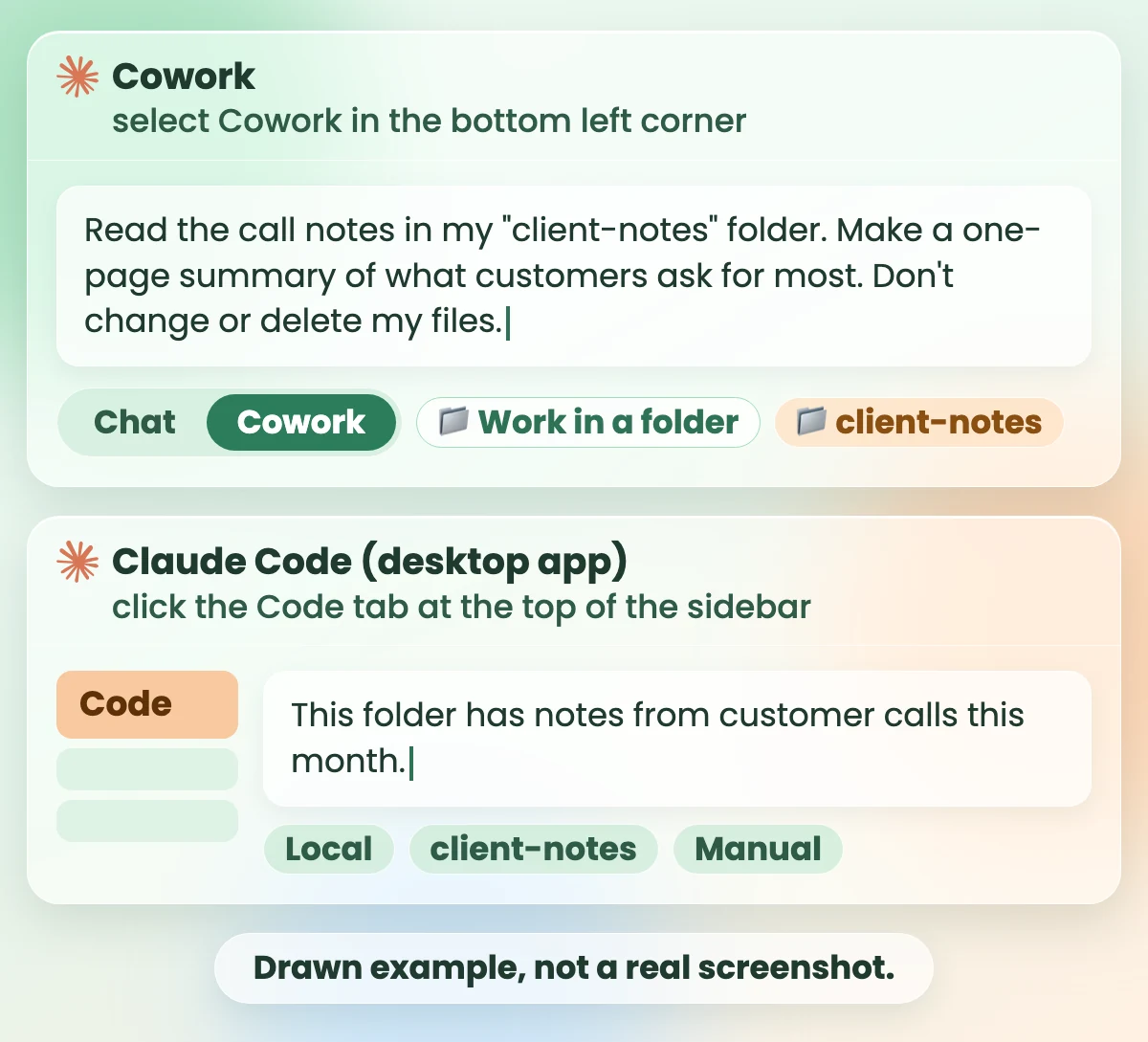
These steps follow Anthropic’s desktop quickstart. Two other ways in: claude.ai/code in a browser (also in the Claude app on iPhone and Android), or the terminal later, where the install is one command you paste from the overview page.
Letting an AI near your business files feels risky. It’s fair to ask where the work happens and what it can reach.
Cowork: the get-started page says: “Cowork runs your tasks in the cloud.” That means an isolated space on Anthropic’s servers. When a task needs your computer, Claude reaches it through the Claude Desktop app. It can read and write files only in folders you give it, and only while the desktop app is open.
Know what that click means. Anthropic’s Cowork course says: “When you pick a folder, you’re automatically authorizing Claude to read and write in it.” To see or remove folders later, open Settings > Trusted folders in the desktop app. Finished files are saved back to the folder you picked, and files Claude creates also appear alongside the conversation.
Claude Code: in the desktop app or the terminal, it works right inside a project folder on your computer, so new and changed files land in that folder. The desktop app lists what changed in a Changes card you can click to see each edit. Anthropic’s overview says it “reads your codebase, edits files, runs commands”, and a codebase is simply the folder of files it works on. Sessions on claude.ai/code run in the cloud instead.
With either tool, point it at a working folder of copies. Never give it your only copy.
“What if it deletes something important?”
Both tools have a way to ask you first, but they ask about different things.
Anthropic’s safety page is also clear that Claude can sometimes make mistakes. You stay responsible for messages it sends, purchases and changes to your data. Its safety page also warns about prompt injection, which means hidden instructions in a web page or file that try to trick the AI. It says the chance of such an attack is still not zero.
Safe setup for your first task (5 minutes, my estimate)
Your work doesn’t live in one place. It’s in your drive, your inbox, your browser and a few web apps. So it matters how each tool reaches them.
Cowork uses menus. You add connectors (links to apps you use) from the + menu or under Customize > Connectors. The get-started page says Claude can “open sites, read pages, click, type, and fill forms”, using either its built-in browser or Claude in Chrome. And it can run a job on a timer: “Scheduled tasks run in the cloud, with no device online.” You can also start one by typing /schedule.
Claude Code takes a little more setup. It connects tools like Google Drive, Jira or Slack through MCP, a standard way to plug apps into Claude. You can also save instructions for it in a file named CLAUDE.md. It has scheduled tasks too: on the desktop they run on your computer, and in the cloud they run even when your computer is off.
One thing works in both: plugins. The get-started page says: “Each one bundles skills, connectors, and sub-agents into a single package.” You save them to your account, and they work in Chat, Cowork and Claude Code.
Feature lists don’t help much when you’re looking at a to-do list. So here are everyday jobs, matched to the tool that fits each one. I’ve added plain Chat, because sometimes neither Cowork nor Claude Code is needed.
| Your job | Open | Why |
|---|---|---|
| One quick question, one email or one caption | Chat | Cowork uses your limits faster than Chat. |
| Tidy a messy folder or pull together a short report | Cowork | Anthropic’s own example for the Pro plan. |
| Check sales or budget exports and flag differences | Cowork | Anthropic’s spreadsheet example. |
| A weekly report that runs on its own | Cowork | Scheduled tasks run in the cloud, with no device online. |
| Sum up notes from customer calls | Cowork | Anthropic’s call-notes example. |
| A first read of a contract (you still check it) | Cowork | Anthropic’s first-pass contract review example. |
| Build or fix a website, landing page or script | Claude Code | Built for writing and shipping code. |
| Rename a folder of screenshots by what’s in them | Claude Code | Anthropic’s own beginner example. |
| Ask questions about a project folder, or plan a project | Claude Code | Anthropic’s beginner guide suggests it. |
How to pick in one second: the result is a document, report or spreadsheet? Open Cowork. The result is code, a website or many files changed in one folder? Open Claude Code. You need one answer? Stay in Chat.
Looking for quick chat jobs to start with? My list of 10 easy uses for small business owners has one-off tasks like replies, offers and plans.
A table only goes so far. It’s easier to choose once you see one job done both ways.
Example: Maya (a made-up owner) runs a small home-cleaning business. She keeps her notes from customer calls as separate files. She wants a one-page summary of what customers ask for most, so she can fix the top complaint this month. First, she copies this month’s notes into a new folder named client-notes.
Copy this prompt (Cowork):
Read every file in my "client-notes" folder. These are notes from customer calls this month.
Make a one-page summary and save it as a new document called "client-notes-summary".
Include:
- The 5 things customers asked for most, and which notes mention each one.
- Any complaint that needs a reply this week, with the file name it came from.
- 3 short ideas to fix the most common complaint.
Rules:
- Don't change, move or delete any of my files.
- Use only what the notes say. Don't add facts.
- If something is unclear, write CHECK next to it.
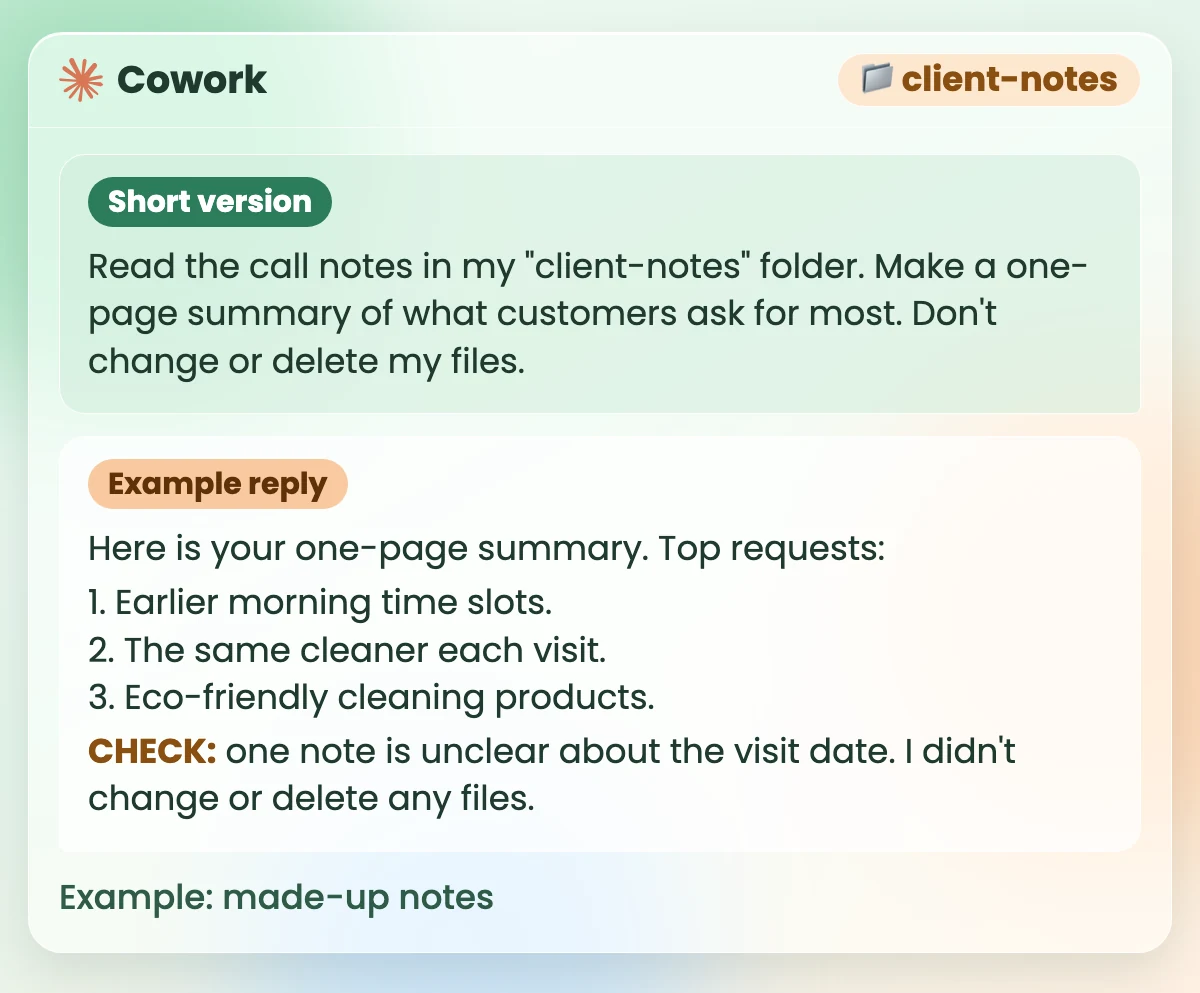
Short version (for a quick test): Read the call notes in my “client-notes” folder. Make a one-page summary of what customers ask for most. Don’t change or delete my files.
What you should see: a new document named client-notes-summary, with the three parts you asked for and a CHECK next to anything unclear. It is saved back into the client-notes folder on your computer, and it also appears alongside the conversation, where you can open it. If Claude says it can’t find the folder, check that you picked it, that it is listed under Settings > Trusted folders, and that the desktop app is open.
Copy this prompt (Claude Code):
This folder has notes from customer calls this month.
Read every file in it and make a one-page summary.
Save it as a new file called client-notes-summary.md in this folder.
Include:
- The 5 things customers asked for most, and which notes mention each one.
- Any complaint that needs a reply this week, with the file name it came from.
- 3 short ideas to fix the most common complaint.
Rules:
- Don't edit, move or delete any existing files.
- Use only what the notes say. Don't add facts.
- If something is unclear, write CHECK next to it.
- Ask me before you run any command.
What you should see: a request to create the file, then a new file named client-notes-summary.md inside the client-notes folder on your computer. A Changes card shows the new file; click it to see what was written. The “.md” ending just means a plain text file with simple formatting. You can open it in any text app.
For Maya’s job, Cowork is the easier pick. It’s office work, and the result is a document she can read and share. Claude Code makes sense if she wants the summary saved as a file in a project she keeps adding to, or later wants a small tool built around it.
Either way, the summary isn’t done until she checks it. Open a few of the notes (I’d pick three, my suggestion) and make sure the summary says what they say. If she shares it with her team or clients, my guide on how to edit AI content so it sounds human helps her make it sound like her.
Both tools can take busywork off your plate. They also have limits that most demos skip.
Watch out
Want more jobs you can hand to AI safely? See 8 simple ways to use AI for SEO, each with a clear line between what AI does and what you keep.
Both let Claude do a multi-step job for you, and Anthropic says Cowork uses the same agentic approach as Claude Code. Cowork is built for office work like research, reports and documents, inside the normal Claude app. Claude Code is a coding tool that works in a project folder, from the Code tab, the web or a terminal.
Neither is better for everything. Cowork is the better fit when the result is a document, report or spreadsheet. Claude Code is the better fit when the result is code, a website or many files changed in one folder.
Use Cowork for reports, spreadsheet checks, research, call notes and scheduled weekly jobs. Use Claude Code to build or fix a website or script, or to change many files in one folder. The table in this post matches common jobs to each tool.
Chat answers you message by message. Cowork works through a multi-step task across your files and tools. Anthropic says Cowork uses your limits faster than Chat, so keep quick questions in Chat.
You need a paid plan, and neither is on Free. Anthropic’s Cowork guide says: “Claude Cowork is available on paid plans (Pro, Max, Ultra, Team, and Enterprise)”. On Team and Enterprise, an owner can switch Cowork off, so ask yours if it’s missing. On 2026-11-13, Pro was $17 a month billed yearly or $20 billed monthly. Check claude.com/pricing for today’s price.
Anthropic doesn’t say on the pages I checked. It says Cowork uses limits faster than Chat, and multi-step tasks use more of your usage than a quick question. It gives no exact numbers, so be wary of any post that quotes them.
Yes. Anthropic’s guide says you can use it even if you’ve never used a terminal, and that you don’t need to know how to code. You describe what you want in plain English. The Code tab in the Claude Desktop app lets you skip the terminal.
No. Anthropic says Cowork runs on web and mobile too. You need the Claude Desktop app only when Claude should work with folders or apps on your computer.
You don’t have to learn both tools this week. Pick one job you redo every week, like a report or a pile of notes.
If the result is a document, open Cowork. If it’s code or a folder of files, open Claude Code. Make a working folder of copies, paste the prompt from the example, and watch the first run. That’s your claude cowork vs claude code decision, made on a real job.
Want more copy-ready AI workflows like this one? Grab my free AI Workflow Starter Kit. And for more guides, browse the blog.

12+ years in digital marketing. I test every workflow on real work before I share it, free tools first.
More about me →Steps, a copy-paste prompt and the limits I found. Free, nothing to buy.
Get the Free Starter Kit →