Physical Address
304 North Cardinal St.
Dorchester Center, MA 02124
Physical Address
304 North Cardinal St.
Dorchester Center, MA 02124

Save a caption voice file once, then get a short, medium and long version of every caption from one free prompt, and run a short check for the first line, one call to action and hashtags before you paste.
A caption has three jobs on a small screen: make someone stop, tell them one thing, and ask for one action. Doing all three in a hurry is hard, and doing them again for every platform you post on takes longer still, even with an AI social media caption generator writing the words.
A caption that fits a quick Instagram photo is too thin for LinkedIn, so the same thought gets written twice, sometimes three times, at different lengths.
This post builds a caption generator of your own from three things you keep in a notes app. A voice file records how you write. A Caption prompt turns today’s real details into a short, a medium and a long caption in one go. A check looks at the first line, the call to action and the hashtags before anything goes out. All three run in Claude or ChatGPT.
The voice file is a one-off job of about 10 minutes. Each post after that is about 10 minutes, check included, and your first may take longer. Both figures are my estimates. Every part ends with the result for Owen, a made-up picture framer, so you can hold yours next to his.
In 30 seconds
Before you start
On this page
Search for a caption generator and many of the results are tools with one box: type a topic, press a button, get a caption. With only a topic to go on, the caption has to stay general. It can’t mention the customer who came in this week, because nobody told it.
The version in this post lives in your notes app and works in any AI chat. It has three parts, and only the first one is work you do once.
| Part | What it does | How often | Time (my estimate) |
|---|---|---|---|
| Voice file | Tells the AI how you write, where you post and how you end a post | Once | About 10 minutes |
| Caption prompt | Turns today’s real details into a short, a medium and a long caption | Every post | About 5 minutes, writing the details included |
| Post-ready check and your read | Catches an unclear first line, extra asks, wrong hashtags and lines you never gave it | Every post | About 5 minutes |
The voice file is what makes it yours. Saved once and pasted into every caption chat, it means the AI starts from how you sound instead of how everyone sounds.
Finding things to post is a different job, and this post skips it. If you’re short on ideas, my ChatGPT prompts for social media start from your customers’ real questions. Come back here once you know what the post is about and need the words.
Running example: Kestrel Frames
Every reply below runs on one invented business, labelled Example: Kestrel Frames, a small picture-framing shop run by Owen. Owen and his shop are made up for this post, and so is every detail about them. He posts on Instagram, Facebook and LinkedIn, and this week he has one photo to share.
A voice file is a short note that describes how you write: the words you use, the words you’d never use, your emoji and hashtag habits, and what you usually ask readers to do. Most people can’t describe their own style on the spot. So here the AI interviews you, one question at a time, and writes the note from your answers.
Two details make it work later. The file starts with a fixed first line, so you always know which note to paste. And anything you didn’t answer gets the marker [ADD] instead of a guess, so the caption prompt knows to leave that part alone.
Your moves
The Voice file prompt (copy all of it):
Help me make a voice file for my social media captions. Don't write any captions yet.
Ask me these 6 questions one at a time, and wait for my answer each time:
1. What is your business, in one line, and who buys from you?
2. Where do you post?
3. Paste 2 or 3 captions you wrote yourself and liked. (Or paste style notes you already have, or write "none".)
4. Which words do you use a lot, and which would you never use?
5. How do you use emojis and hashtags in each place you post?
6. What do you usually ask readers to do at the end of a post?

After my sixth answer, write my voice file.
Start with this exact first line: My caption voice file
Then short bullet points under these headings: Business, Readers, Where I post, How I sound, Words I use, Words I never use, Emojis and hashtags, Usual call to action.
Use only my answers. Where I didn't answer something, write [ADD]. Don't guess.
What happens in the chat: the AI asks question 1 and waits. After your sixth answer, it writes the file. Here’s how that went for Owen.
| Question | Owen’s answer (Example) |
|---|---|
| 1. Business and buyers | Kestrel Frames, a small picture-framing shop. People bring in photos, prints and kids’ drawings. Some offices order frames for their walls. |
| 2. Where you post | Instagram, Facebook and LinkedIn. |
| 3. Your own captions | “A wedding photo from 1984 came in with a cracked frame. It goes home Friday in a new one.” “Kids’ drawings deserve more than the fridge door. Bring one in and I’ll show you three frame options.” |
| 4. Words you use, words you’d never use | I say “bring it in”, “goes home” and “frame options”. I never say “stunning”, “elevate” or “must-have”. |
| 5. Emojis and hashtags | No emojis. A few hashtags at the end on Instagram, none on LinkedIn. |
| 6. Usual ending | “Bring it in this week” or “Message me a photo of it.” |
Owen’s voice file, as the AI wrote it (Example):
My caption voice file
– Business: Kestrel Frames, a small picture-framing shop.
– Readers: people who bring in photos, prints and kids’ drawings, and offices that order frames for their walls.
– Where I post: Instagram, Facebook, LinkedIn.
– How I sound: short, plain sentences. I start with the thing being framed. No exclamation marks.
– Words I use: “bring it in”, “goes home”, “frame options”.
– Words I never use: “stunning”, “elevate”, “must-have”.
– Emojis and hashtags: no emojis. Instagram: a few hashtags at the end. LinkedIn: no hashtags. Facebook: [ADD]
– Usual call to action: “Bring it in this week” or “Message me a photo of it.”
Owen never said how he uses hashtags on Facebook, so the file says [ADD] there instead of inventing a habit. He typed “no hashtags” over it, then saved the note. Everything else came straight from his answers, including “No exclamation marks”, which is what his two captions show.
Ready for the next part when: a note called “My caption voice file” holds every heading, with no [ADD] left.
This is the part you’ll reuse every time. You give the AI your voice file and three lines about today’s post, and it writes the same caption at three lengths. Then you pick a length for each place you post, instead of rewriting.
The three lines matter most. “What I want readers to do” is the only action the caption will ask for, and “Real details” is the only news it can share. Anything you leave out, the prompt tells the AI to mark with [ADD: what’s missing] rather than fill in.
Your moves
The Caption prompt (copy all of it):
Write one social media caption in 3 lengths. Use only my voice file and today's post below.

MY CAPTION VOICE FILE:
[PASTE YOUR VOICE FILE]

TODAY'S POST:
What the photo or video shows: [ONE LINE]
Real details: [1 TO 3 TRUE LINES ABOUT IT]
What I want readers to do: [ONE ACTION]

Give me:
SHORT: 1 or 2 sentences.
MEDIUM: 3 to 5 short sentences.
LONG: 6 to 9 short sentences. Make it longer with more of my real details or my business line, never with new facts.

Rules for all 3:
- The first line must make sense on its own. Many apps hide the rest until someone taps "more".
- End with my action from TODAY'S POST, in my words. One action only.
- No hashtags. I add them after a check.
- If a reader would need a fact I didn't give, write [ADD: what's missing].
- If my voice file says [ADD] somewhere, skip that part. Don't guess it.
The sentence counts for each length are my suggestion, not a platform rule. Change them if your posts usually run shorter or longer.
How to fill today’s three lines (my suggestions):
Owen’s three lines (Example):
| Line | Owen’s input (Example) |
|---|---|
| What the photo shows | A child’s drawing of a red bus in a white frame with a wide white border |
| Real details | A customer brought in a red bus her son drew when he was 4. He’s 11 now and asked to hang it in his room. She picked the white frame and wide border so the drawing stands out. |
| What I want readers to do | Message me a photo of the drawing you want to frame. |
What lands in the chat: three labelled captions, SHORT, MEDIUM and LONG, with no hashtags. The image shows the short and medium versions of the example reply for Owen. His long version is under it.
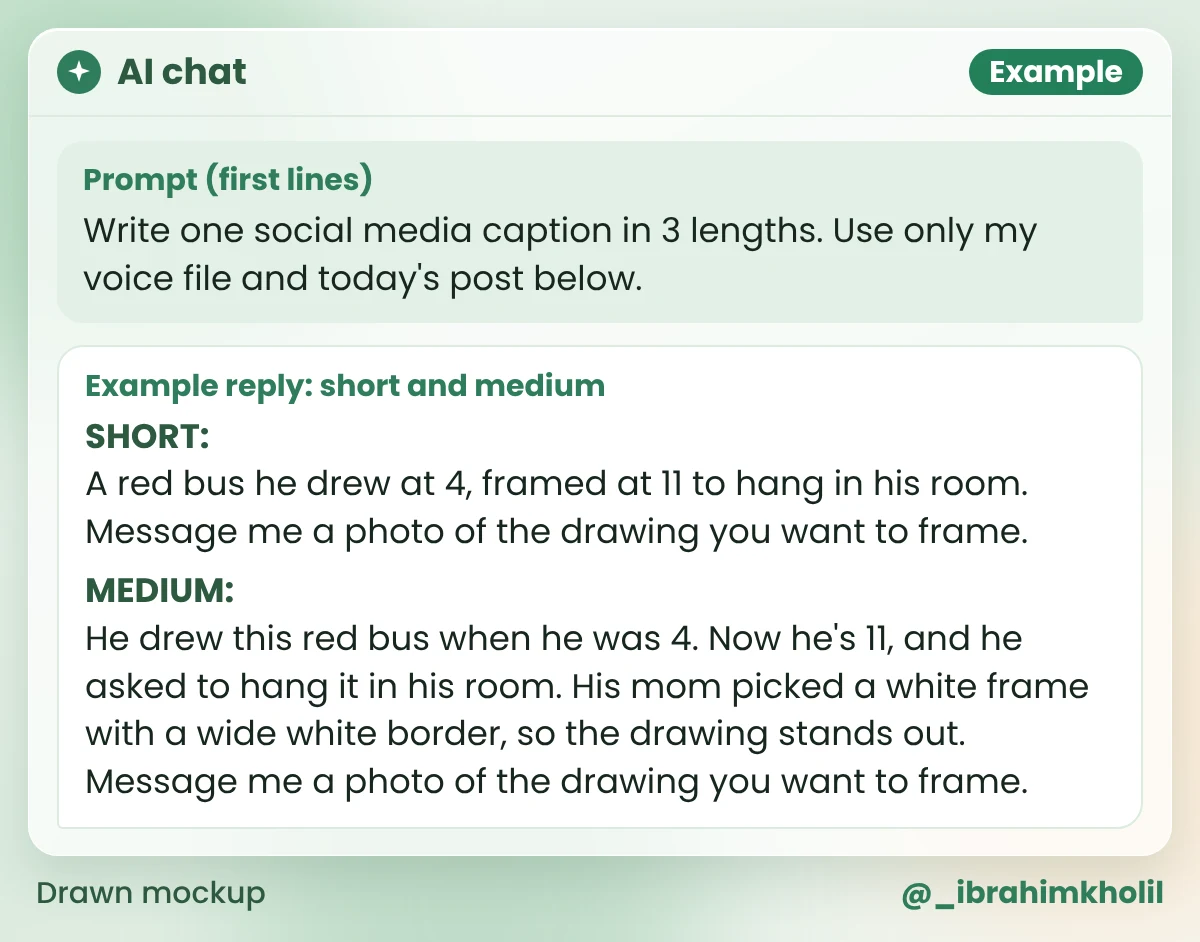
LONG:
A customer brought in a red bus her son drew when he was 4. He’s 11 now. He asked to hang it in his room. She picked a white frame with a wide white border, so the drawing stands out. I frame photos, prints and kids’ drawings, and some offices order frames for their walls too. Message me a photo of the drawing you want to frame.
The long version’s extra length comes from Owen’s own business line: the sentence about photos, prints and offices is lifted from his voice file. The prompt allows that kind of padding, and nothing else.
Ready for the next part when: your “Today’s captions” note holds all three versions, and your “Today’s post” note holds the three lines you used.
Character limits get a lot of attention, and they’re less useful than they seem. Here’s what I could find. I couldn’t open the apps’ own help pages while writing this, so all of it comes from search results:
Limits change, so check the character counter in the app itself if it shows one. Either way, Owen’s long version from the last section is under 400 characters, far below the LinkedIn and Instagram figures above. The limit that matters is the cut-off: a long caption shows only its start until someone taps “more”, so the first line has to do the work.
So pick the length by how much the post needs to say, not by the limit. The card shows where I’d start with each one. These are my suggestions, not platform rules.
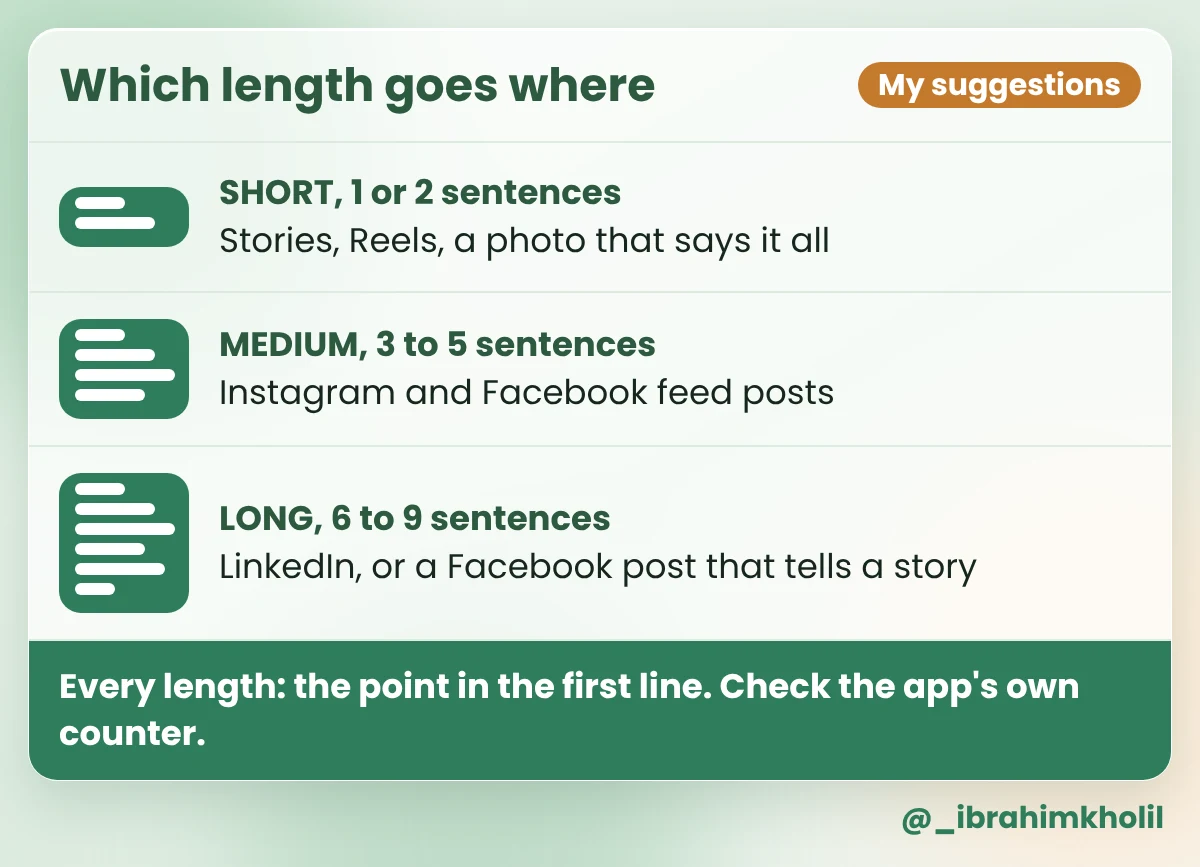
Owen follows the card: the medium version goes on Instagram and the long one on LinkedIn. He keeps the short one for an Instagram story later in the week.
A caption can be true and still go out wrong: two asks instead of one, hashtags on a platform where you never use them, or a line you didn’t give the AI. These are small and easy to miss when the sentences around them read well.
The check has two parts: a prompt that reads the versions you’ll post, then your own read before you paste. Plan on about 5 minutes for both, by my estimate, and a little more the first time you look up hashtags in the app.
The Post-ready check (copy all of it):
Check my captions before I post them. Don't rewrite them.

MY CAPTION VOICE FILE:
[PASTE YOUR VOICE FILE]

TODAY'S POST:
[PASTE YOUR "TODAY'S POST" NOTE]

CAPTIONS (the platform name above each one):
[PLATFORM]
[PASTE ONE CAPTION]
[PLATFORM]
[PASTE ANOTHER CAPTION, OR DELETE THESE TWO LINES]

Answer with one table: a column for each caption, and these 4 rows.
First line: quote it. Write CLEAR if it makes sense on its own, or UNCLEAR and say why.
Call to action: quote every sentence that asks the reader to do something. Write ONE or TOO MANY.
Hashtags: follow my voice file for this platform. If I use hashtags there, suggest 3 to 5 that describe this post. If I don't, write NONE.
Not from my facts: quote any sentence that states something today's post and my voice file don't say, and ask me one question about it. If there are none, write NONE.
Under the table, list every [ADD] still in the captions.
Owen’s input (Example): before the check, he added a line of his own to the LinkedIn version, right after the sentence about offices: “Offices, ask me about frames for your walls.” Then he pasted the medium version under Instagram and his edited long version under LinkedIn.
What lands in the chat: one table with a column per platform, and a list of open [ADD] gaps under it. Owen’s example reply:
| Row | Instagram (medium version) | LinkedIn (long version) |
|---|---|---|
| First line | “He drew this red bus when he was 4.” CLEAR | “A customer brought in a red bus her son drew when he was 4.” CLEAR |
| Call to action | “Message me a photo of the drawing you want to frame.” ONE | “Offices, ask me about frames for your walls.” and “Message me a photo of the drawing you want to frame.” TOO MANY |
| Hashtags | #pictureframing #customframing #kidsart #framedart | NONE (your voice file says no hashtags on LinkedIn) |
| Not from my facts | NONE | NONE |
What Owen changed (Example): both asks were his own to choose between. His action line asks for a photo, so that ask stayed, and the office line went into his notes as the start of a separate LinkedIn post. Deleting an ask changes no fact, so by the stop rule he didn’t run the check again. In Instagram he looked up the four suggested tags and kept all of them.
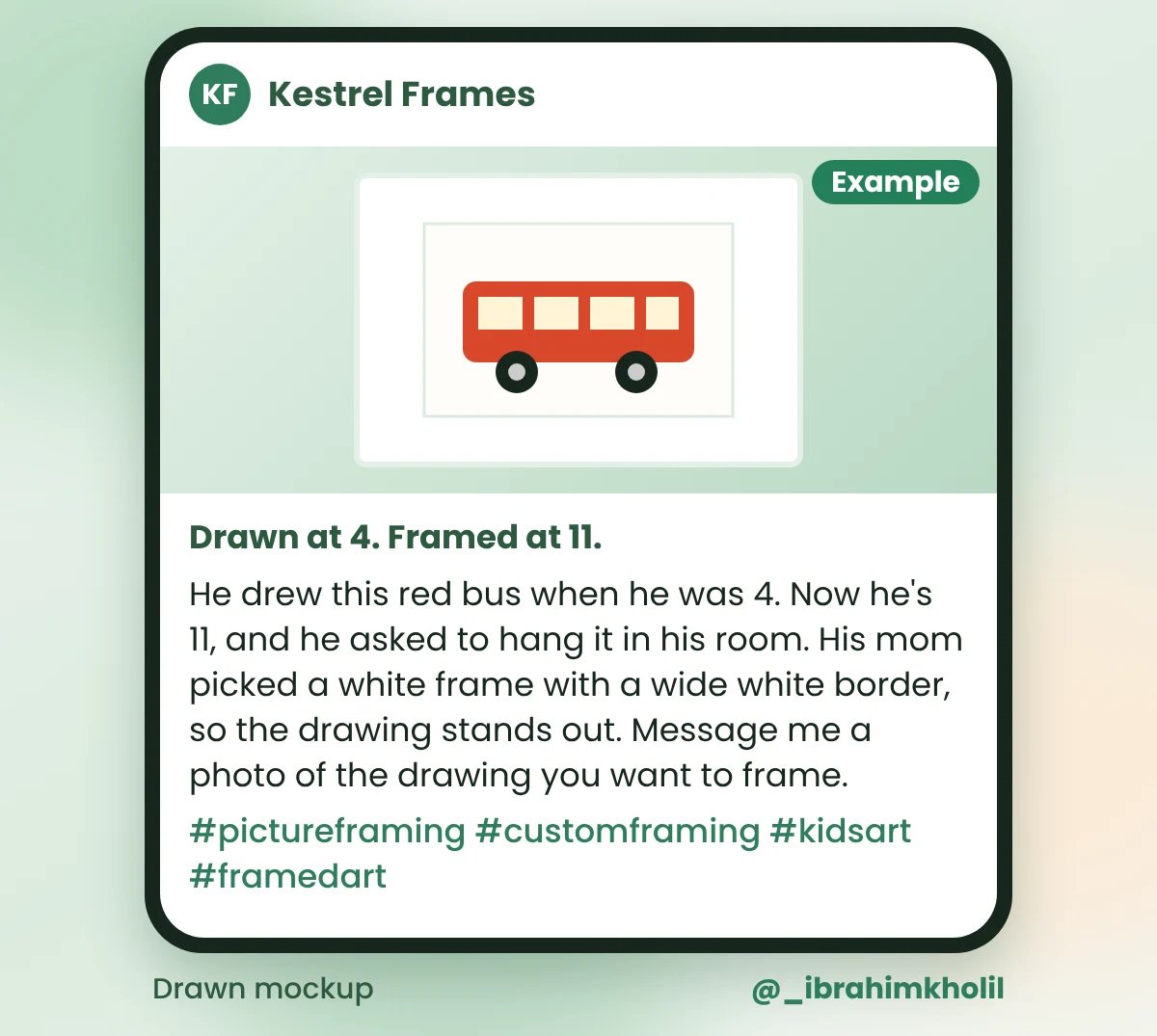
Owen’s read (Example): “He drew this red bus when he was 4.” made sense, but Owen didn’t think it would stop anyone scrolling past. So he wrote a new first line on top, “Drawn at 4. Framed at 11.”, using two facts already in the caption, short like the rest of his posts. Here’s his Instagram post exactly as he pasted it:
What the check can’t do
When you post every week
Once you have a few checked captions, you can write them in one sitting and schedule them. My steps to automate social media posting pick up from here, with you still reading every post before it goes out.
The three prompts here cost nothing, and they run in Claude or ChatGPT. Check each one’s own site for its current plans. ChatGPT’s pricing page, as it reads in search results, lists a free plan with limited messages and uploads that may include ads. Each post here takes two short chats, so check what your plan allows before a busy posting day.
Give it your voice, not just a topic. The Voice file prompt turns your own answers and captions into a note you paste into every caption chat. Add one real detail from your week, and change the first line yourself if it wouldn’t make you stop.
My suggestion is 3 to 5 that really describe the post. News sites reported in December 2025 that Instagram cut the maximum to 5 per post, but I couldn’t find Instagram’s own announcement, and the change may not reach every account at once. Go by what the app lets you add.
Most guides put Instagram at about 2,200 characters, and LinkedIn’s help pages, as they read in search results, say 3,000 for a post. Both can change, so check the app’s own counter. The first line matters more than the limit, because long captions get cut off behind “more”.
You can, but one length rarely suits all three. The Caption prompt gives you a short, a medium and a long version of the same caption, so each platform gets a fitting length without a rewrite. Run the Post-ready check with the platform name above each version, because your hashtag habits may differ by platform.
I couldn’t find a rule that says so for caption text. Meta’s help page on AI content, as it reads in search results, talks about labels on realistic images, video and audio made or changed with AI, not about written captions. Rules change, so check each platform’s current help pages.
Three saved notes do the heavy lifting here. “My caption voice file” means you never explain your style twice, “Today’s post” keeps every caption tied to something that really happened, and the Caption prompt turns one post into three lengths. Kept in your notes app, they make an AI social media caption generator that belongs to you, not to a website.
Start with the six questions. Once the voice file is saved, your next photo needs only three lines from you.
Selling products as well? My AI product description generator steps build shop listings from a fact sheet. And if captions are only half your writing week, my guide to write blog posts faster covers the longer pieces. More copy-ready prompts are in my free AI Workflow Starter Kit.

12+ years in digital marketing. I test every workflow on real work before I share it, free tools first.
More about me →Steps, a copy-paste prompt and the limits I found. Free, nothing to buy.
Get the Free Starter Kit →