Physical Address
304 North Cardinal St.
Dorchester Center, MA 02124
Physical Address
304 North Cardinal St.
Dorchester Center, MA 02124

Seven small AI workflows you can set up yourself: Gmail filters, Google Forms, copy-ready prompts for ChatGPT or Claude, and a human check before anything sends.
Monday, you answer the same shipping question three times. Wednesday, you copy form answers into a spreadsheet by hand. Friday, your new blog post still has no social posts. None of it is hard. It just never stops. So you search for AI workflow automation examples, and you find pages written for big companies, full of tools you’ve never used.
That’s why it feels like automation is for developers. You picture a screen with 40 connected boxes and a monthly bill. And there’s a second worry under the first one: what if a robot emails a customer something wrong?
Most small jobs need far less than that. An AI workflow is three boxes: something starts it, AI does one step, and you check the result. Some of the starting parts are already built into Gmail and Google Forms. The AI step can be a prompt you paste into ChatGPT or Claude. A connector tool like Zapier is optional, for later.
Below are 7 examples. Each one has the click path or a prompt to copy. One made-up shop owner, Elena, runs through all of them, so you can see what you should get. You can set up the first two in one sitting today. That’s about 20 minutes by my estimate, not a measured time.
In short
What you need
On this page
The word “automation” makes it sound like you need a developer. You don’t. A workflow is just a fixed order of steps you already do by hand. Automation means some of those steps happen without you.
IBM describes an AI workflow as using AI tools to make the tasks inside a business run more smoothly. In plain words, every example in this post has the same three boxes:
1. Trigger
Something happens: a new email, a new form answer, a new blog post.
2. AI step
AI reads it and does one job: draft, sort or sum up.
3. Result you check
You get a draft, a row or a list. You read it before it goes anywhere.
Tiny example: a customer email arrives (trigger) → ChatGPT drafts a reply (AI step) → you read it and click Send (result you check).
So where does the “AI” part come in? A normal rule can only follow fixed instructions, like “if the email says shipping, add a label”. It can’t understand what the customer actually wants. An AI step can work with messy text, like a long email or a rambling voice note. Zapier explains the difference the same way. That’s why the examples below pair a simple rule with one AI step.
Meet the example
Example: Elena (a made-up owner of a small online shop that sells handmade soap) runs the shop alone. She gets the same shipping questions, copies custom order requests by hand and rarely promotes her blog posts. We’ll follow her through all 7 AI workflow automation examples.
Let’s be clear before you start. In these examples, the rules run by themselves. The AI steps are copy and paste, on purpose, so you read every reply before it goes anywhere.
| Example | Runs by itself | You do |
|---|---|---|
| 1. Gmail filter | New emails get a label | Nothing after setup |
| 2. Reply draft | Nothing (Example 1 collects the emails) | Paste, check, send |
| 3. Social drafts | Nothing | Paste, edit, post |
| 4. Checklist | Nothing | Talk, paste, check |
| 5. Form to sheet | New answers become rows | Nothing after setup |
| 6. Sort leads | Nothing (Example 5 fills the sheet) | Paste rows, read the table |
| 7. Lead reply | Nothing | Paste, check, send |
So 2 of the 7 run alone today, and the AI steps are yours to start. When the copy and paste starts to feel like a chore, a connector tool can run some of it for you. The tools section shows one connected version, step by step.
“I answer the same three questions every day.” Each email takes two minutes, but they arrive all day, and they pull you away from real work. The fix comes in two parts. First, Gmail collects those emails in one place. Then AI drafts the reply, and you approve it.
Trigger: a new email with a certain word. Result: it gets a label, so all those emails sit in one list. Do this in Gmail on a computer.
Shortcut: tick one of those emails in your inbox, click More (the three dots), then “Filter messages like these”. Gmail starts the filter from that email, so you have less to type.
What you should see: “Customer questions” in your left menu. From now on, new emails with your word get that label. The filter works on new emails, so older ones stay as they are. These button names come from Google’s Gmail help page on filters, and they may look a little different on your screen.
Trigger: an email lands in Customer questions. AI step: ChatGPT or Claude drafts a reply from your shop facts. Result: you read it, fix it and send it yourself.
Copy this prompt (Reply draft):
You help me answer customer emails for my small online shop.
Write a reply to the customer email below.

MY SHOP FACTS (use only these)
- What I sell: [e.g. handmade soap]
- Shipping time: [e.g. 3 to 5 working days in the US]
- Returns: [YOUR RETURN RULE]
- My name to sign with: [YOUR NAME]

RULES
- Under 100 words. Friendly and plain.
- Answer only what the customer asked.
- If the answer is not in my shop facts, write [ASK ME: ...] instead of guessing.
- Don't promise refunds, discounts or dates I didn't give you.

CUSTOMER EMAIL:
[PASTE THE EMAIL]
Save time next time: once your shop facts are filled in, save the whole prompt in a note called Reply prompt. Then you only paste the new email at the bottom.
Example input: Elena’s shop facts are handmade soap, 3 to 5 working days in the US, unused soap can be returned within 14 days, and her name. The customer email (made up for this guide, with private details already removed) says: “Hi! I ordered the lavender soap set on Monday. Will it arrive by Saturday? It’s a gift. Thanks, Sam”
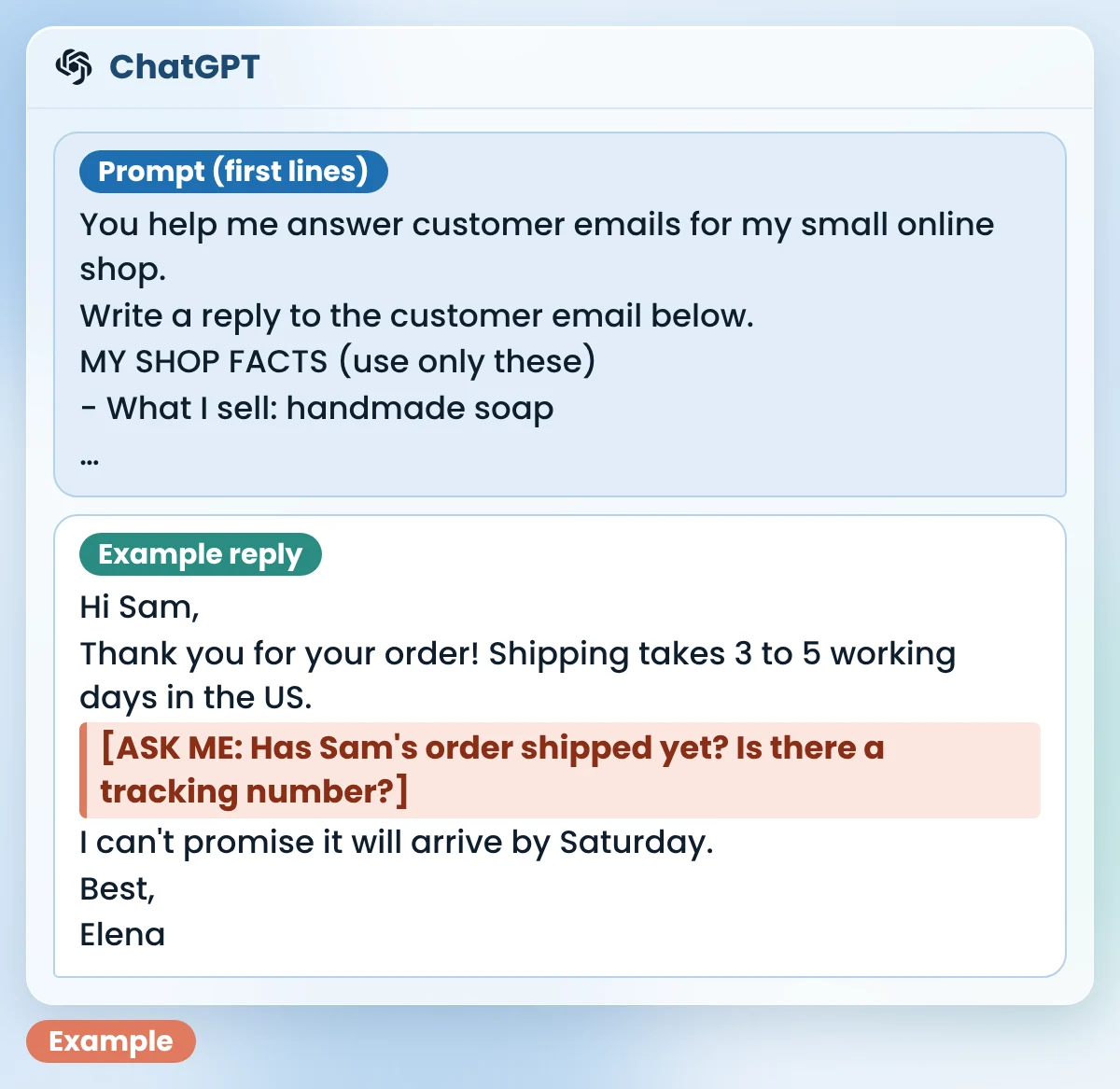
What you should see: a short, friendly reply that uses only your facts. The image above shows Elena’s example reply. Look at the [ASK ME] line: the AI didn’t know if Sam’s order had shipped, so it asked instead of making up a delivery date.
Example fix: Elena checks her shop dashboard and replaces the [ASK ME] line with “Good news: your order shipped today. Your tracking number is [TRACKING NUMBER].” Then she pastes the reply into Gmail and sends it herself.
Good to know
Make one filter per repeat question: one for “shipping”, one for “refund” and so on. Each label gets its own facts in the prompt. For more everyday jobs a chat assistant can take off your plate, see my list of easy ChatGPT uses for small business owners.
You spend hours on a blog post, hit Publish, and then stare at an empty social media box. Promoting the post feels like a second job. So it often doesn’t happen.
Trigger: you publish a post. AI step: AI turns it into three short posts. Result: drafts you edit and schedule.
Copy this prompt (Social drafts):
Turn my blog post below into 3 short social media posts.
- Post 1: one useful tip from the post.
- Post 2: a question that gets my followers talking.
- Post 3: a 2-line summary of the post.
Each post: under 50 words, plain words, no hype words, ends with [LINK].
Use only facts from my post. Don't add new tips.

MY POST:
[PASTE YOUR POST]
Example: Elena pastes her new post, “5 ways to make handmade soap last longer” (made up for this guide). Here is the example reply:
| Post | Example reply for Elena |
|---|---|
| 1. Tip | Keep your soap on a dish that drains, away from the shower stream. A dry bar lasts longer than a wet one. 4 more tips here: [LINK] |
| 2. Question | Be honest: does your soap sit in a puddle? My new post has 5 easy ways to make a bar last longer. [LINK] |
| 3. Summary | Handmade soap goes soft when it stays wet. My new post shares 5 simple ways to keep it dry. [LINK] |
What you should see: three posts, each under 50 words, each using a fact from your post. If a draft adds a tip your post doesn’t have, delete it. The prompt told the AI not to add new tips, but it can still slip.
Want a full week of posts from one article? My guide on how to turn a blog post into social media posts goes further. And if you write the post itself with AI, an AI content brief keeps it on track from the start.
Ideas and to-dos come to you while you pack orders or walk to the post office. You say them out loud or scribble them somewhere. Then they sit in a note and never become tasks.
Trigger: you talk into a note. AI step: AI turns the mess into a list. Result: a checklist you can tick off.
Copy this prompt (Checklist):
Turn my messy notes below into a checklist.
- One task per line, starting with a verb.
- If I said who does it or which day, add it in brackets.
- Put anything that is not a task under "Notes".
- Don't add tasks I didn't mention.

MY NOTES:
[PASTE YOUR NOTES]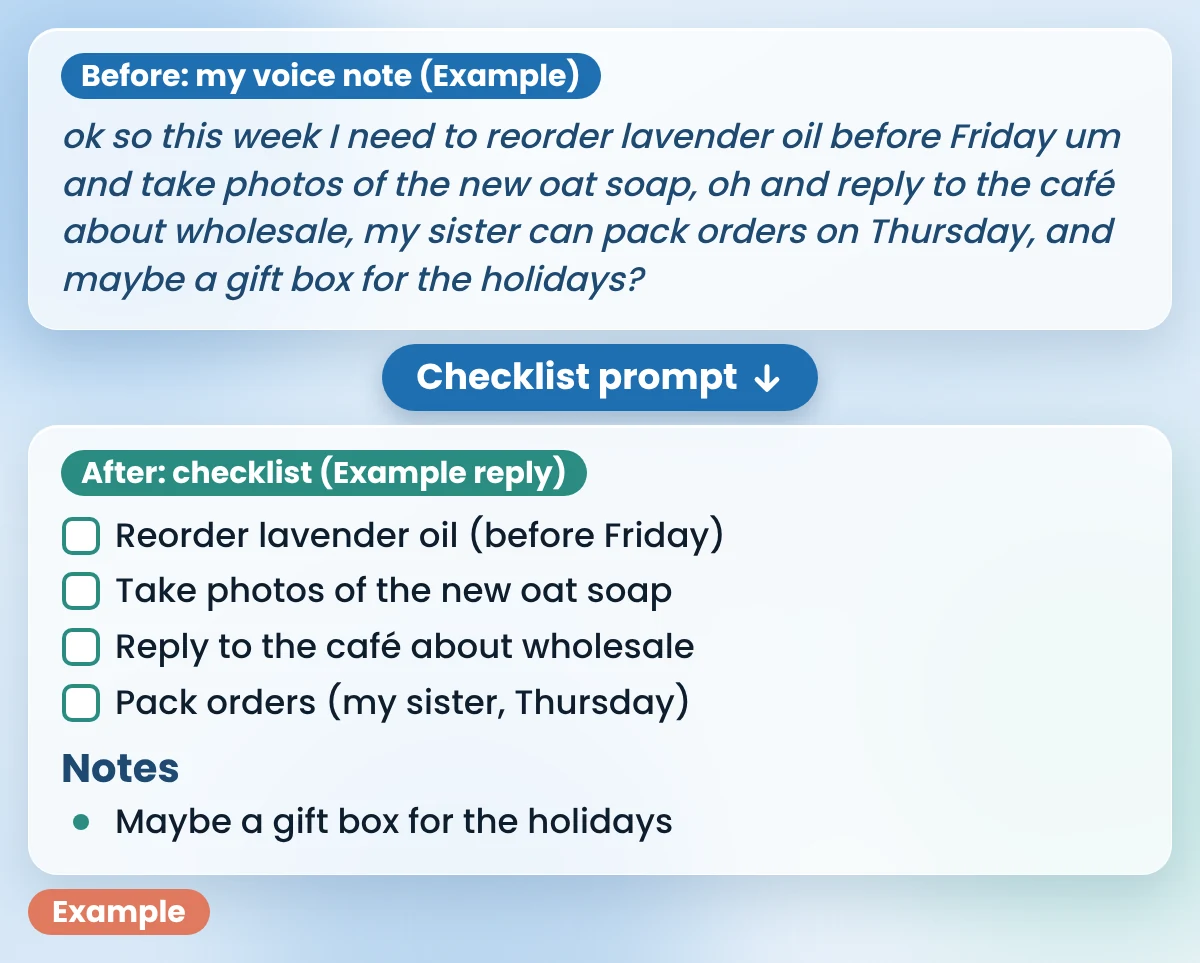
What you should see: one task per line, each starting with a verb, and nothing you didn’t say. The image above shows Elena’s example note before and the checklist after. Her idea about a gift box wasn’t a task yet, so it went under Notes instead of turning into a to-do.
“Leads get lost in my inbox.” Someone asks about a custom order, you mean to reply, and a week later the message is buried. These three examples fix that in a row: the form fills a sheet, AI sorts the new rows, and AI drafts your first reply.
Trigger: someone fills in your form. Result: their answers appear as a new row in a spreadsheet. Google Forms can do this on its own, so you don’t need Zapier for it.
What you should see: a spreadsheet with one column per question. Every new answer lands there as a new row. Google may label these buttons a little differently on your screen.
Example: Elena’s custom order form asks for a name, an email, “What would you like?” and “When do you need it?”. The image below shows three made-up answers in her linked sheet.
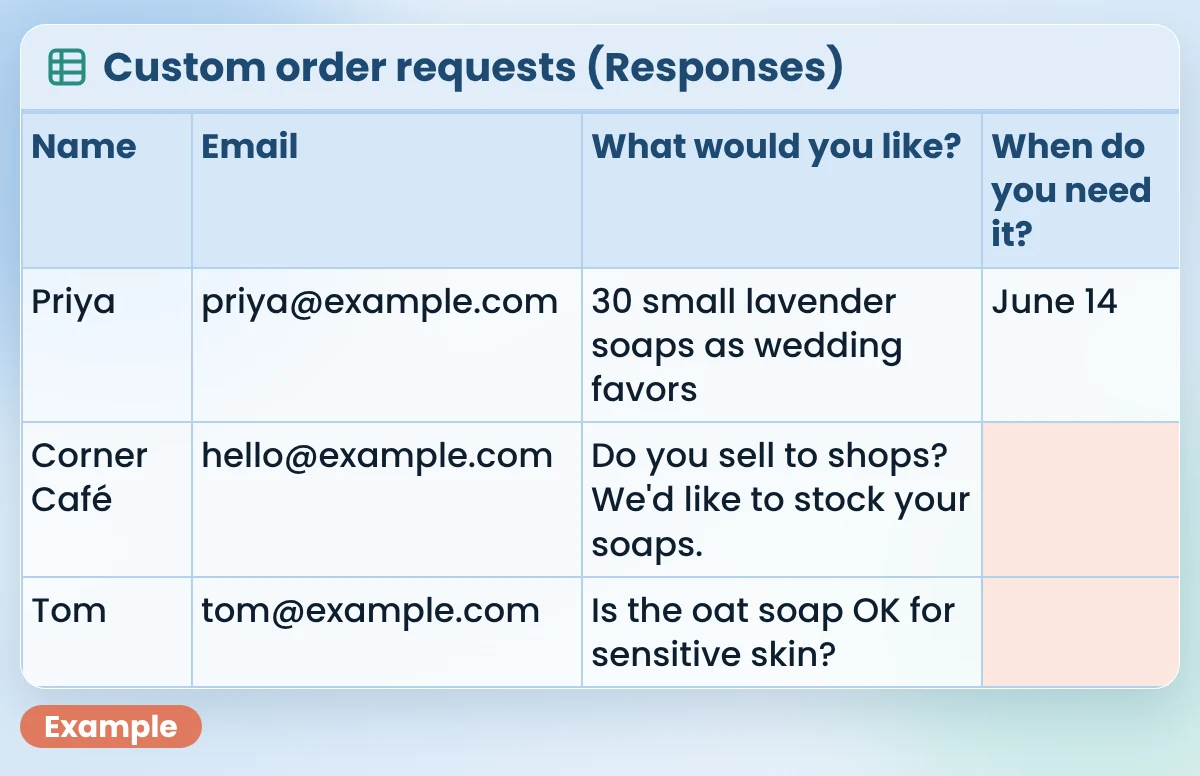
A row of raw answers still needs a decision: is this an order, a wholesale lead or just a question? AI step: sort each row and suggest one next step. Result: a short to-do table.
Copy this prompt (Sort leads):
Sort the form answers below. They come from my shop's custom order form.
Make a table with these columns:
- Name
- Type: custom order, wholesale or question
- What they want (5 words or less)
- Needed by (write "not given" if it's missing)
- My next step (one short action)
Use only what the answers say. Don't guess missing details.

FORM ANSWERS:
[PASTE THE NEW ROWS FROM YOUR SHEET]
Example reply for the three rows in Elena’s sheet:
| Name | Type | What they want | Needed by | My next step |
|---|---|---|---|---|
| Priya | custom order | 30 lavender wedding favor soaps | June 14 | Confirm price and date |
| Corner Café | wholesale | To stock your soaps | not given | Send wholesale price list |
| Tom | question | Oat soap for sensitive skin | not given | Reply with ingredients list |
What you should see: one line per row, with “not given” wherever the form was empty. Notice Tom’s row: the AI didn’t answer his skin question. It only suggested sending the ingredients, which is a reply Elena can stand behind.
Trigger: a row marked wholesale or custom order. AI step: a short first reply. Result: an email you check and send yourself.
Copy this prompt (Lead reply):
Write a short first reply to a new lead for my small online shop.

THE LEAD (from my form)
[PASTE ONE ROW: NAME, WHAT THEY WANT, NEEDED BY]

MY FACTS (use only these)
- What I can offer: [e.g. my wholesale price list as a PDF]
- What I need to know from them: [e.g. how many soaps per month]
- My name to sign with: [YOUR NAME]

RULES
- Under 90 words. Warm and plain.
- Thank them, answer what they asked and ask one question.
- Don't invent prices, dates or discounts. Write [ASK ME: ...] if a fact is missing.
Example: Elena pastes the Corner Café row. Her facts are “my wholesale price list as a PDF” and “how many soaps per month”. The example reply:
Hi Corner Café team,
Thanks for asking about stocking my soaps! I’ve attached my wholesale price list. So I can suggest the right mix, how many soaps would you like each month?
Best,
Elena
What you should see: a short email with one question and no made-up prices. This draft says “I’ve attached”, so Elena attaches the PDF herself before she clicks Send. That small check is the whole point.
Finding leads in the first place is its own job. My guide on how to use AI for lead generation covers that part without spamming anyone.
Search for AI workflow automation tools and you’ll get long lists. You don’t need most of them. Every example above runs on three kinds of tools, and you may already have two of them.
| Kind of tool | What it does here | Cost | Use it when |
|---|---|---|---|
| Gmail filters, Google Forms “Link to Sheets” | Sort email, send form answers to a sheet | Built into Gmail and Google Forms | Always start here |
| ChatGPT or Claude | The AI step: draft, sort, sum up | Free plans exist; check each pricing page | The step needs reading or writing |
| Zapier or Make (connectors) | Join apps so steps run by themselves | Free plans with monthly limits; check each pricing page | You’re tired of copy and paste |
How to pick today: if Gmail or Google Forms has a built-in option, use it. If the step needs reading or writing, paste it into the chat assistant you already use. Add a connector only after you’ve done the same copy and paste for a few weeks and know exactly which steps repeat.
A connector is a tool that passes data from one app to the next for you. In Zapier, one automation is called a Zap. You build it like the three boxes above: pick the app and event that start it, then the app and action that follow.
Zapier has a ready-made template that adds new Google Forms responses to Google Sheets rows. For Example 5 alone, Link to Sheets is the simpler free choice. I show the Zap so you can see the shape every connected workflow has. Zapier’s button names may differ from the words below.
What you should see: each new form answer becomes a row with no click from you. The Zap ends in your sheet, not in anyone’s inbox, so the row works like a draft: nothing goes to a customer until you read it and reply yourself (Examples 6 and 7).
One catch: if someone edits an answer they already sent, the New Response event won’t pick up the change. Zapier also lists a New or Updated Form Response event for that case. An AI step can sit between the trigger and the action too, as Zapier’s guide to AI workflows explains, but check its limits first.
Watch out
Free plans have limits, and AI steps can use them up faster. Make says its AI steps use more credits. I couldn’t confirm how many AI steps Zapier’s free plan allows. Limits also change, so check Zapier’s pricing page and Make’s pricing page before you build anything you’ll rely on.
The scary part of automation is the message you didn’t see. A wrong delivery date or a made-up discount, sent to a real customer. You can avoid that with a few simple habits.
The goal isn’t zero clicks. It’s zero surprises. One quick read before Send costs you seconds, and it protects every customer relationship you have.
Pick the question you answer most often, and build its workflow before you close this tab.
If the draft needs fewer fixes than writing from scratch, you’ve built your first AI workflow. Then pick the next example.
It’s a set of steps where something starts the work (a trigger), AI does one job (like drafting or sorting), and the result moves on to you or the next step. A normal automation follows fixed rules. An AI step can also handle messy text, like a long email.
Yes, for the examples in this post. Gmail filters and “Link to Sheets” are built into Gmail and Google Forms, and ChatGPT and Claude have free plans. Zapier and Make also have free plans with monthly limits, and AI steps can use more of them. Check each pricing page before you build.
No. Every example here uses menus, buttons and prompts you copy and paste. Connector tools like Zapier and Make are also built with clicks, not code.
In my view, drafting replies to repeat questions: Examples 1 and 2. You already know the answers, so it’s easy to check the AI’s draft. And you’ll use it every week.
It’s safest when AI drafts and you send. Keep an approval step before anything reaches a customer, test with a fake entry first, and delete last names, addresses, phone numbers and order numbers before you paste. Never paste card numbers or passwords into a chat assistant.
You don’t need a big system. You need one small loop that runs every week: a trigger you already have, one AI step and your quick check at the end.
Start with the email you’re tired of writing. When that one runs smoothly, add the form. Then the blog post. These AI workflow automation examples are small on purpose: seven small loops you actually run beat one big system you never finish.
Want more copy-ready AI workflows like these? Grab my free AI Workflow Starter Kit. For more guides on AI for marketing and sales, browse the blog.

12+ years in digital marketing. I test every workflow on real work before I share it, free tools first.
More about me →Steps, a copy-paste prompt and the limits I found. Free, nothing to buy.
Get the Free Starter Kit →