Physical Address
304 North Cardinal St.
Dorchester Center, MA 02124
Physical Address
304 North Cardinal St.
Dorchester Center, MA 02124
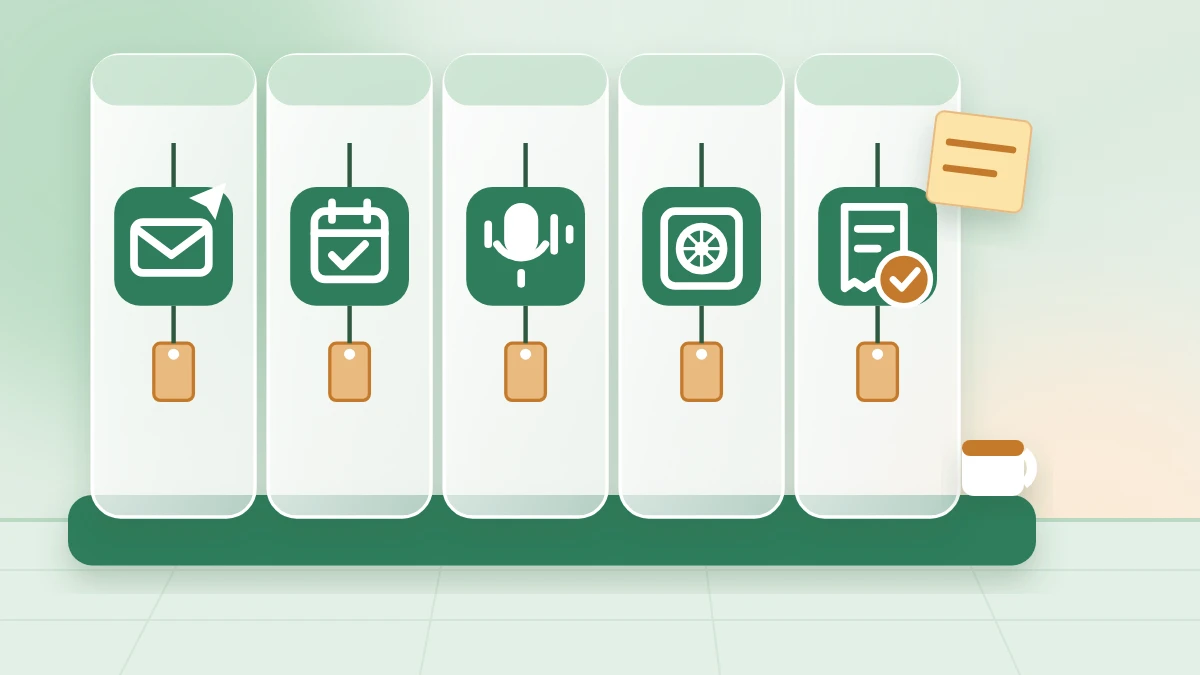
A freelance week, one tool per job: 4 AI tools for the pitch, your English, call notes and graphics, plus 3 free helpers for booking, tracking and invoices, and the one catch in each free plan.
When you freelance alone, one client is really seven small jobs. You find the work, pitch it, book a call, take notes, keep track, deliver and then chase the money. Good AI tools for freelancers can take a piece of each job. Most lists, though, hand you thirty logos and no order to use them in.
Then there’s the word “free”. Nearly every tool on those lists has a free plan, and nearly every free plan has one limit you find out about in the middle of a client job.
A recording that can stop partway through a call. A booking page that allows only one kind of meeting. An AI feature that turns out to be a short trial. After one of those surprises, it’s tempting to go back to doing it all by hand.
What helps is a short list in the order the work happens: one tool per job, with its catch known before you depend on it. Here the week runs from the job post to the paid invoice. That makes four AI tools, plus three free helpers with no AI. The helpers hold what the AI makes, because a strong pitch is wasted if the client can’t book a call.
You don’t need all of them this week. Pick the two that fit your biggest gap. The pick list says when a pair also uses a free chat assistant. Within a week, you can have both set up on free plans and tried on one real client.
In short
What you need
On this page
Each row below is one job in a freelance week. The “AI inside?” column keeps the list honest: four AI tools, and three free helpers with no AI. Every one has a free plan, and each free plan has a catch.
| Job | Tool | AI inside? | The free-plan catch |
|---|---|---|---|
| Pitch a client | Claude or ChatGPT | Yes | Free limits change and aren’t always published |
| Polish your English | Grammarly | Yes | Only 100 AI prompts a month |
| Book the call | Calendly | No | One active event type |
| Notes from the call | Otter | Yes | 30 minutes per conversation, 300 minutes a month (third-party guides) |
| Track clients | Notion | No (Notion AI is only a trial on Free) | No full AI on the free plan |
| Make graphics | Canva | Yes, limited (optional in these steps) | Only some Magic AI tools, no exact quota published |
| Send invoices | Wave or Zoho Invoice | No | Wave: payment fees and Wave branding. Zoho: 5 invoiced customers |
How to pick your first two (my suggestion): start from the job that went worst with your last client. The tools come in pairs. Each line names every tool its steps use.
If you sell products or run a small team instead of selling your own time, my picks of the best AI for entrepreneurs sort tools by other jobs.
Lena’s week (Example)
Lena is made up. She’s a freelance social media manager who runs Instagram for small local businesses, on her own. This week, a small bike repair shop posts a job. Each prompt below runs on her week, so you can hold her reply next to yours. Real projects take longer than five days; the days only keep the jobs in order.
Before you paste client work
A good job post gets a lot of replies, and many of them sound alike: a paragraph about the freelancer and nothing about the client’s problem. The client reads three lines and moves on.
A chat assistant is good at the first draft of a pitch, as long as it works from the client’s own words and your real facts. Claude and ChatGPT both have free plans. Their limits change, so check Claude’s plans and ChatGPT’s pricing page. The client’s words go first, your proof second, and the price stays yours.
Copy this prompt (Pitch):
Write a short reply to this job post. Use only what I tell you.

THE JOB POST (contact details removed): "[PASTE THE JOB POST]"
WHAT I OFFER FOR THIS JOB: [2 TO 4 THINGS YOU WOULD DO]
PROOF I CAN SHARE: [ONE REAL PAST JOB, OR "NONE YET"]
MY PRICE: [YOUR PRICE, OR "ASK ME"]

WRITE
1. First line: their main need, in their own words.
2. What I'd do, as 2 to 4 short lines.
3. One line of proof. If proof is "NONE YET", skip this line.
4. Two questions that help me plan the work.
5. My price, or [ASK ME: price] if I wrote "ASK ME".
6. Last line: invite them to book a short call at [BOOKING LINK].

RULES
- Under 150 words. Plain, friendly words.
- No promises of results, followers or sales.
- If something else is missing, write [ASK ME: ...] instead of guessing.| Prompt line | Lena’s input (Example) |
|---|---|
| The job post | “We’re a small bike repair shop and we also sell used bikes. We need someone to run our Instagram, 3 posts a week, starting in March. Our budget is small.” |
| What I offer | Plan 3 posts a week. Write the captions. Make the graphics. Send a short report each month. |
| Proof I can share | I run Instagram for two local cafés. |
| My price | ASK ME |
What you should see: six parts in order, an [ASK ME] line for the price, and [BOOKING LINK] at the end. The image shows parts 1 to 3 of the example reply. Parts 4 to 6 are under it.
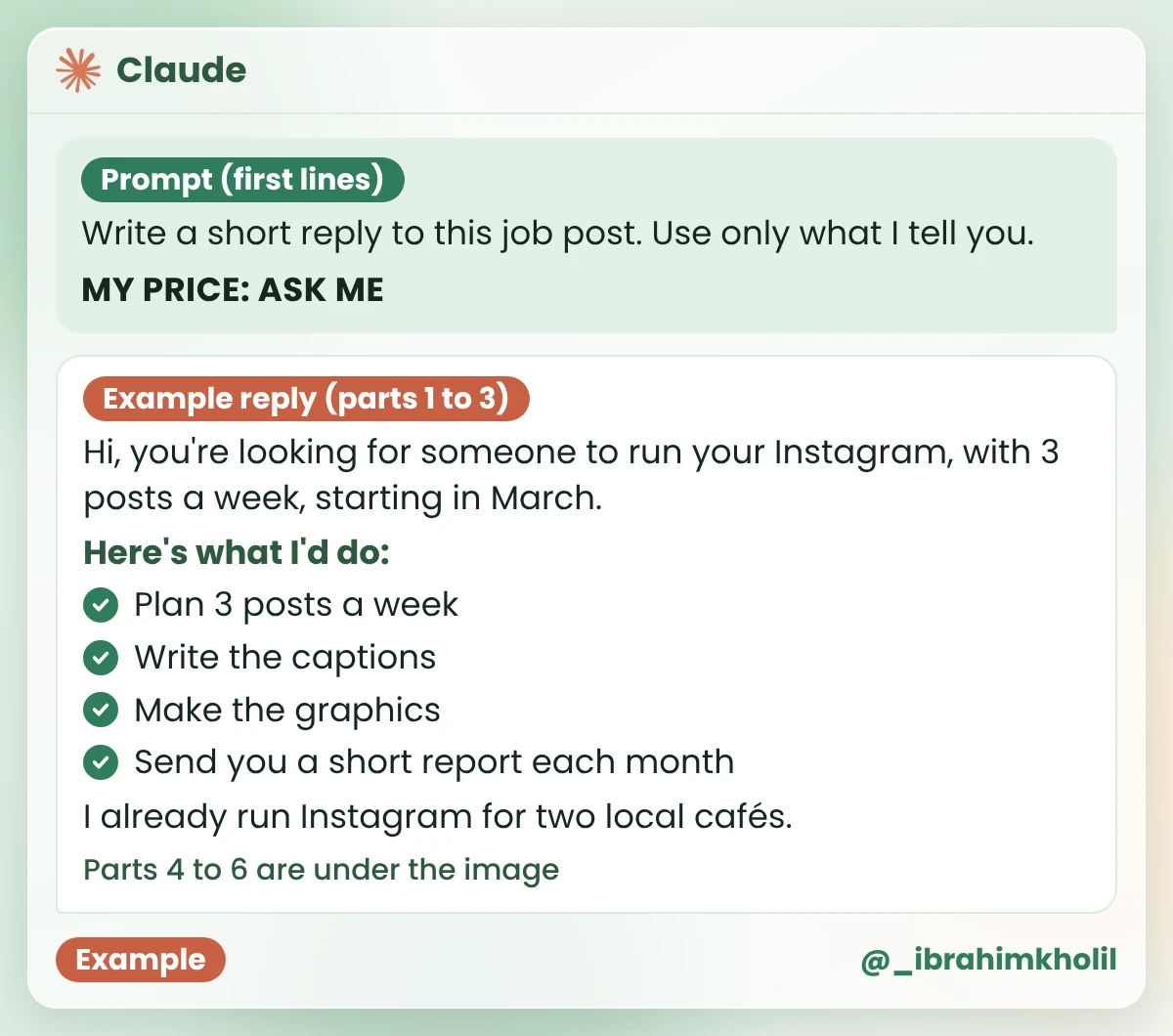
Two quick questions: Should the posts show repairs, used bikes for sale, or both? Do you already have photos of the shop and the bikes?
My price: [ASK ME: price]
If you’d like to talk, you can book a short call here: [BOOKING LINK]
Two things to notice. The reply turned “used bikes” into a question instead of guessing what the shop wants. And it left “Our budget is small” alone, because the price is yours to answer, not the AI’s.
The catch
Free limits on both assistants change, and Claude doesn’t publish its exact free limits. If you hit one halfway through a pitch, you may have to wait or switch. With the prompt saved in your “Freelance prompts” note, you can paste it into the other assistant and carry on.
Good to know
Need more job posts and leads to answer? My guide on how to use AI for lead generation shows how to find clients without spam. If you’re new to chat assistants, start with ChatGPT for small business owners.
The pitch from the chat reads fine. Then you add a line of your own, because it should sound like you, and that’s where a small mistake slips in. When English is your second language, or it’s late, you don’t see it.
Grammarly is a writing assistant that marks mistakes in your English and suggests a fix. It also has AI help built in. Let it check your own lines, and accept a fix only when it keeps your meaning.
What you should see: a few underlined words, each with a suggested fix. Here’s the kind of fix to expect on Lena’s own line (Example; your suggestions will depend on your text):
| Lena’s line (Example) | Flagged | After her fix |
|---|---|---|
| I ride my bike to work everyday, so I know what riders look for. | “everyday” → “every day” | I ride my bike to work every day, so I know what riders look for. |
“Everyday” means ordinary, like everyday clothes. “Every day” means each day. It’s the kind of slip a tired eye reads straight past.
If you’d rather not open a new account today, read the pitch out loud once before you send it. Many slips sound wrong when you hear them.
The catch
Grammarly’s plans page lists 100 AI prompts a month on the free plan. Reviews say bigger rewrites and tone changes sit in the paid plan. Check grammarly.com/plans for what’s included today. For short pitches, my suggestion is to start free and see whether you ever run out.
“Sounds good. When can we talk?” Then come four emails about times and time zones. Sometimes, by the time you agree on one, the client has booked someone else.
Calendly gives you a booking link. The client opens it, picks a time from the hours you set, and the call is booked. There’s no AI here, and you don’t need any. It’s the link that goes where your pitch says [BOOKING LINK].
If a screen stops you, put two times you’re free in the pitch instead of the link, and set up Calendly next week.
If you wrote a pitch on Monday, it’s now ready to send. In your “Pitch draft” note you have the reply from Monday, your own checked line, and the real link where [BOOKING LINK] was. Delete every [ASK ME] text once you’ve answered it, then send the whole note as one message, from wherever the job was posted.
The catch
Calendly’s free plan allows one active event type, with unlimited meetings, according to Calendly’s own help forum and blog. One “Intro call” covers most solo work. If you want a second kind of meeting, such as a longer project call, check calendly.com/pricing for what the paid plans add.
On the call, the client says yes, and then adds “and maybe you could also…”. A week later, nobody remembers whether that extra was part of the deal.
The list of what you agreed to do is called the scope. When it’s written down, an extra job becomes an extra quote, not free work. Otter records a call and turns the speech into text. Then Claude or ChatGPT turns that text into a scope list.
Always ask before you record anyone. Recording rules differ by country, so check the rules where you and your client live. This isn’t legal advice.
Copy this prompt (Scope list):
Here are notes from a call with a new client (names and contact details removed):
[PASTE THE CALL TEXT OR YOUR NOTES]

WRITE
1. IN SCOPE: the jobs I agreed to do, one line each.
2. NOT IN SCOPE: anything they asked for that I did not agree to.
3. OPEN QUESTIONS: anything unclear, as [CHECK: ...].
4. DATES: every date that was said, one line each.
5. TRACKER ROW: Client | Next step.

RULES
- Use only what is in the notes. Don't add tasks.
- Use only dates that were said.
- If a part of the tracker row is missing, write [ASK ME].
- Don't write prices or payment terms. I'll add those myself.| Prompt line | Lena’s call notes (Example) |
|---|---|
| Call text | Client: Three posts a week is fine. Mostly used bikes for sale, some repair tips. Me: So that’s 3 posts a week, with captions and graphics, and a short report each month. Client: Yes. Can you also answer comments and messages? Me: That’s not in this package. I can quote for it separately. Client: OK. Can we start on 3 March? Me: Yes. I’ll need photos of the bikes by the end of February. Client: I’ll send them. Maybe a video too, later. |
What you should see: five parts, with [CHECK] on anything unclear and [ASK ME] where the notes had no answer. Example reply for Lena:
| Part | Example reply for Lena |
|---|---|
| 1. In scope | 3 posts a week: mostly used bikes for sale, some repair tips. Captions and graphics for each post. A short report each month. |
| 2. Not in scope | Answering comments and messages. You offered to quote for it separately. |
| 3. Open questions | [CHECK: “Maybe a video too, later”: is a video part of this job, or a separate quote?] |
| 4. Dates | Start: 3 March. Bike photos from the client: by the end of February. |
| 5. Tracker row | [ASK ME] | Client sends bike photos by the end of February |
The [CHECK] line is the one that matters. “Maybe a video” is how a small job quietly grows without a new price. Lena asks the owner before she starts, and the video becomes a separate quote. The client’s name is [ASK ME] because her notes had none, so she types it into her tracker herself.
The catch
Third-party pricing guides list Otter’s free plan as 300 transcription minutes a month and 30 minutes per conversation, so a one-hour call could be cut off. Those numbers don’t come from Otter’s own page, so check otter.ai before a long call. If a call may run long, keep notes by hand as a backup.
Three clients in, and the details live in your inbox, your notes app and your head. Then a deadline slips, or an invoice never goes out, because nothing reminded you.
Notion is a workspace for pages and tables. On its free plan, one person gets unlimited pages and databases. (A database is Notion’s word for a table with columns.) That’s all a client tracker needs. A tracker needs no AI, so you don’t need Notion AI here.
If the /table menu looks different or you’d rather not add Notion, a Google Sheet or a table in any notes app with the same three columns works just as well.
What you should see: one page called “Clients” with three columns and your first client in the top row.
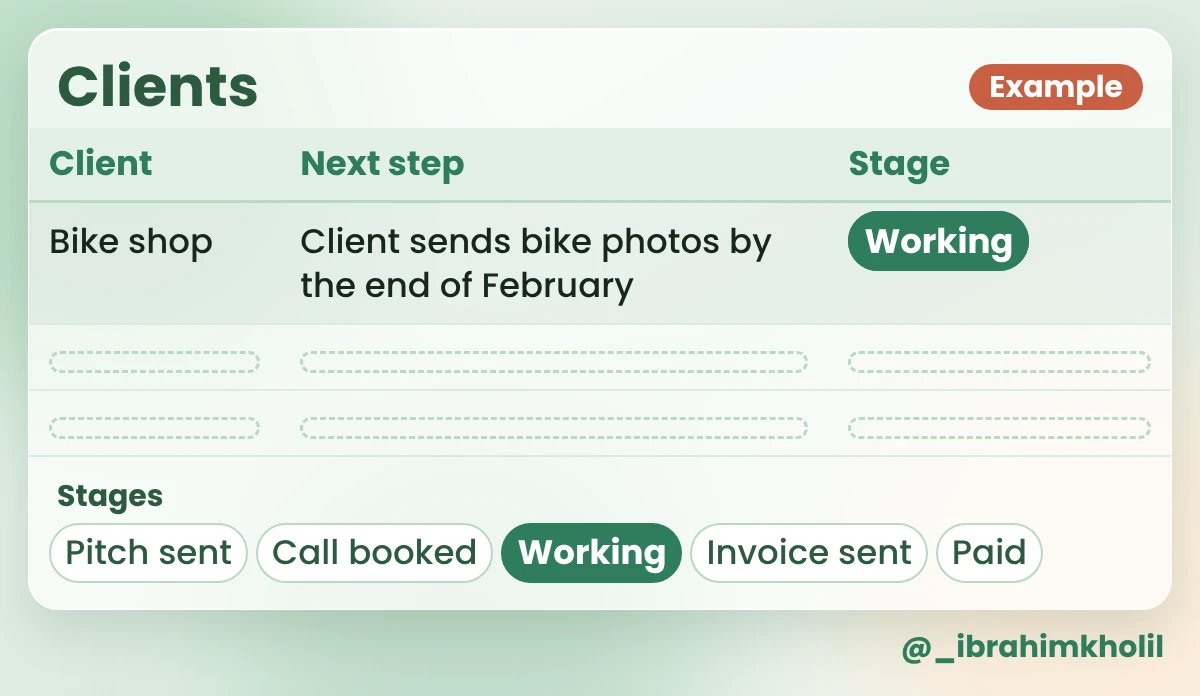
Once a week, open “Clients” and read the Next step column first (my suggestion). When the same steps repeat for every client, my AI workflow automation examples show simple ways to connect them.
The catch
Notion AI is not free. On the Free plan it’s only a limited trial, and full AI starts on a paid business plan, according to Notion’s pricing page in search results and third-party guides. The tracker above uses no AI, so the catch doesn’t touch it. Check notion.com/pricing if you want AI later.
The client has approved three post ideas. Now each one needs a graphic, and the words on it must be short enough to read on a phone.
Canva has ready-made templates for Instagram posts, so you only change the words, colors and photos. Its free plan includes some Magic AI tools, such as Magic Write, with limits. Canva’s own AI is optional in these steps. My suggestion: write the words first in Claude or ChatGPT, with rules that keep them short and stop new facts.
Copy this prompt (Post graphic words):
Turn these approved post ideas into the words for square Instagram graphics. Use only what I give you.

APPROVED POST IDEAS:
1. [IDEA]
2. [IDEA]
3. [IDEA]

FOR EACH IDEA, WRITE
- HEADLINE: 6 words or fewer.
- LINE UNDER IT: 8 words or fewer.

RULES
- No prices, dates or promises I didn't give you.
- If an idea needs a detail I didn't give, write [ASK CLIENT: ...].| Prompt line | Lena’s input (Example) |
|---|---|
| Approved post ideas | 1. Used bike of the week: a blue city bike, fully checked. 2. Repair tip: keep your chain clean and oiled. 3. We fix flat tires while you wait. |
What you should see: a headline and one short line for each idea, and an [ASK CLIENT] line where a detail is missing. The table shows ideas 1 and 2 of the example reply. Idea 3 is in the image under it, already pasted into a template.
| Idea | Example reply for Lena |
|---|---|
| 1 | HEADLINE: Used Bike of the Week LINE UNDER IT: Blue city bike, fully checked. [ASK CLIENT: Do you want the price on the graphic?] |
| 2 | HEADLINE: Keep Your Chain Clean LINE UNDER IT: Clean it, oil it, ride on. |

The AI didn’t add a price to idea 1. It asked, because the prompt said no prices unless you give them. Lena checks with the owner before she designs that one.
The catch
Canva’s free plan gives limited access to some Magic AI tools, and Canva publishes no exact quota for them. Check canva.com/pricing for what the paid plan adds.
If you write the client’s captions too, my guide to ChatGPT for content creators shows how to keep a voice that sounds like one person, not like AI.
The work is done and the client is happy. The invoice is still a blank page, and asking for money feels awkward, so it waits another week.
Wave and Zoho Invoice both let you make and send invoices on a free plan. Neither uses AI here. The AI part is the wording: clear invoice lines, and a reminder that’s friendly instead of awkward.
Which one (my suggestion): up to 5 paying clients and you’d like reminders built in, try Zoho Invoice. More clients than that, try Wave. Either way, first check that it works in your country and that your clients can pay you the way they prefer.
Copy this prompt (Invoice lines):
Write invoice lines and a payment reminder for my work. Don't write any amounts or dates; I'll add them myself.

WHAT I DID: [ONE SHORT LINE PER JOB, OR THE IN SCOPE LINES FROM MY SCOPE LIST]
MONTH: [THE MONTH THE INVOICE COVERS]

WRITE
1. INVOICE LINES: one short line per job, in words the client understands.
2. REMINDER EMAIL: a friendly email of 3 short lines, for when the invoice is late. Put [AMOUNT], [DUE DATE] and [INVOICE NUMBER] where they go.

RULES
- Use only the jobs I listed.
- No late fees, threats or pressure words.| Prompt line | Lena’s input (Example) |
|---|---|
| What I did | 3 posts a week: mostly used bikes for sale, some repair tips. Captions and graphics for each post. A short report each month. |
| Month | March |
What you should see: one invoice line per job, no amounts, and a 3-line reminder with three gaps. Example reply for Lena:
| Part | Example reply for Lena |
|---|---|
| 1. Invoice lines | March posts: 3 a week, mostly used bikes for sale and some repair tips Captions and graphics for each post Monthly report for March |
| 2. Reminder email | Hi, a friendly reminder that invoice [INVOICE NUMBER] for [AMOUNT] was due on [DUE DATE]. If you need it again, just reply and I’ll resend it. If it’s already paid, thank you, and please ignore this. |
There’s no amount anywhere. Lena types her price into the invoice herself, and fills the three gaps in the reminder only if the payment is late.
The catch
Wave: free invoices show Wave’s branding, and payments through Wave have processing fees. Check waveapps.com/pricing for today’s fees. Zoho Invoice: the free plan stops at 5 invoiced customers; see Zoho’s free plan page. For both, check that they work in your country and with the way your clients pay. This post can’t confirm that for every country.
Four AI tools and three free helpers cover the whole week. You only need the pair that fixes your biggest gap, set up on free plans within a week.
For the jobs in a typical freelance week, four AI tools have free plans: Claude or ChatGPT for pitches and other writing, Grammarly for your English, Otter for call notes and Canva for graphics. Three free helpers with no AI (Calendly, Notion and Wave or Zoho Invoice) hold the booking link, the client list and the invoices. Each free plan has a catch, listed in the table at the top. Check each tool’s plan page before you rely on it.
Start with the job that went worst with your last client, and set up the pair of tools for it. If you can’t decide, Claude or ChatGPT is the most flexible first pick, because pitches, scope lists, graphic words and invoice lines all start in a chat.
No. On Notion’s Free plan, Notion AI is only a limited trial, and full AI starts on a paid business plan, according to Notion’s pricing page in search results and third-party guides. The client tracker in this post uses Notion’s free plan without AI. Check notion.com/pricing for the current plans.
Third-party pricing guides say yes, with a limit of 30 minutes per conversation and 300 minutes a month. Check Otter’s own site for today’s limits. Always ask the client before you record, and check the recording rules where you both live. This isn’t legal advice.
Only after you remove names, email addresses, phone numbers and anything private. Never paste client secrets, contracts or work under an NDA into a free AI tool. Look at each tool’s data settings, and when you’re unsure, ask the client first.
I can’t confirm that for every country. Check on Wave’s or Zoho’s own site that the tool works where you live, and which payment methods your clients can use, before you send your first invoice.
Free tools can carry most of a solo freelance week, as long as you know where each free plan stops. The four AI tools help with the words, the call notes and the graphics. The three free helpers hold the booking link, the client list and the invoices. The decisions stay yours.
Pick the job that went worst with your last client, and set up its pair this week.
My free AI Workflow Starter Kit has more copy-ready workflows like these.

12+ years in digital marketing. I test every workflow on real work before I share it, free tools first.
More about me →Steps, a copy-paste prompt and the limits I found. Free, nothing to buy.
Get the Free Starter Kit →