Physical Address
304 North Cardinal St.
Dorchester Center, MA 02124
Physical Address
304 North Cardinal St.
Dorchester Center, MA 02124

How to automate social media posting without sounding like a robot: AI drafts a week of posts from your own facts, you check every line, and a scheduling tool posts them at set times. Five steps, each with a prompt to copy and an example reply.
Most guides on how to automate social media posting start with a tool. Pick a scheduler, connect your accounts, done. Then the tool opens an empty calendar and waits for posts you don’t have.
That’s where most people stop, and the page goes quiet again. The tool was never the hard part. Having a week of posts ready, and checked, in one sitting is. The fear of sounding like a robot is about the writing too, not the timing.
Split the job three ways. AI turns your facts into a week of drafts. You check every post. A scheduling tool posts them at the times you pick. I call it plan once, check once, schedule once.
Five steps follow, and Hana, a made-up bakery owner, walks through all of them. Each step ends with the reply you should see. Allow about an hour for your first week (my estimate, not a measured time).
In short
What you need
On this page
“I’m afraid automation will make me look fake.” That fear makes sense. Nobody wants a page full of posts that could be about any business.
But a scheduled post isn’t fake. It’s a post you wrote and checked, sent out on Tuesday at 8 a.m. while you’re busy with customers. The fake feeling comes from posts nobody read before they went live. Hand off the parts that don’t need you, and keep the parts that do:
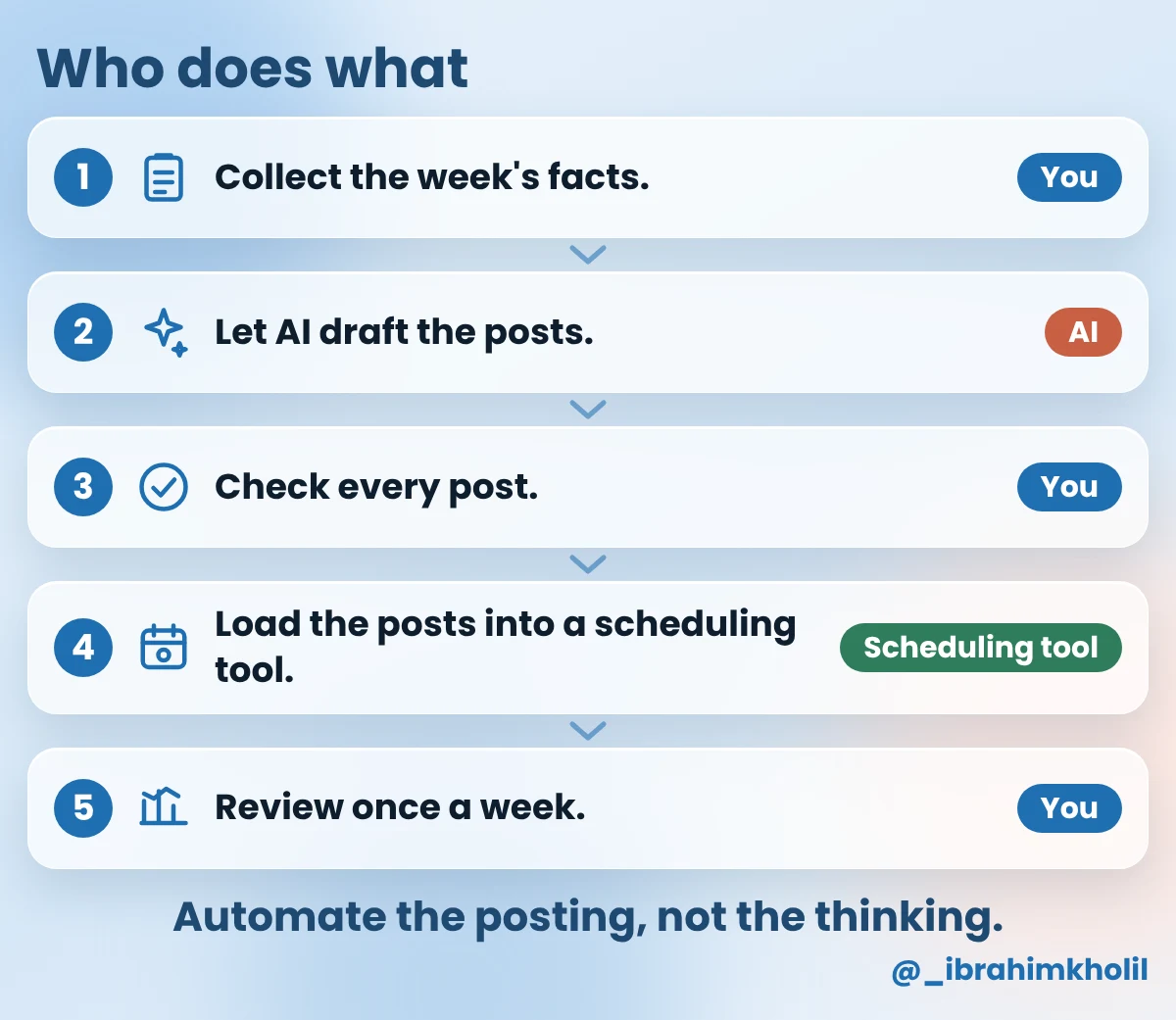
Some setups connect AI straight to a scheduling tool, so posts go out with no one reading them. This post doesn’t do that, on purpose. One wrong price or allergy line, posted to everyone, costs more than the few minutes a check takes. If you want to see how connected workflows keep a human step, my AI workflow automation examples show it.
When you post “when you remember”, you post when you’re free. And a busy owner is never free. The fix is one sitting, once a week:
Meet Hana
Example: Hana (a made-up owner) runs a small neighborhood bakery. She posts on Instagram and Facebook, but only when she remembers. She wants 3 posts a week without giving up her evenings. We’ll follow her through all 5 steps.
Your week is full of post ideas: something new, a customer’s question, the early start nobody sees. They just don’t come out when you stare at a blank caption box. An interview pulls them out. The assistant asks, you answer in your own words, and it puts the answers in one note that every later step uses.
Copy this prompt (Week facts):
Help me collect facts for next week's social media posts.
Ask me these 6 questions, one at a time. Wait for my answer each time.
1. What do you sell, and who buys it?
2. On which days and platforms do you want to post next week?
3. What is new or happening next week?
4. What did a customer ask you lately, and what is your answer?
5. What happens in your work that customers don't usually see?
6. What one thing should people do next (call, visit, order or comment)?
After my 6th answer, write my answers as a note with the title "Week facts".
Use my words. Don't add anything I didn't say.
What you should see: one question at a time, then a short note titled “Week facts”. Hana’s answers (Example):
| Question | Hana’s answer (Example) |
|---|---|
| 1. What you sell | A small neighborhood bakery. Bread and pastries for people who live nearby. |
| 2. Days and platforms | Tuesday, Thursday and Saturday, on Instagram and Facebook. |
| 3. What’s new | Cardamom buns are back on the counter from Thursday. |
| 4. A customer question | “Do you have anything without nuts?” The plain sourdough loaf has no nuts in its recipe. But we bake everything in one kitchen that also uses nuts. |
| 5. Behind the scenes | The first loaves go in the oven at 5 a.m. |
| 6. Next step for people | Order Saturday bread by phone until Friday at 5 p.m. |
Example reply after her 6th answer:
Week facts
Business: a small neighborhood bakery. Bread and pastries for people who live nearby.
Post on: Tuesday, Thursday and Saturday. Instagram and Facebook.
New: cardamom buns are back on the counter from Thursday.
Customer question: “Do you have anything without nuts?” Answer: the plain sourdough loaf has no nuts in its recipe, but everything is baked in one kitchen that also uses nuts.
Behind the scenes: the first loaves go in the oven at 5 a.m.
Next step: order Saturday bread by phone until Friday at 5 p.m.
Every line is one of Hana’s answers. Nothing was added. Read your note the same way: if a line says something you didn’t say, delete it before Step 2.
Yes, as first drafts. With the “Week facts” note, the assistant can draft the whole week in one reply. Three posts that each start from an empty box is how posting stops; three drafts you only need to edit is a job you can finish tonight.
Copy this prompt (Week posts):
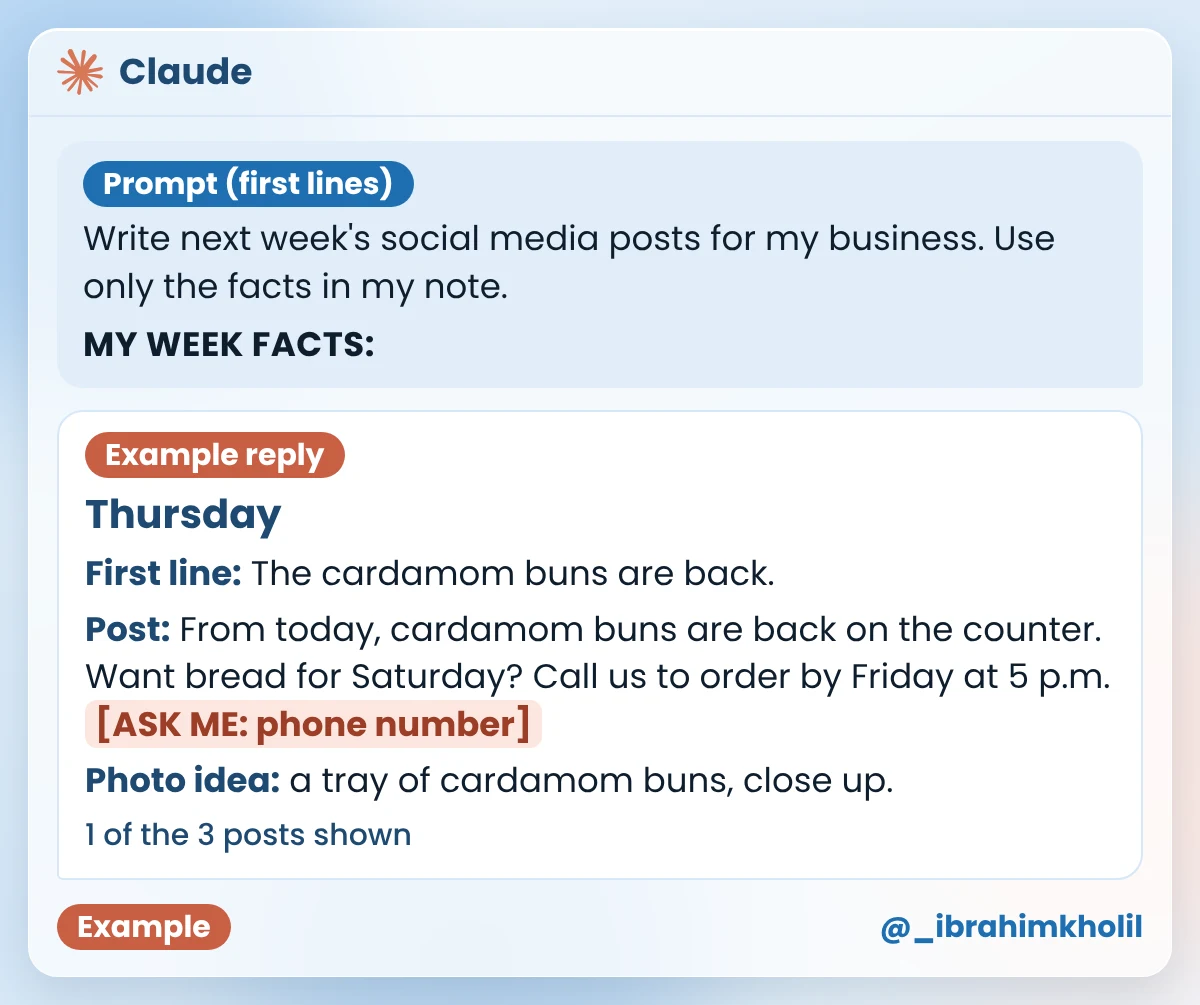
Write next week's social media posts for my business. Use only the facts in my note.

MY WEEK FACTS:
[PASTE YOUR "Week facts" NOTE]

DO THIS
1. Write one post for each posting day in my note.
2. For each post, give: the day, a first line that makes people stop, the post text (under 80 words) and one photo idea I can take myself.
3. End each post with one simple action from my note, or ask a question people can answer in the comments.

RULES
- Plain, friendly words. No hype words.
- Write each post so I can use it on every platform in my note.
- Don't invent prices, dates, phone numbers, offers or health claims. If you need one, write [ASK ME: ...].
What you should see: one post per posting day, each with a day, a first line, the text and a photo idea. Example reply for Hana:
| Day | Example reply for Hana |
|---|---|
| Tuesday | First line: Do you have anything without nuts? Post: A customer asked us this recently. Our sourdough is a safe nut-free choice. Got a question for us? Ask it in the comments. Photo idea: the plain sourdough loaf on the counter. |
| Thursday | First line: The cardamom buns are back. Post: From today, cardamom buns are back on the counter. Want bread for Saturday? Call us to order by Friday at 5 p.m. [ASK ME: phone number] Photo idea: a tray of cardamom buns, close up. |
| Saturday | First line: Our first loaves go in the oven at 5 a.m. Post: We bake bread and pastries for people who live nearby. Which loaf do you pick first? Tell us in the comments. Photo idea: the oven door at 5 a.m., with the first loaves inside. |
Compare each line with Hana’s note. Almost every one comes from her answers, and the closing questions come from the prompt’s “ask a question” rule. Thursday’s post left the phone number as [ASK ME], because it wasn’t in the note. But Tuesday’s post says “a safe nut-free choice”, and that’s not what Hana said. Even with a “use only my facts” rule, a draft can slip. That’s why Step 3 exists.
Good to know
Want the posts to sound more like you? My ChatGPT prompts for social media show how to write style notes from your own past posts. If you have a blog, one new article can be a whole week of facts: here’s how to turn a blog post into social media posts.
A scheduled post goes out while you’re not looking. If it has a wrong time or a claim you’d never make, you find out from a customer. Check it while it’s still a draft: the assistant marks the lines to look at, and you decide what’s true.
Copy this prompt (Post check):
Check these posts against my facts before I schedule them. Don't rewrite them.

MY WEEK FACTS:
[PASTE YOUR "Week facts" NOTE]

MY POSTS:
[PASTE THE POSTS]

For each post:
1. Mark CHECK on any sentence that says something my facts don't say.
2. Mark CHECK on any price, date, time, phone number, health or safety claim.
3. Under each CHECK, ask me one short question.
If a post has nothing to check, write "OK".
What you should see: a CHECK line with a question for each risky sentence. Example reply for Hana, and the line after her fix:
| Post | Example reply | Hana’s fix |
|---|---|---|
| Tuesday | CHECK: “Our sourdough is a safe nut-free choice.” Your facts say the plain sourdough has no nuts in its recipe, but it’s baked in a kitchen that also uses nuts. Do you want to say exactly that instead? | Our plain sourdough loaf has no nuts in its recipe. But we bake everything in one kitchen that also uses nuts, so please ask us if you have an allergy. |
| Thursday | CHECK: “Call us to order by Friday at 5 p.m. [ASK ME: phone number]” Is Friday at 5 p.m. right, and which number should people call? | Call us on [her shop’s number] to order by Friday at 5 p.m. |
| Saturday | CHECK: “Our first loaves go in the oven at 5 a.m.” Is 5 a.m. right? | No change. 5 a.m. is right. |
The Tuesday line was the dangerous one. “Nut-free” is a safety promise Hana never made. One check caught it before it reached a customer with an allergy.
“There are so many scheduling tools.” True, and comparing them can eat the hour you saved. You don’t need the best one. You need one that works with the platforms you already use.
These are examples, not a ranking. Each tool’s own site lists the platforms it supports and its current plans, so check there before you sign up.
| You post on | Start with | Why |
|---|---|---|
| Facebook and Instagram only | Meta Business Suite (business.facebook.com) | Meta’s own tool for both accounts, with post scheduling. |
| 3 or more platforms, or LinkedIn too | A scheduling tool such as Buffer (buffer.com), Hootsuite (hootsuite.com) or Later (later.com) | One calendar for all your accounts. |
| One platform only | That platform’s own scheduling option, if it has one | Nothing new to connect. Its help pages show where to find it. |
How to pick one today: find the row that matches where you post, and open the tool in that row. If you use several platforms, check that the tool’s site names every one of them before you sign up. Hana posts on Facebook and Instagram only, so she starts with Meta Business Suite.
Copy this prompt (Schedule list):
Turn my checked posts into a schedule list I can follow in my scheduling tool.
One row per post. Columns: day, time, platforms, first line, photo to add.
Use only the days, times and platforms I give you. Don't change the posts.

DAYS AND TIMES: [FOR EXAMPLE, TUESDAY 8:00 A.M.]
PLATFORMS: [THE PLATFORMS FROM YOUR "Week facts" NOTE]
MY CHECKED POSTS:
[PASTE THE POSTS]| Prompt line | Hana’s input (Example) |
|---|---|
| Days and times | Tuesday 8:00 a.m., Thursday 8:00 a.m., Saturday 7:30 a.m. (her own choice, not a best-time rule) |
| Platforms | Instagram and Facebook |
| Checked posts | Her 3 posts from Step 3, with her fixes |
How to choose your times (my suggestion, not a rule): pick times when your customers are usually free, such as early morning or evening. Later, if your page’s insights show when your followers are online, move your times toward that.
What you should see: one row per post, in day order. Example reply for Hana:
| Day | Time | Platforms | First line | Photo to add |
|---|---|---|---|---|
| Tuesday | 8:00 a.m. | Instagram, Facebook | Do you have anything without nuts? | The plain sourdough loaf on the counter |
| Thursday | 8:00 a.m. | Instagram, Facebook | The cardamom buns are back. | A tray of cardamom buns, close up |
| Saturday | 7:30 a.m. | Instagram, Facebook | Our first loaves go in the oven at 5 a.m. | The oven door at 5 a.m., with the first loaves inside |
What to paste (Example): Hana’s Tuesday post, with her fix from Step 3, exactly as it goes into the post box. She adds the sourdough photo separately.
Do you have anything without nuts?
A customer asked us this recently. Our plain sourdough loaf has no nuts in its recipe. But we bake everything in one kitchen that also uses nuts, so please ask us if you have an allergy. Got a question for us? Ask it in the comments.
What you should see in the tool: after the last post, the calendar, planner or queue view shows every post in its slot, marked as scheduled. Button names and views differ between tools, so yours may look different from this drawing.
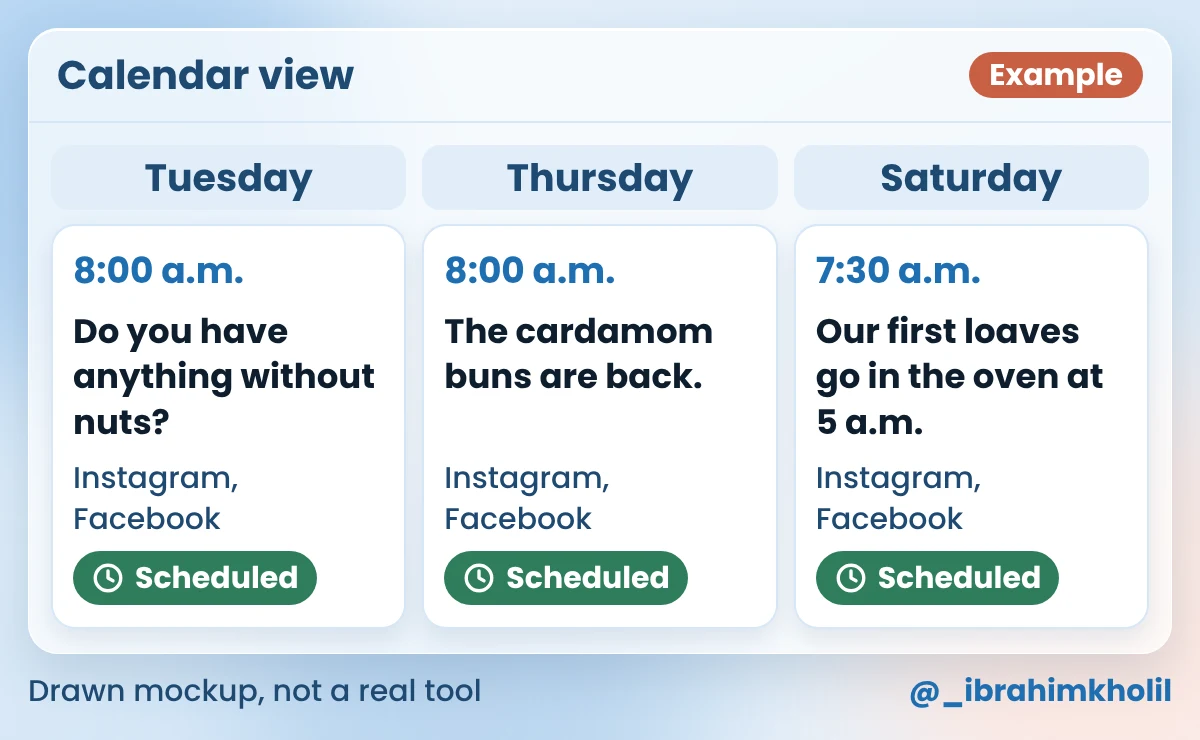
On the first posting day, open the platform a few minutes after the set time. Check that the post is live and the photo looks right. If it isn’t there, open the tool’s queue and look for an error message on that post.
Check each platform’s rules first
Every platform sets its own rules about automated posting and about the apps you connect to it, and those rules can change. Before you connect a tool, read the current rules on each platform’s own help or terms pages, and the tool’s help page for that platform. This post only covers scheduling posts you wrote and checked yourself. Leave out any tool that likes, follows or comments for you.
Once posting runs by itself, it’s easy to stop looking, and you keep making the same kind of post whether anyone cares or not. A short weekly look at the numbers your platform already shows is enough to start (how long is up to you). Change one thing at a time, so you can tell what made the difference.
Copy this prompt (Weekly review):
Here are last week's posts and their numbers:
[FIRST LINE OF EACH POST + ITS NUMBERS]

Tell me:
1. One line per post: what the numbers show.
2. Which post did best, and one possible reason.
3. One change to try next week. Only one.

RULES
- Use only the numbers I gave you. Don't guess numbers I didn't give.
- If the numbers are too few to be sure, say so.| Post | Hana’s numbers (Example, made up) |
|---|---|
| Do you have anything without nuts? | 9 comments |
| The cardamom buns are back. | 4 comments, and 6 phone orders she counted herself |
| Our first loaves go in the oven at 5 a.m. | 3 comments |
What you should see: a line per post, one best post with a reason, one change, and a note if the numbers are too few. Example reply for Hana:
| Part | Example reply for Hana |
|---|---|
| 1. Each post | Nuts question: 9 comments, the most of the week. Cardamom buns: 4 comments, but 6 phone orders, so it did its job. 5 a.m. loaves: 3 comments. |
| 2. Best post | The nuts question got the most comments. A possible reason: it answered a question people really have. |
| 3. Try next week | Build one more post on a real customer question. |
| Note | One week of 3 posts is too few to be sure. Keep checking each week before you change more. |
Look at the cardamom buns line. Comments aren’t the only sign that a post worked. The phone orders Hana counted herself told her more than any like count.
You don’t need a month of content to start. Three checked posts are enough to see if the routine fits your week.
AI can draft the posts, and a scheduling tool can post them at set times. Together, that’s most of the work. Keep the facts, the final check and the replies to comments for yourself, because AI can get a fact wrong and still sound sure.
Once a week, collect your facts, let AI draft one post per posting day, check every post, and schedule them in one tool. Then review the numbers once a week. The 5 steps above show each part with a prompt to copy.
Possibly, for Facebook and Instagram. Several guides describe Meta Business Suite as free, but I couldn’t confirm that on Meta’s own page today, so check it there. Other scheduling tools have free and paid plans, and what the free plans include changes. That’s the honest state of it: check each tool’s own pricing page before you sign up. The prompts in this post are plain text and work in whichever chat assistant you already use.
Each platform sets its own rules about automation and connected apps, and they can change, so there’s no single answer. Read each platform’s own help or terms pages, and use a scheduling tool whose site says it supports that platform. Scheduling posts you wrote and checked is very different from tools that like, follow or comment for you.
As often as you can keep up with checked, useful posts. Hana picked 3 a week because that’s what she can check in one sitting. That’s her choice, not a rule. Start small and add more only if the routine stays easy.
I can’t point you to a proven rule either way, so I won’t promise anything. What you can control: useful posts, facts you checked, and replies to comments that you write yourself. Step 5 shows you what’s working for your own page.
The scheduling tool keeps your page alive on busy days. The facts, the check and the replies keep it yours.
Start with Step 1 tonight. It takes a few minutes, and the rest of the week builds on that one note.
My free AI Workflow Starter Kit has more copy-ready workflows like this one. And if you write a blog too, here’s how to write blog posts faster, so you have something new to post about every week.

12+ years in digital marketing. I test every workflow on real work before I share it, free tools first.
More about me →Steps, a copy-paste prompt and the limits I found. Free, nothing to buy.
Get the Free Starter Kit →