Physical Address
304 North Cardinal St.
Dorchester Center, MA 02124
Physical Address
304 North Cardinal St.
Dorchester Center, MA 02124

Seven honest picks for the best AI for entrepreneurs, sorted by the job you need done, not by hype. Start with one tool, and add a second only when another job repeats every week. Every pick has a prompt to copy and an example reply.
You search for the best AI for entrepreneurs, and you get long lists. Every tool on them is called a must-have. Every one wants you to sign up today.
So you sign up for a few. You try each one for ten minutes, and then you forget them. The tools aren’t the problem. The lists never asked the one question that matters when you run the business alone: which job is eating your week?
This post starts from that question. There’s no ranking here. The picks are sorted by job, and what each tool does comes from its maker’s own description. Try one on your own work and see if it saves you time. You get one pick per job and one rule I call the one-tool rule: start with one tool, and add a second only when another job repeats every week.
Below are 7 picks. Each one says what it’s for, where to click and what to paste, with the reply you should expect. One made-up consultant, Tomas, runs through all seven, so you can compare. In about 20 minutes (my estimate, not a measured time), you’ll know which job to hand to AI first and which tool fits it.
In short
What you need
On this page
“Every list says something different.” That’s true, and it’s not because the writers are lying. A tool that saves a video creator hours may do nothing for a consultant who lives in email.
So the best AI for entrepreneurs is the one that fits the job you repeat most. Ask yourself three questions before you sign up for anything:
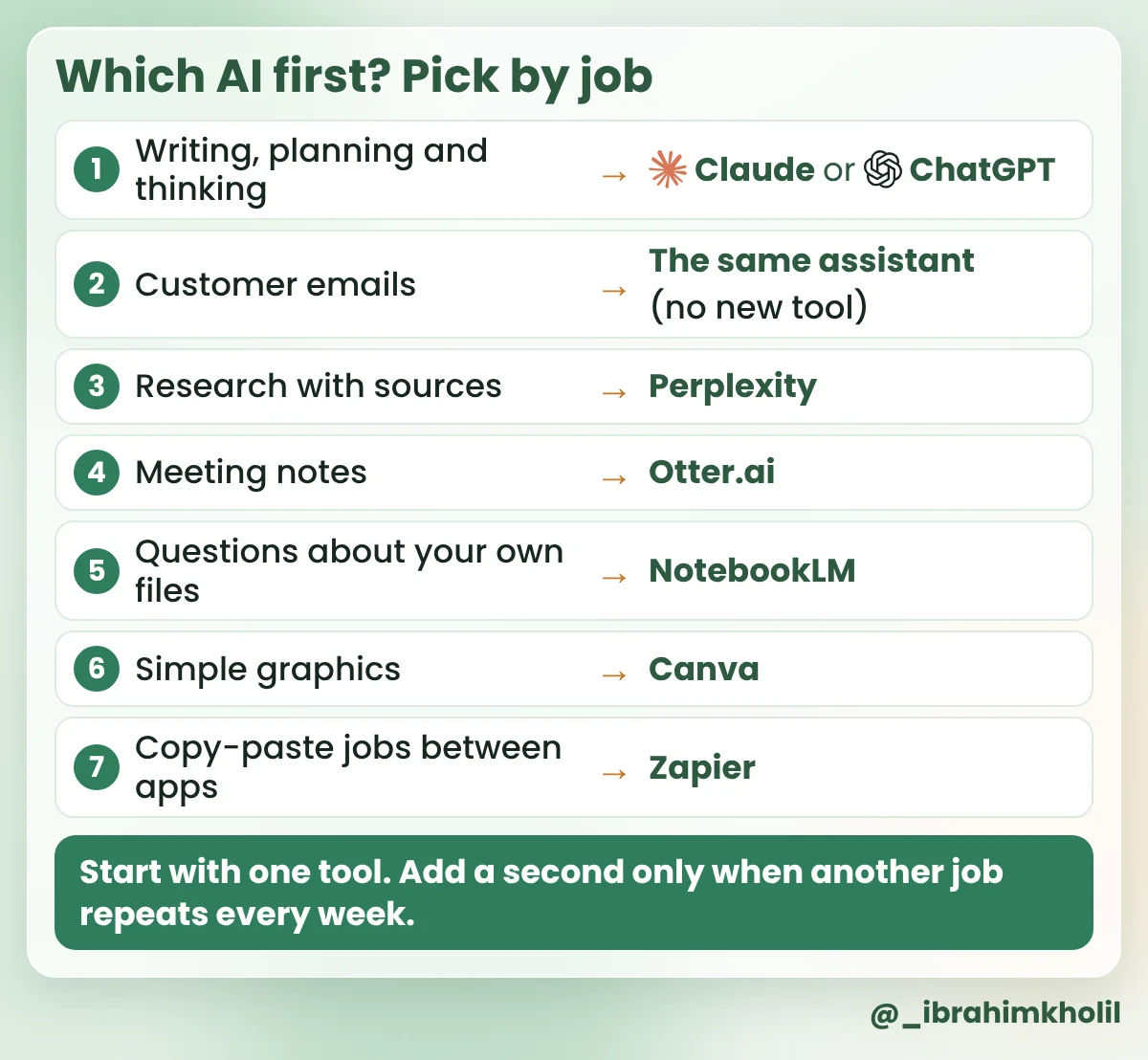
How to pick one today: if you’re not sure, start with a chat assistant (Pick 1). It covers writing, planning and replies, which fill most solo weeks. Move to another pick only when a job from that list repeats every week.
Not sure which job eats your week? Let the assistant sort it for you.
Copy this prompt (First job):
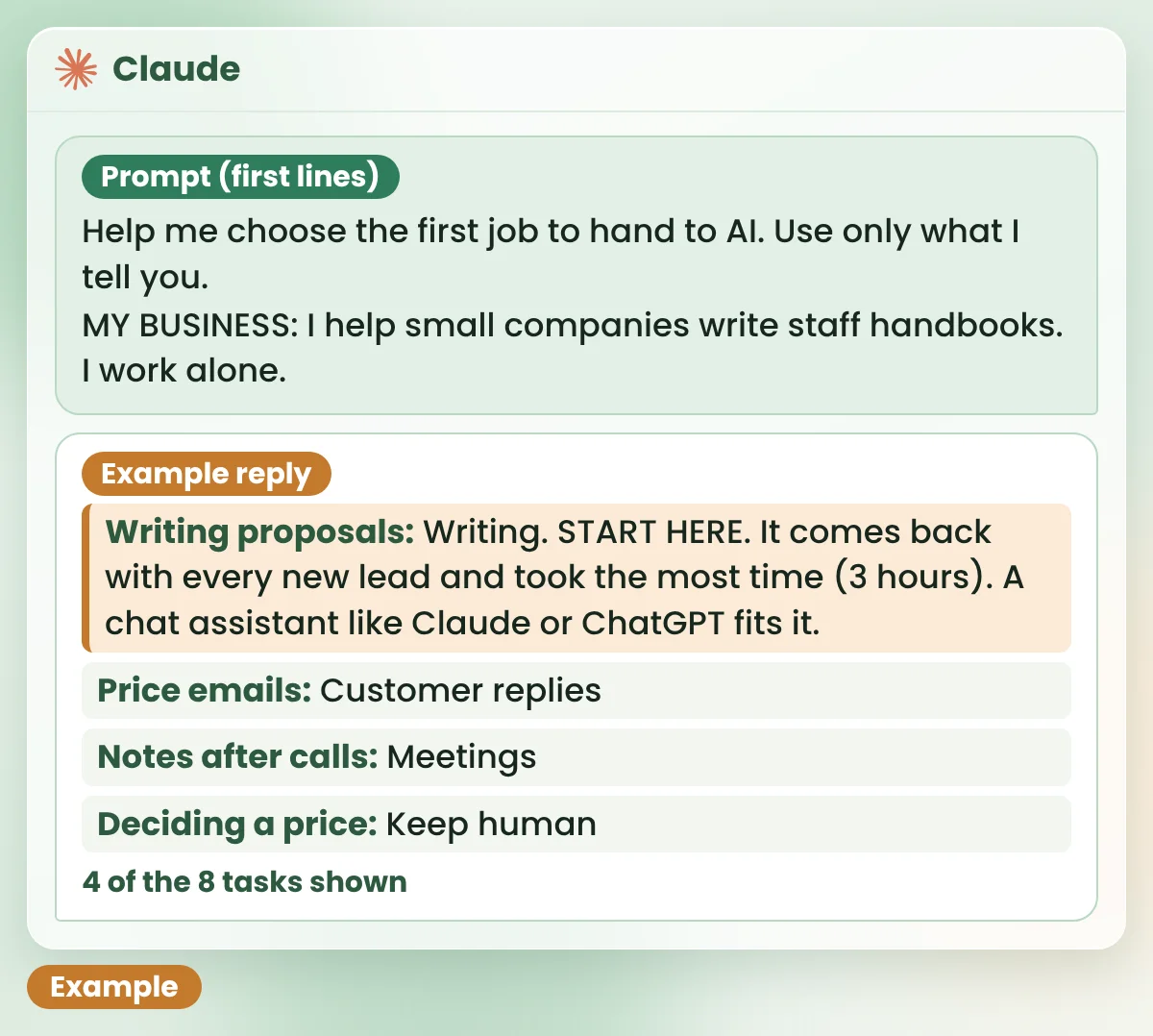
Help me choose the first job to hand to AI. Use only what I tell you.

MY BUSINESS: [WHAT YOU SELL, IN ONE LINE]

MY WEEK (tasks from the last 7 days, with rough time):
- [TASK, ABOUT HOW LONG]
- [TASK, ABOUT HOW LONG]
- [ADD 5 TO 10 TASKS]

DO THIS
1. Sort each task into one job: writing, customer replies, research, meetings, my own files, graphics, copy-paste between apps, or keep human.
2. Mark ONE task "START HERE": the one that repeats most often and takes the most time.
3. Say in one line why, and which kind of tool fits it.

RULES
- Plain words. Short lines.
- Put money decisions, legal or tax questions and final decisions about clients under "keep human".
- Don't invent tasks or times.
The example in this guide
Example: Tomas (a made-up solo consultant) helps small companies write their staff handbooks. He sells, writes, answers email and keeps his own books, all alone. We’ll follow him through all 7 picks.
Tomas’s input (Example):
| Prompt line | Tomas’s notes (Example) |
|---|---|
| My business | I help small companies write staff handbooks. I work alone. |
| My week | Writing proposals for 2 new leads, about 3 hours Answering emails that ask about my prices, about 2 hours Writing up notes after 3 client calls, about 2 hours Looking up questions clients ask, about 1 hour Finding old answers in my past handbooks, about 1 hour Making a one-page flyer, about 1 hour Copying new enquiries from email into my client sheet, about 30 minutes Deciding my price for a big project |
What you should see: every task sorted into a job, and one task marked START HERE. Example reply for Tomas:
| Task | Example reply for Tomas |
|---|---|
| Writing proposals | Writing. START HERE. It comes back with every new lead and took the most time (3 hours). A chat assistant like Claude or ChatGPT fits it. |
| Price emails | Customer replies |
| Notes after calls | Meetings |
| Looking up questions | Research |
| Old answers in past handbooks | My own files |
| One-page flyer | Graphics |
| Copying enquiries into the sheet | Copy-paste between apps |
| Deciding a price | Keep human |
Each job in the reply matches one pick below. Tomas starts with proposals, so his first tool is a chat assistant. He doesn’t need the other six yet.
Proposals, plans, posts and emails all start the same way: a blank page and a head full of notes. That blank page is where most solo owners lose an evening.
A general chat assistant is the one tool most people should start with, because it covers the most jobs. Claude (claude.ai) and ChatGPT (chatgpt.com) both work for every prompt in this post. Pick one and stay with it for a week, so you learn how it answers. Each maker’s pricing page shows the current plans: Claude pricing and ChatGPT pricing. Check there before you pay.
Copy this prompt (Proposal draft):
Turn my notes into a one-page proposal draft. Use only what I tell you.

THE CLIENT (no names): [WHAT KIND OF COMPANY, WHAT THEY NEED]
MY NOTES FROM THE CALL: [PASTE YOUR NOTES]
WHAT I WILL DO: [YOUR SERVICE STEPS]
PRICE AND DATES: [OR WRITE "ASK ME"]

WRITE
1. Their problem, in 2 lines.
2. What I will do, as 3 to 5 steps.
3. What they get at the end.
4. Price and dates.

RULES
- Plain words. Under 250 words.
- If something is missing, write [ASK ME: ...] instead of guessing.| Prompt line | Tomas’s input (Example) |
|---|---|
| The client | A small bakery. Staff keep asking about holiday rules, and there’s no handbook. |
| My notes | Owner wants one simple handbook. Main topics: holidays, sick days, shifts. Wants it before new staff start. |
| What I will do | Topics call with the owner, first draft, one round of edits, final file. |
| Price and dates | ASK ME |
What you should see: the 4 parts in order, with [ASK ME] where you left facts out. Example reply for Tomas:
| Part | Example reply for Tomas |
|---|---|
| 1. Their problem | Your staff keep asking about holiday and sick-day rules, and the answers live in your head. New staff are starting soon. |
| 2. What I will do | A short call to agree the topics: holidays, sick days and shifts. I write a first draft. You send me your edits in one round. I send you the final file. |
| 3. What you get | One simple staff handbook your team can read before their first shift. |
| 4. Price and dates | [ASK ME: your price] [ASK ME: start and finish dates] |
Look at part 4. The assistant didn’t make up a price, because the prompt told it to ask. That one rule is what makes a draft safe to send after a quick edit.
Good to know
New to ChatGPT? My ChatGPT guide for small business owners covers the basics. For ads, sales pages and offers, see how to use ChatGPT for marketing copy.
You answer the same few questions again and again: what you charge, how long it takes, whether you work with small teams. Each reply takes longer than it should.
You don’t need a new tool for this. Use the assistant from Pick 1 with one saved prompt. This is the one-tool rule at work: a second job, the same tool.
Copy this prompt (Customer reply):
Draft a reply to this customer email. Use only what I tell you.

THEIR EMAIL (private details removed): "[PASTE THE EMAIL]"
FACTS I CAN SHARE: [PRICES, TIMES, LINKS, OR "NONE"]

RULES
- Answer their question in the first line.
- Under 100 words. Friendly, plain words.
- If you need a fact I didn't give, write [ASK ME: ...]. Never guess a price or a date.
- End with one clear next step for them.| Prompt line | Tomas’s input (Example) |
|---|---|
| Their email | “Hi, how much do you charge for a staff handbook? We’re a small shop with 6 people.” |
| Facts I can share | I price each project after a free 20-minute call. Booking link: [my booking link] |
What you should see: a short reply that answers first, uses only your facts and ends with one next step. Example reply for Tomas:
Hi, thanks for asking. I price each handbook after a free 20-minute call, so the quote fits your shop and your team of 6. [ASK ME: do you want to mention a starting price?] If you’d like to talk, you can pick a time here: [my booking link].
Tomas
The assistant asks before it names a price. Tomas decides whether to add one, then sends the email himself.
You need a quick answer about your market, and you end up with too many tabs open. Or a chatbot gives you a confident answer, and you can’t tell where it came from.
For research, pick a tool that shows its sources, so you can check them. Perplexity (perplexity.ai) is an AI search tool that answers with links to the pages it used. Its own site shows the current plans. The links are the point: an answer you can’t check is only a guess.
Copy this prompt (Research):
What questions do small business owners ask most about [YOUR TOPIC]?
List 5, in plain words.
Under each question, give the link to the page where you found it.
If you're not sure about one, say so.
What you should see: 5 questions, each with a source link under it. Example reply for Tomas (topic: writing a staff handbook; the links are left out here, and your reply will show real ones):
| Question | Source |
|---|---|
| What should a staff handbook include? | [source link] |
| Does a small team need a handbook? | [source link] |
| How often should I update it? | [source link] |
| Can I start from a free template? | [source link] |
| Should staff sign it? | [source link] |
Tomas uses these questions to plan the topics call in his proposal. He doesn’t copy any answer into a handbook until he has read the source himself.
You can’t listen well and type notes at the same time. So you do one badly, and an hour later you’re trying to remember who promised what by when.
Otter.ai (otter.ai) records a call and turns the speech into text, so you can listen. Its own site shows the current plans. Then the assistant from Pick 1 turns that text into a summary and a follow-up email. Always ask before you record anyone. Recording rules differ by country, so check the rules where you and your client live. This isn’t legal advice.
Copy this prompt (Call follow-up):
Here are my notes from a client call (names and contact details removed):
[PASTE THE CALL TEXT OR YOUR NOTES]

WRITE
1. A 3-line summary of what we agreed.
2. Who does what, with dates, only if they were said.
3. A short follow-up email I can send. Under 120 words.

RULES
- Use only what is in the notes.
- If a date or number is unclear, write [CHECK: ...].| Prompt line | Tomas’s input (Example) |
|---|---|
| Call notes | Owner: We need it before 1 March. I’ll send you our old rules sheet by Friday. Tomas: Great. I’ll send the first draft two weeks after I get the sheet. |
What you should see: a summary, a who-does-what list and an email, with [CHECK] where something is unclear. Example reply for Tomas:
| Part | Example reply for Tomas |
|---|---|
| 1. Summary | The handbook should be ready before 1 March. The owner sends the old rules sheet by Friday. Tomas sends a first draft two weeks after that. |
| 2. Who does what | Owner: send the old rules sheet, by Friday. Tomas: send the first draft, two weeks after the sheet arrives. |
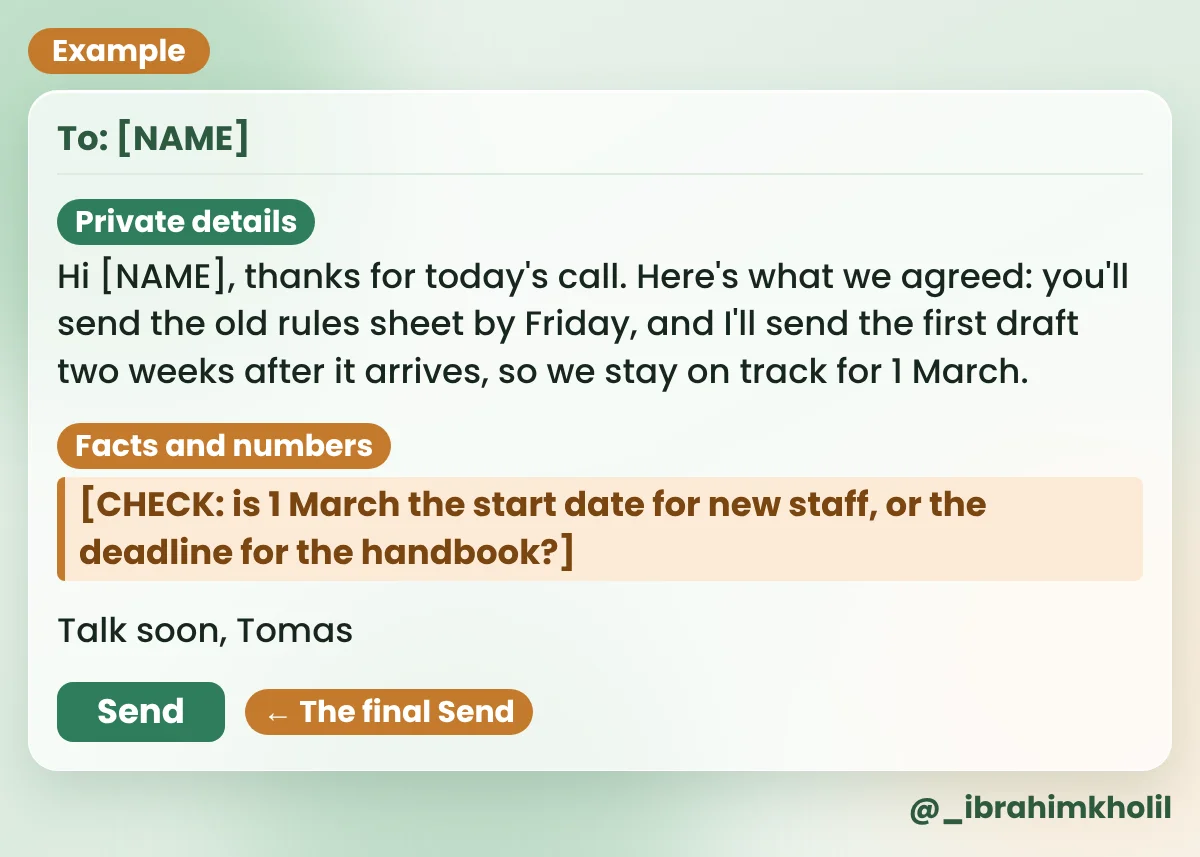
| 3. Follow-up email | Hi [NAME], thanks for today’s call. Here’s what we agreed: you’ll send the old rules sheet by Friday, and I’ll send the first draft two weeks after it arrives, so we stay on track for 1 March. [CHECK: is 1 March the start date for new staff, or the deadline for the handbook?] Talk soon, Tomas |
The [CHECK] line caught a real gap: “before 1 March” could mean two things. Tomas asks the owner, fixes the line, and then sends the email himself.
“I’ve written this answer before. Where did I put it?” When you work alone, your know-how is spread across old proposals, emails and notes, and the search box only finds exact words.
NotebookLM (notebooklm.google.com) is Google’s tool for asking questions about files you add to it. Its answers point back to your own files, so you can check them. It needs a Google account; check its site for the current plans. Ask it to say what’s missing, not only what’s there.
Copy this prompt (My process):
Using only my sources, list the steps I follow when I start work with a new client.
Number the steps. After each step, name the source it comes from.
If a step seems to be missing between two others, write MISSING and say what is unclear.
What you should see: numbered steps, each with the name of one of your files, and a MISSING line if there’s a gap. Example reply for Tomas (sources: 3 past proposals and his welcome email):
| Step | Source |
|---|---|
| 1. Send the welcome email. | Welcome email |
| 2. Book a topics call with the owner. | Proposal 2 |
| 3. MISSING: none of the sources say when you ask for the client’s old rules or documents. | None |
| 4. Write the first draft. | Proposals 1, 2 and 3 |
| 5. Collect edits in one round. | Proposal 1 |
| 6. Send the final file. | Proposal 3 |
The MISSING line is the useful part. Tomas has always asked for old documents in the call, but never wrote it down. He adds it to his welcome email, and now the step can’t be forgotten.
You need a flyer, a social image or a one-page service sheet. You’re not a designer, and an hour goes on moving boxes around.
Canva (canva.com) gives you ready-made templates, so you only change the words and colors. It also has AI features built in; which ones you get depends on your plan, so check Canva’s own site. The words matter more than the design, so write them first with the assistant from Pick 1.
Copy this prompt (Flyer text):
Write the text for a one-page flyer about my service. Use only what I tell you.

MY SERVICE: [ONE LINE]
WHO IT'S FOR: [ONE LINE]
NEXT STEP FOR THE READER: [FOR EXAMPLE, BOOK A FREE CALL]

Give me: a headline (under 8 words), 3 short bullets and one call-to-action line.
No hype words. No promises of results.| Prompt line | Tomas’s input (Example) |
|---|---|
| My service | I write simple staff handbooks. |
| Who it’s for | Small companies with no HR person. |
| Next step | Book a free 20-minute call. |
What you should see: one headline, 3 bullets and one call-to-action line, ready to paste. Example reply for Tomas:
| Part | Example reply for Tomas |
|---|---|
| Headline | A Staff Handbook Your Team Will Read |
| Bullets | Clear rules for holidays, sick days and shifts Written in plain words for small teams Made for companies with no HR person |
| Call to action | Book a free 20-minute call: [my booking link] |
Every new enquiry, you copy the same details from your inbox into a sheet. It’s only a minute each time, but it never ends, and the day you skip it, a lead slips through.
That’s the one job on this list that should run without you. Zapier (zapier.com) connects apps, so something that happens in one app starts a step in another. Make (make.com) does a similar job. Free plans have limits that change, so check Zapier’s pricing page first. Plan it in plain words before you open any automation tool.
Copy this prompt (Automation plan):
I want to stop doing this by hand: [DESCRIBE THE COPY-PASTE JOB].

Write a plain plan for an automation:
1. The trigger: what starts it, and in which app.
2. The steps that should happen after it, one per line.
3. One thing I should check by hand each week.

Keep every step simple enough for a beginner. If a step needs an app I didn't name, ask me first.| Prompt line | Tomas’s input (Example) |
|---|---|
| The job | When I get an email with “handbook” in the subject line, I copy the sender’s name, email address and question into my client sheet in Google Sheets. |
What you should see: one trigger, a short list of steps and one weekly check. Example reply for Tomas:
| Part | Example reply for Tomas |
|---|---|
| 1. Trigger | A new email arrives in Gmail with “handbook” in the subject line. Tip: a Gmail filter can give these emails a label, so the automation can start from that label. |
| 2. Steps | Add a new row to your client sheet. Fill in the sender’s name, the sender’s email address and their question. |
| 3. Weekly check | Once a week, search your inbox for “handbook” and make sure every email has a row in the sheet. |
The plan only adds a row. Nothing is sent to anyone, so a mistake costs Tomas a wrong row, not a lost client.
Generative AI, the kind that writes new text or images for you, is fast and sounds sure of itself even when it’s wrong. When you work alone, nobody else is there to catch a mistake before a client sees it.
So these stay with you, whichever tool you pick:
Watch out
Don’t stack tools to feel productive. Every new tool is another login, another bill to watch and another place your data lives. If a tool hasn’t saved you time in a week of real use, cancel it.
Seven picks is a menu, not a to-do list. Here’s how to start before you close this tab.
There’s no single best tool for every business, and I won’t pretend to know one. For most solo owners, a general chat assistant like Claude or ChatGPT is the best first tool, because it covers writing, planning and replies. Add a second tool only when another job repeats every week.
Free plans and their limits change often, so I can’t give an answer that stays true. Every prompt in this post is plain text, so it works in whichever assistant you already use. Check each tool’s own pricing page, such as claude.com/pricing, for what its free plan includes today.
Mostly for the jobs in this post: first drafts of proposals and emails, replies to common questions, research with sources, notes after calls, questions about their own files, simple graphics and copy-paste jobs between apps. The decisions, the facts and the final Send stay with the owner.
Only after you’ve seen it save time on a real task. My suggestion: use one tool on one repeating job for a week, note how long the task took before and after, and pay only if the saving is clear to you.
It can take over drafts and repeat tasks, like the ones in this post. It can’t make judgment calls, know your clients or take responsibility for a mistake. Think of it as help with the first draft, not someone you can leave in charge.
You don’t need seven tools. You need the right one for the job that costs you the most time, used well for a week.
Start with the First job prompt. It takes a few minutes, and it tells you where to begin.
My free AI Workflow Starter Kit has more copy-ready workflows like these. If you write a blog too, my list of AI tools for bloggers covers that job in more detail, and how to use AI for lead generation shows how to find clients without spam.

12+ years in digital marketing. I test every workflow on real work before I share it, free tools first.
More about me →Steps, a copy-paste prompt and the limits I found. Free, nothing to buy.
Get the Free Starter Kit →