Physical Address
304 North Cardinal St.
Dorchester Center, MA 02124
Physical Address
304 North Cardinal St.
Dorchester Center, MA 02124
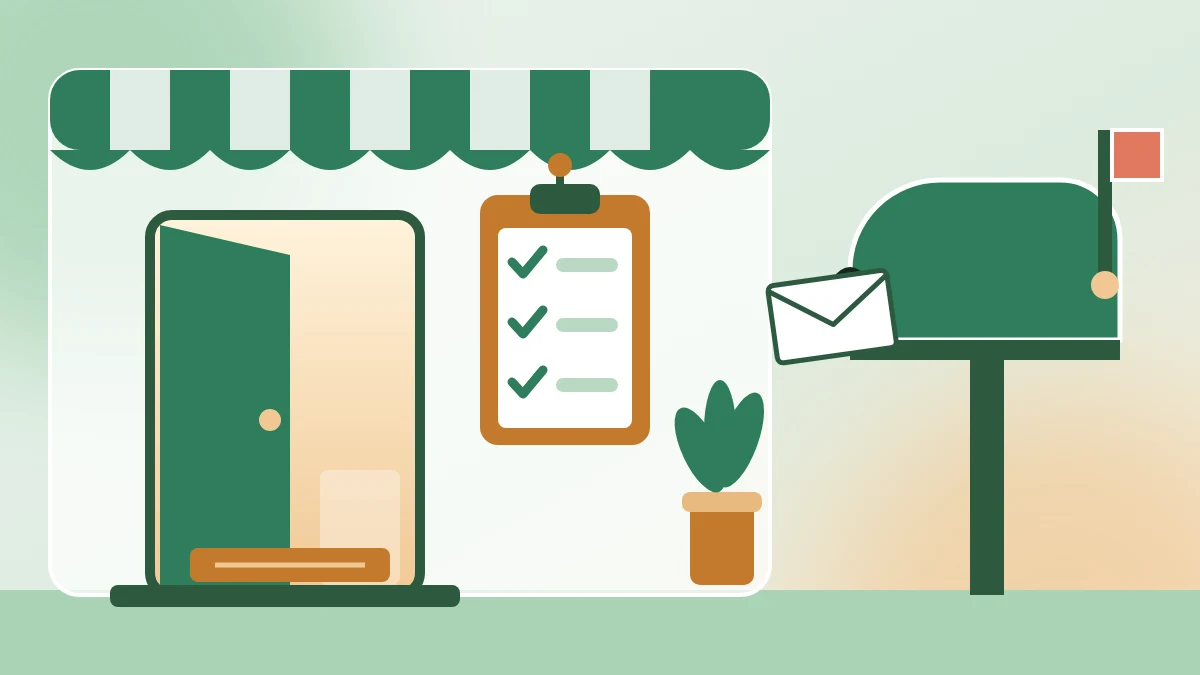
Six simple ways to use AI for lead generation without spam: define your ideal client, plan a free offer, answer real questions and follow up honestly. Every way has a prompt to copy and an example reply.
Your last project is done, and nothing new is booked. You know you need more clients, so you look up how to use AI for lead generation. Some of the tools you find promise to pull thousands of email addresses and message them all for you.
That’s usually where you stop. Writing to strangers who never asked to hear from you feels pushy, because it is. And LinkedIn’s help pages say tools that send messages for you aren’t allowed and can get an account restricted. So the tab closes, and you go back to waiting for referrals.
There’s a quieter way. Let AI do the slow parts: working out who your best client is, planning a free offer they’d want, and drafting a message to one real person. You still choose who to contact, and you press Send yourself. I call it draft, then decide: AI drafts, and you decide who hears from you.
Below are 6 simple ways to do it, each with a prompt to copy and the reply you should expect. One made-up freelancer runs through all six, so you can compare. Start with Way 1 today: in about 15 minutes, you’ll have a written profile of the client you want most (my estimate, not a measured time).
In short
What you need
On this page
“I don’t want to look like a spammer.” That worry is fair, and it’s the right place to start.
A lead is a person who might buy from you. They fit the kind of client you help, and they’ve shown some interest, such as signing up for a free offer or asking you a question. Lead generation just means finding more of those people and starting a conversation.
AI can’t make anyone trust you. But it’s very good at the thinking and the first drafts that slow you down. So split the work: AI drafts, you decide.
| AI can help you | You keep doing |
|---|---|
| Describe your ideal client from past clients | Choose who to contact, and why |
| Suggest free offers and signup form text | Make the offer and keep your promises |
| Draft answers, notes and emails | Edit them, add your real experience, press Send |
| Sort your lead list each week | Respect who said yes, and who didn’t |
This guide leaves some things out on purpose: buying or scraping email lists, sending the same message to hundreds of people, and tools that send messages for you. Those are what make people look like spammers.
The example in this guide
Example: Rafi (a made-up freelance web designer) builds simple websites for small cafés. Work has gone quiet, and he wants a few new clients without cold spam. We’ll follow him through all 6 ways.
“I work with anyone who needs a website.” It sounds open and friendly. In practice, it means you don’t know where to look or what to say.
Your best past clients already hold the answer. AI can turn a few notes about them into a short profile you’ll use in every other way. The rest of this guide is built on this profile.
Copy this prompt (Ideal lead):
Help me describe my ideal client. Use only what I tell you.

WHAT I SELL: [YOUR SERVICE OR PRODUCT, e.g. simple websites for small cafés]

MY 3 BEST PAST CLIENTS:
1. [WHO THEY WERE, WHAT THEY NEEDED, WHY THEY WERE GOOD TO WORK WITH]
2. [THE SAME FOR CLIENT 2]
3. [THE SAME FOR CLIENT 3]

WRITE THESE 4 PARTS
1. Who they are: one short paragraph.
2. Their problem, in words they might use: 3 short lines.
3. Questions they ask online: 5 questions they might type into Google or an online group.
4. Not a fit: 2 signs that a lead is not right for me.

RULES
- Plain words. Short sentences.
- Don't invent facts about my clients. If you need more detail, ask me first.
Rafi’s input (Example):
| Prompt line | Rafi’s notes (Example) |
|---|---|
| What I sell | simple websites for small cafés |
| Client 1 | A family café with one shop. Menu only on Instagram. Needed a one-page site before a local food festival. Quick to reply, paid on time. |
| Client 2 | A bakery that took orders by phone and wanted an order form. The owner knew exactly what she wanted. |
| Client 3 | A coffee cart that moves between markets. Needed a page that shows where it will be each week. |
What you should see: the 4 parts in order. Here is the example reply for Rafi:
| Part | Example reply for Rafi |
|---|---|
| 1. Who they are | Owners of small, independent cafés and bakeries with one or two shops. They run their own social media and have little spare time. They want a simple site that shows the menu, hours and how to order, and they want it soon. |
| 2. Their problem, in words they might use | “Our menu is only on Instagram.” “People keep calling to ask our hours.” “I don’t have time to build a website.” |
| 3. Questions they ask online | Do I need a website if I have Instagram? How do I put my menu online? What should a café website include? Can customers order from my website? How much does a simple café website cost? |
| 4. Not a fit | Chains with their own marketing team. Owners who want a big online shop with hundreds of products. |
The quotes in part 2 are the AI’s guesses. Compare them with real emails and messages from your clients, and swap in their real words where you can.
Good to know
No past clients yet? Describe the 3 kinds of people you most want to help, and add “I have no past clients yet” to the prompt. The profile is then a starting guess, so check it against real conversations as they come.
A “Contact me” button asks a lot from a stranger. A small free offer is an easier first step. They get something useful, and you get their permission to stay in touch.
AI is good at turning your profile into offer ideas. The offer itself should come from you, because your know-how is what makes it worth having.
Copy this prompt (Free offer):
Here is my ideal client profile:
[PASTE YOUR "IDEAL LEAD PROFILE" NOTE]

1. Suggest 3 free offers I could give this client in exchange for their email. Each one must solve one small problem from the profile, and I must be able to make it in one afternoon. Give each a plain title and one line on what is inside.
2. Write the questions for a short signup form: name, email, and one question about their biggest problem right now.
3. Write one separate checkbox line that asks if they want occasional emails from me. It must say what they will get and that they can unsubscribe any time.

RULES
- Plain words. No hype.
- Don't promise results.
What you should see: 3 offer ideas, 3 form questions and one checkbox line. Here is the example reply for Rafi:
| Part | Example reply for Rafi |
|---|---|
| 1. Free offers | Café homepage checklist: one page listing what a café homepage needs, from the menu to the map. Menu page template: a simple layout to turn an Instagram menu photo into a page people can read. Website photo list: the photos to take of your café before you build a site. |
| 2. Form questions | Your name Your email What’s the biggest problem with your café’s website right now? |
| 3. Checkbox line | Yes, send me occasional website tips for cafés by email. I can unsubscribe any time. |
Rafi picks the café homepage checklist. It fits on one page, and it answers questions his ideal clients already ask.
Watch out
Never tick the checkbox for people. A box that is ticked in advance isn’t real consent. What counts as consent is explained under What to keep human.
Waiting for clients to find you is slow. Many of them are already asking questions online, in local business groups, on forums and under other people’s posts. A helpful answer there, under your own name, is the opposite of spam: they asked, and you answered.
Way 1 gave you the questions to look for. Type them into the search box of groups you already belong to.
Copy this prompt (Helpful answer):
Someone asked this question in an online group:
"[PASTE THE QUESTION]"

What I know about this from my work: [2 OR 3 POINTS IN YOUR OWN WORDS]

Draft a helpful answer I can post under my own name.
- Answer the question first. Under 120 words.
- Use plain words, like a friendly neighbor.
- No sales pitch and no links.
- Where a real example from my work would help, write [MY EXAMPLE] so I can add one.
- End with one short question back to them.| Prompt line | Rafi’s input (Example) |
|---|---|
| The question | “Is it worth having a website if we already have Instagram?” (asked by Omar, a made-up café owner, in a local business group) |
| What I know | A website is a page I control. Menu, hours and address in one place. Start with one page. |
What you should see: a short answer that answers first, has no link, leaves a [MY EXAMPLE] gap and ends with a question. Example reply for Rafi:
Good question, and Instagram is a great place to show your food. A website adds a page you control, with your menu, hours and address in one place. If something changes on Instagram, that page is still yours. [MY EXAMPLE] You don’t need anything big to start. One page with your menu, hours, a map and a phone number covers the basics. What do customers ask you most often in your messages?
Rafi would swap [MY EXAMPLE] for a true line from a past job. We leave it empty here, because he’s made up. That gap is the point: your real experience is what makes the answer worth reading.
Watch out
Read each group’s rules before you post. Don’t drop your link unless the rules allow it and someone asks for it. And answer as yourself: never post as a fake customer or from a second account.
A LinkedIn message that could go to anyone is easy to ignore. One that mentions something real about the person reads very differently. AI can help you write it fast. It can’t send it for you, and it shouldn’t.
LinkedIn’s help center says third-party software and browser extensions that scrape or automate activity are not allowed, and that automated invites or messages go against its User Agreement and can get an account restricted. Rules can change, so check those linked pages for current details. So AI writes the draft, and you send each note by hand.
Copy this prompt (LinkedIn note):
Write a short LinkedIn message from me to one person.

About them: [ONE REAL DETAIL FROM THEIR PROFILE OR A RECENT POST]
About me: [WHAT YOU DO, IN ONE LINE]
Why I'm writing: [THE HONEST REASON]

RULES
- Under 50 words.
- Mention the real detail first.
- Say plainly who I am and why I'm writing.
- No flattery, no fake urgency, and no request for a call in the first message.
- Write 2 versions.| Prompt line | Rafi’s input (Example) |
|---|---|
| About them | Ben (a made-up café owner) posted that he just opened his second café. |
| About me | I build simple websites for small cafés. |
| Why I’m writing | I’d like to offer him my free café homepage checklist. |
What you should see: 2 versions, each under 50 words, each starting with the real detail. Example reply for Rafi:
| Version | Example reply for Rafi |
|---|---|
| 1 | Hi Ben, congrats on opening your second café. I saw your post about it. I build simple websites for cafés. If putting both menus online is on your list, I have a free checklist I can send. Either way, good luck with the new place. |
| 2 | Hi Ben, I saw your post about the second café. Big step. I’m a web designer who works with small cafés. Happy to share a free homepage checklist if it’s useful. No pressure at all. |
Both versions say who Rafi is and why he’s writing. Neither one asks for a call or pretends the message is about something else.
Someone signs up for your free offer. Then they hear nothing, or they get the same email as everyone else. A short note that answers what they told you in the form shows that a person read it.
Only email people who said yes. In your sheet, those are the people who ticked the checkbox from Way 2.
Copy this prompt (Follow-up email):
Write a short follow-up email from me to someone who signed up for my free offer.

Their name: [NAME]
What they signed up for: [YOUR FREE OFFER]
What they told me in the form: "[PASTE THEIR ANSWER]"
What I can offer next: [ONE SMALL, HONEST NEXT STEP]
My name and business address: [YOUR NAME, YOUR POSTAL ADDRESS]

RULES
- Under 120 words. Plain words.
- Subject line: honest, and says what the email is about. No "Re:" and no fake urgency.
- Mention what they told me in the first two lines.
- End with my name and address, and one line that tells them how to stop my emails.
- Don't promise results.| Prompt line | Rafi’s input (Example) |
|---|---|
| Their name | Nadia (a made-up café owner who ticked the checkbox) |
| What they signed up for | The café homepage checklist |
| What they told me | “Our menu is only a photo on Instagram.” |
| What I can offer next | A free layout idea for a menu page |
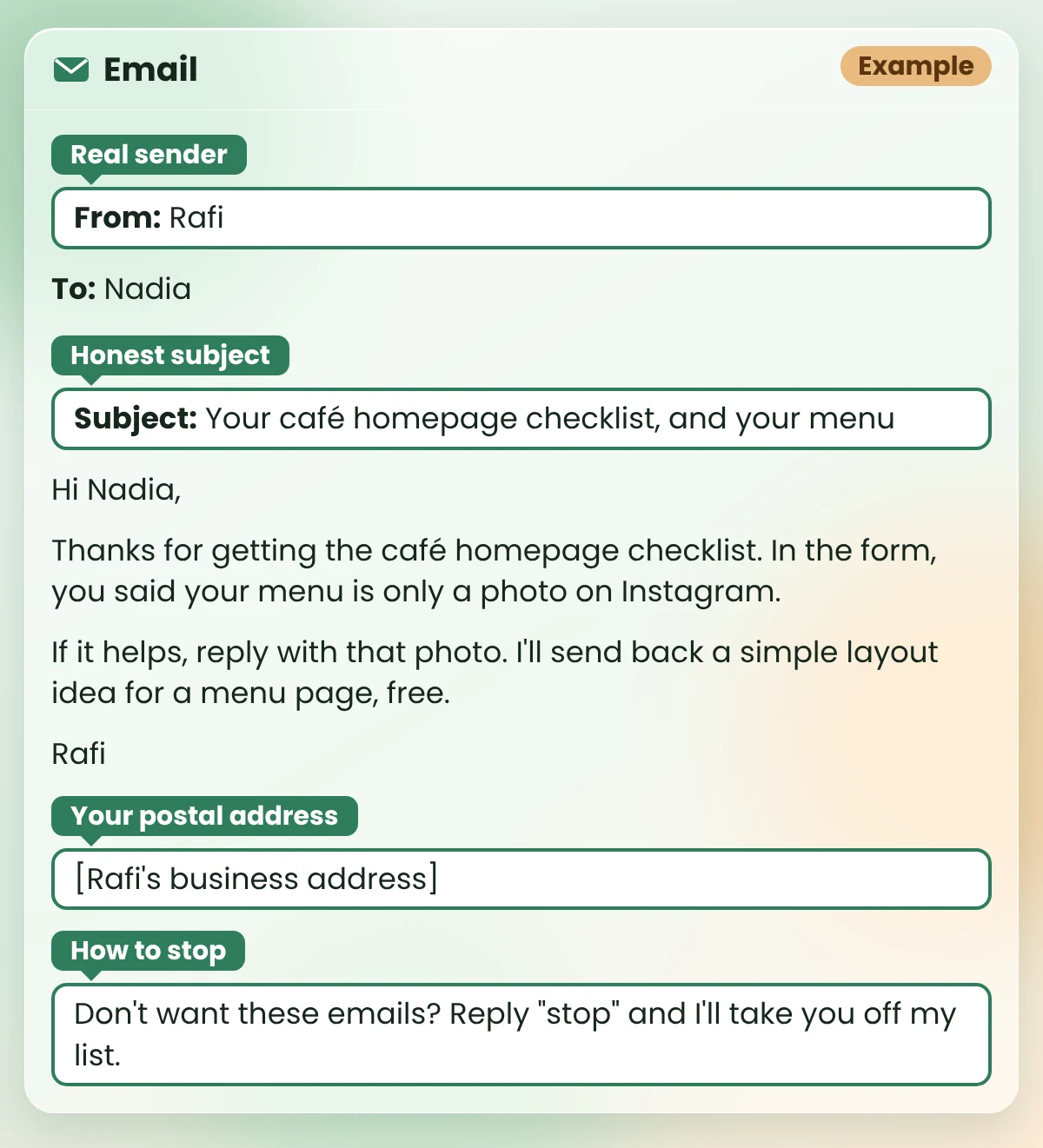
What you should see: a short email with an honest subject line, their own words near the top, your name and address, and a way to stop. Example reply (an email from Rafi to Nadia):
Subject: Your café homepage checklist, and your menu
Hi Nadia,
Thanks for getting the café homepage checklist. In the form, you said your menu is only a photo on Instagram.
If it helps, reply with that photo. I’ll send back a simple layout idea for a menu page, free.Rafi
[Rafi’s business address]
Don’t want these emails? Reply “stop” and I’ll take you off my list.
Notice what’s missing: no “Re:”, no “last chance” and no promise of more customers. It’s a short, honest note to one person.
Leads rarely vanish in one go. You mean to reply to someone on Friday, then Monday comes, and they’re buried under a week of messages.
A sheet with one row per person stops the forgetting. Once a week, AI reads it and tells you who needs a next step. A rule in the prompt makes sure it never suggests emailing someone who didn’t say yes.
Copy this prompt (Weekly leads check):
Here are my leads, copied from my sheet:
[PASTE THE ROWS, WITH THE FIRST ROW OF COLUMN NAMES]

Today's date: [DATE]

For each person, tell me:
1. Do they need a next step this week? Yes or no, and why, in one line.
2. If yes, the next step in one line.

RULES
- If "OK to email?" is not "Yes", never suggest an email. Suggest replying where we already talk, or no action.
- If I already sent a message and got no reply, suggest one polite follow-up. After that, suggest stopping.
- Don't invent anything that isn't in the rows.
Rafi’s Leads tab (Example, today’s date: Nov 16):
| Name | Came from | Their words | OK to email? | Last contact | Notes |
|---|---|---|---|---|---|
| Nadia | Checklist form | “Our menu is only a photo on Instagram.” | Yes | Nov 14: got the checklist | |
| Omar | Local business group | “Is it worth having a website if we already have Instagram?” | No | Nov 13: answered in the group | I asked what customers ask him most |
| Ben | Posted about his second café | No | Nov 9: sent a note | No reply yet |
What you should see: one short answer per person, with a yes or no, the reason and the next step. Example reply for Rafi:
| Name | Example reply for Rafi |
|---|---|
| Nadia | Yes. She signed up and said yes to emails. Next step: send a follow-up email about her menu. |
| Omar | No email, because OK to email? is No. Next step: check the group for his answer to your question and reply there. |
| Ben | Yes. No reply for a week. Next step: one short, polite follow-up on LinkedIn. If he doesn’t answer, stop there. |
Look at Omar’s line. The AI didn’t suggest an email, because he never said yes. That’s the rule in the prompt doing its job.
AI can write a message in seconds. It can’t tell you whether you should send it. That decision stays with you, and so do the rules below.
Not legal advice
This section gives general, plain-words points from official guidance. It is not legal advice. Rules differ by country, so check the linked page for current details, and check the rules where you and your leads live.
If you send marketing email to people in the US, the FTC’s CAN-SPAM Act compliance guide covers points like these, in plain words:
The exact rules, and what happens if you break them, are on the FTC’s page. Rules differ by country; check the linked page for current details.
In the UK, the ICO explains what valid consent is. In plain words: people should say yes by their own clear action, knowing what they’re saying yes to. A box you ticked for them, or silence, isn’t a yes. And saying no later should be easy. Rules differ by country; check the linked page for current details.
That’s why the Way 2 checkbox stays unticked and optional, and why every email from Way 5 says how to stop.
As Way 4 shows, LinkedIn’s help pages say tools that automate invites or messages aren’t allowed. Write with AI if you like, and send by hand. LinkedIn’s rules can change; check the linked pages in Way 4 for current details.
Six ways is a lot for one week. Way 1 makes all the others easier, and it fits in a coffee break.
Found a real question? Tomorrow, draft your answer with the Helpful answer prompt from Way 3. That’s one honest conversation started, with no list and no blast.
Yes. AI is useful for the thinking and the drafting: describing your ideal client, planning a free offer, and writing first drafts of answers, notes and emails. Keep the decisions and the sending for yourself, and contact people honestly, with their permission where the rules ask for it.
You don’t need a special lead tool to start. The prompts in this guide are plain text, so they work in a general chat assistant such as ChatGPT or Claude, and the sheet in Way 6 is a normal Google Sheet. Check each tool’s own pricing page for what its free plan includes today.
There’s no single best tool I can point to with proof. To start, a general chat assistant plus a simple sheet covers all six ways in this guide. In my view, real inputs, like notes on your best clients, matter more than which tool you use.
It depends on your country and on how you contact people. In the US, the FTC’s CAN-SPAM guide sets rules for marketing email. In the UK, the ICO explains what counts as valid consent. LinkedIn’s help pages say tools that automate messages aren’t allowed. Rules differ by country; check the linked pages for current details. This isn’t legal advice.
Write to fewer people, each for a real reason. Ask permission before you send marketing emails, say who you are, and make it easy to say stop. Let AI draft, and read every message before you send it yourself.
On LinkedIn, no: its help pages say tools that automate invites or messages aren’t allowed (check them for current details). For personal emails, my advice is the same: read each one and send it yourself. A careless note can cost you trust that’s hard to win back.
Lead generation doesn’t have to mean blasting messages at strangers. With AI doing the drafts, you have time to write to fewer people, for a real reason, and to listen to what they say back.
Start with the profile. Every other way gets easier once you know who you’re talking to.
My free AI Workflow Starter Kit has more copy-ready workflows like these. And if you earn from recommending products, my guide on how to use AI for affiliate marketing uses the same honest approach.

12+ years in digital marketing. I test every workflow on real work before I share it, free tools first.
More about me →Steps, a copy-paste prompt and the limits I found. Free, nothing to buy.
Get the Free Starter Kit →