Physical Address
304 North Cardinal St.
Dorchester Center, MA 02124
Physical Address
304 North Cardinal St.
Dorchester Center, MA 02124
Leave the alt text box empty every time? Use an AI alt text generator for images in 5 easy steps, with a free Claude prompt and the WordPress click path.
You add a photo to your blog post. WordPress shows a small box called Alternative text. You stare at it, have no idea what to type, and click away. Again. Somewhere in the back of your mind, you wish an AI alt text generator for images could just fill it in for you.
Two things keep that box empty. You’re not quite sure what alt text is for, so every line you think of feels wrong. And when you try a quick tool, you may get back something like “image of freelancer pricing freelance rates tips”. That’s a keyword list, not a description.
The fix is to give AI the one thing it can’t see in the picture: what job the image does in your post. I call it the job question. Add that one line to your prompt, and Claude writes alt text a real person would want to hear.
Below are 5 easy steps, a free prompt you can copy, and the exact place to paste the result in WordPress. One made-up example post runs through it, so you can see what you should get. Give it 15 minutes on your latest post. That’s my estimate for a post with about five images, not a measured time.
In short
What you need
On this page
Most visitors never see your alt text. That’s why it’s so easy to skip. It’s a short line of words saved with an image, and it only shows up when the picture can’t do its job.
Three kinds of readers use it:
So write alt text for a person first. Google reads the same words. And to be honest about SEO: nobody can promise that alt text will lift your rankings. What you can count on is that people who use screen readers need it, and Google says it reads it.
Knowing what alt text is for doesn’t make the box any easier. You still sit there wondering: do I describe the colors? The person? The whole scene?
The W3C alt decision tree starts from one question: what is this image for? Everything below comes from that idea.
Good to know
Leaving the box empty is a choice for decoration only. It is not a shortcut for images that carry meaning. If a reader would miss something without the picture, it needs alt text.
Rules are fine for one image. With a whole post of them, writing each line by hand is where the evening goes. These 5 steps let Claude draft the lines while you keep the decisions. The prompts work in ChatGPT too.
Open your post and look at each image. For each one, finish this sentence in a note: “This image is there to…”
What you should see: a short list in your note, one line per image, such as “show my three price packages”. This is the part no AI can guess, because it depends on your post.
Copy this prompt (Alt text):
Write alt text for the image I added.
My blog post is about: [YOUR POST TOPIC]
This image is there to: [ITS JOB, e.g. show my three price packages]

Rules:
- One plain sentence, under 125 characters.
- Say what the reader needs from the image, not every detail.
- Don't start with "image of" or "picture of".
- Describe only what you can see. Don't guess names, brands or numbers.
- Use words from my topic only if they fit naturally. No keyword lists.
- If the image has words in it, include those words.
If I added more than one image, give one numbered line per image, in the same order.
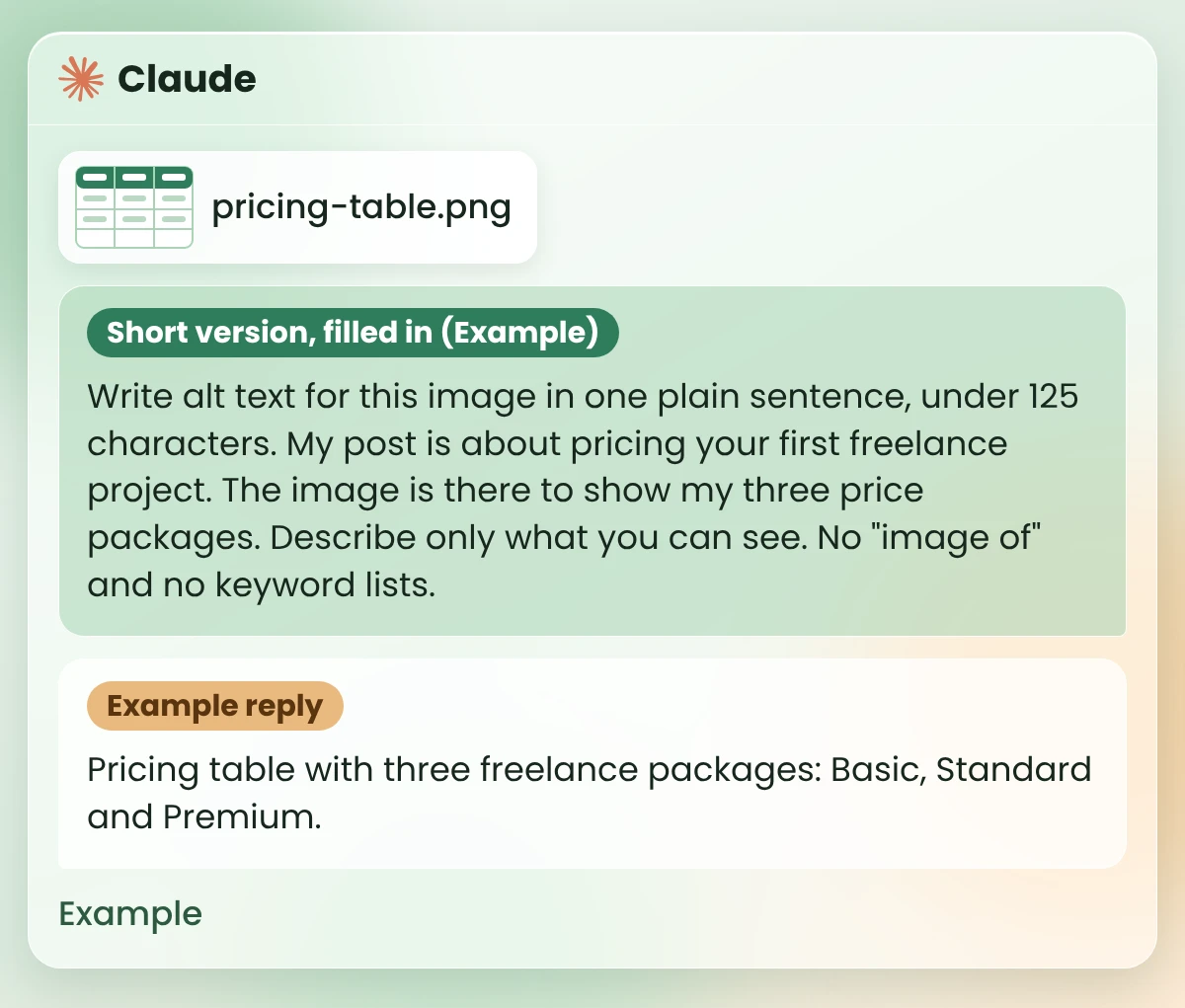
Short version (for a quick test): Write alt text for this image in one plain sentence, under 125 characters. My post is about [TOPIC]. The image is there to [ITS JOB]. Describe only what you can see. No “image of” and no keyword lists.
Got several images? Add them all to one message, in the order they appear in your post, and write one job line per image under “This image is there to”.
What you should see: one plain sentence for your image, or one numbered line per image if you added several. No “image of”, no list of keywords.
If a line comes back too long, reply: “Shorter, please. Only what you can see.” The image below shows the Short version filled in for the example post, with Claude’s reply.
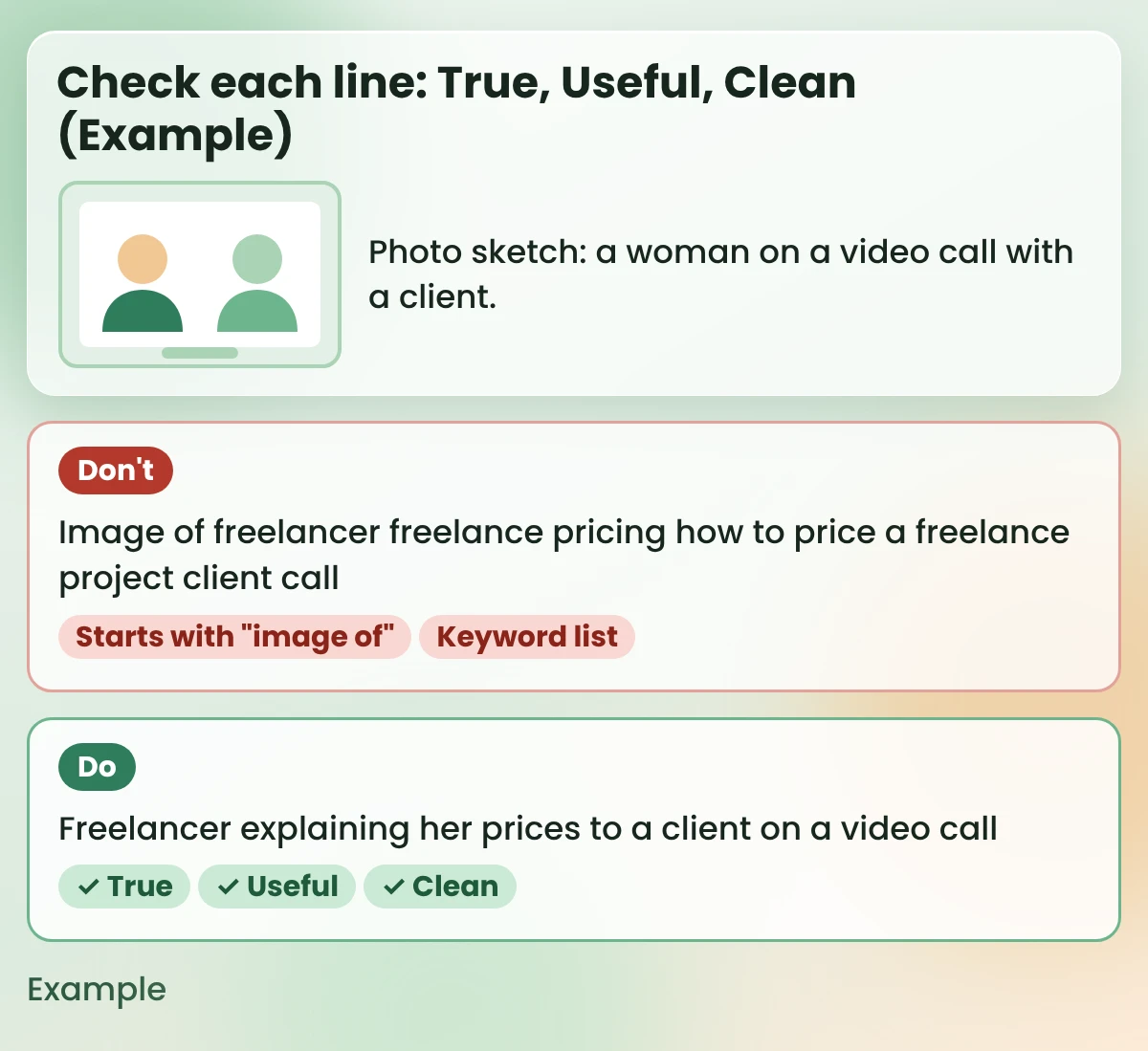
AI can be confidently wrong about a picture. So read every line while you look at the image, and run three checks:
If a check fails, fix the words yourself. It’s one sentence, so that’s quicker than asking again. The card below shows a keyword-stuffed line next to one that passes all three checks.
Watch out
What you should see: click any image again, and the Alternative text box shows your line. If it’s empty, the paste didn’t stick, so paste it again and update.
Steps are easier to trust when you see them on a whole post. So here is one made-up example from start to finish.
Example: Priya (a made-up freelance designer) is publishing “How to price your first freelance project”. The post has five images. Here’s what each one gets.
| Image (Example) | Job (Step 1) | Alt text |
|---|---|---|
| Laptop and coffee photo at the top | Only decoration | Left empty |
| Screenshot of her pricing table | Show my three price packages | Claude’s Example reply in the Step 3 image |
| Photo of her on a video call with a client | Show how I explain my prices | The line that passes in the Step 4 card |
| Notebook page that says “Ask for a deposit first” | Share my top tip | Handwritten note: Ask for a deposit first |
| “Get the template” button that links to a download | Send readers to the template | Download the free pricing template |
Notice that the job question did half the work. Only two of the five images went to Claude. The decoration, the note and the button were done in Step 1, because the rules already said what to write.
Search for an alt text tool and you’ll find browser extensions and plugins, each with its own plans and limits. It’s hard to know which one to trust with your images.
You have two kinds of choice:
How to pick one today: if you add a handful of images per post, use the chat assistant and the prompt. If you have hundreds of old images with no alt text, a plugin may save time. Test it on five images first and check every line. That’s my suggestion, not a rule.
Once you start, you’ll notice the old posts. Dozens of images, every box empty. It feels like a weekend job, so it never happens.
You don’t have to fix them all at once. Here’s a small routine instead:
Watch out
The Media Library has an Alternative Text box too (Media > Library, then click an image). Changing it there doesn’t change images already placed in your posts. Those keep their own alt text. So fix old images inside the post itself, as in Step 5.
While a post is open, you may as well refresh the rest of it. My guide on how to update old blog posts has a full routine for that. And for other SEO jobs AI can take off your plate, see how to use AI for SEO.
You don’t need to take my word that this is quick. Try it on one post now:
Then save the prompt in your notes, so the next post starts with it ready.
Yes. Claude and ChatGPT can look at an image you add to a chat and draft a line of alt text. The draft is only as good as what you tell it, so give it the image’s job, and always check the line against the picture before you use it.
Decide what job the image does in your post. Add the image to a Claude chat with the alt text prompt in Step 2, check the reply for True, Useful and Clean, then paste it into the Alternative text box of the image in WordPress.
Say what the reader needs from the image in one short, plain sentence. Skip “image of”, don’t stuff keywords, and include any words that appear in the image. Leave decoration empty, and for buttons, say where they go.
Google’s image guide says it uses alt text, along with the image and the page text, to understand what an image shows. That said, nobody can promise a ranking boost. Write it for people first; Google reads the same words.
Claude and ChatGPT both have free plans that you can use with the prompt in this post; check their pricing pages for what’s included today. Dedicated extensions and plugins exist too, and each tool’s own page shows its current plans.
No. W3C’s guidance is to give decorative images an empty alt, so screen readers skip them. In WordPress, that means leaving the Alternative text box empty on purpose.
Most visitors never do. Screen-reader users hear it, anyone whose image fails to load may see it in place of the picture, and search engines read it.
Alt text is one sentence per image. With the job question and one saved prompt, it stops being the box you skip and becomes part of how you publish.
Start with your latest post. Every reader who can’t see your images will get the full post, and you’ll never stare at that empty box again.
Want more copy-ready AI workflows like this one? Grab my free AI Workflow Starter Kit. And for more guides, browse the blog.

12+ years in digital marketing. I test every workflow on real work before I share it, free tools first.
More about me →Steps, a copy-paste prompt and the limits I found. Free, nothing to buy.
Get the Free Starter Kit →