Physical Address
304 North Cardinal St.
Dorchester Center, MA 02124
Physical Address
304 North Cardinal St.
Dorchester Center, MA 02124
A free AI chat becomes your YouTube script generator: two minutes of voice notes, one copy-ready prompt for a hook, body and ask, a check prompt, and a read-aloud timer test.
YouTube Studio keeps a number for each of your videos called intro retention: the share of viewers still watching after the first 30 seconds. An unplanned video can spend those seconds on a greeting and some backstory. A script from an AI YouTube video script generator plans them for you, but if all it got was your topic, it plans them with lines any channel could say.
What would keep a viewer watching is already in your head: the order you really do things in, the client example you always tell, the mistake you see people make again and again. Typing all of that out feels like writing the script yourself, which is the very job you hoped a tool would take off your hands.
Talking is the shortcut. Two minutes of voice typing into a note gives a free AI chat your points in your own words. One saved prompt turns them into a hook, a body and one ask, a second prompt checks the draft against what you said, and a stopwatch tells you what to cut.
For a video of 2 to 4 minutes, plan on 25 to 35 minutes in total (estimates, not timings). Steps 1 to 4 take about 20 minutes whatever the length. Step 5 is the part that grows: you read the script aloud twice, so that’s about 4 minutes of reading for a two-minute video and about 8 for a four-minute one, plus a few minutes of cuts. Nothing here needs installing or buying; a notes app, your phone and a free chat account cover it. Once Step 5 is done, the script on your phone is one you’ve already said aloud, at the length you planned.
If you only read this box
YouTube’s own Help page says using AI for a script doesn’t need an AI label. The details are in the disclosure section.
What it takes
| You’ll use | For |
|---|---|
| Your phone | Voice typing in Step 2, the stopwatch in Steps 1 and 5. Typing on a computer works too. |
| Claude, ChatGPT or Gemini, on a free account | Running the two prompts. Free plans have usage limits that reset after a few hours. |
| A notes app | Four notes: “Video notes” and “Script draft” (new for each video), “Script prompt” and “Check prompt” (saved once). Each step says when to make one. |
| One video idea | Something you already know how to do or explain. |
On this page
Selma and her video (both invented)
Selma isn’t a real person. She runs a small home-organizing business with a blog, and she was made up for this post, along with her notes, her numbers and her client. Her first YouTube video shows how to clear a cluttered kitchen counter. You’ll see her version of every step.
A hook needs something to show, and it can’t show a result you haven’t named yet. So before any AI is involved, you decide who the video is for and what they’ll have when it ends.
That matches YouTube’s own advice. A Creator Playbook post on YouTube’s official blog, from 2011 but still YouTube’s own guide, suggests opening with the content, saying early what the video is about and, for how-to videos, previewing the finished result. Your promise line is that result.
Step 1: what to do
The Video notes template, ready to copy:
VIDEO NOTES
Who it's for:
The promise:
Word count:
My one ask:
Talk-through:
Looks right when: four lines are filled in, the word count is a number of words (not minutes), and the Talk-through line is still empty.
Selma’s word count (Example): she reads a magazine article aloud for one minute and gets through 120 words, a made-up figure. She wants a two-minute video, so her word count is 2 x 120 = 240. So 240 words is roughly what she can say in two minutes at her normal pace. Her filled note is in the next step.
Four lines tell the AI what the video is for. What they don’t tell it is anything only you know, and that comes next.
A topic is enough for an AI to write a script. It isn’t enough for it to write your script: your order of steps, the example you always give and the mistake you keep seeing.
Spoken notes also sound like you already, which is the voice you want in words you’ll say on camera. They’re also what keeps each video yours, which matters if your channel earns money on YouTube (more on that in the disclosure section).
Step 2: what to do
Looks right when: a few rough paragraphs sit under your four filled lines, with at least one real example and no private details.
Selma’s Video notes (Example):
VIDEO NOTES
Who it's for: people with a cluttered kitchen counter who don't know where to start
The promise: by the end, your counter holds only what you use every day
Word count: 240
My one ask: comment with the one thing you moved off your counter
Talk-through: Okay so the kitchen counter. Most people try to organize the counter and that's the mistake. You don't organize it, you empty it first. Everything off, all of it onto the table. Then you pick things up one at a time and ask, did I use this today or yesterday? If yes it can go back. If no it needs a home somewhere else. A cupboard, a drawer or the donate box. And the donate box goes in the car the same day, or it walks back into the kitchen. I had a client with a bread maker on her counter. She used it maybe twice a year and it took up a third of the space. It went in the top cupboard. For most people what earns a spot is the kettle, the knife block, maybe the fruit bowl, but it's whatever you used. Then wipe the counter before anything goes back, because a clean empty counter is what makes you want to keep it clear. And the big mistake I see is people buy organizer trays first. Don't. Empty it first, then see if you even need one.
Her client stays unnamed, and all three parts are there: her steps, the bread maker example and the tray mistake. It reads like speech because it is speech, and that’s fine.
A good talk-through still wanders, which is fine for notes and slow for viewers. This prompt’s job is to put your points in an order that works on camera, without adding points of its own.
It uses a common creator structure: a hook that shows the result, a body with your points, and one ask at the end. It’s a simple shape many scripts follow, not a format YouTube requires. Save the prompt once and every later video starts from it, so setting it up is a one-time job.
Step 3: what to do
The Script prompt, ready to copy:
Write a YouTube video script from my video notes below. Use only what my notes say.

MY VIDEO NOTES:
[PASTE YOUR "VIDEO NOTES" NOTE]

Rules:
1. Write three parts, labeled HOOK, BODY and ASK.
2. HOOK: start with the finished result in one or two sentences, then say what the video covers. No greeting, no channel name and no "welcome back" before that.
3. BODY: up to three points, in the order a viewer would do them. Use my example and my mistake where they fit, in my own words where you can.
4. ASK: my one ask, said once. No other request.
5. Write the way I talk in my talk-through: short sentences and everyday words.
6. If a point needs a fact, number or step my notes don't give, write [ADD YOURS: what's missing] there. Don't invent it.
7. Keep close to my word count. Plain text only: no stage directions, no emojis, no # or * symbols.
Rule 2 follows YouTube’s guide: the result comes first and the channel name waits. Rule 6 keeps the script honest. When the AI wants a fact you didn’t give, such as a time or a price, it leaves a visible [ADD YOURS: …] instead of making one up. Rule 7 uses the word count from Step 1.
Looks right when: the reply has three labeled parts, the HOOK opens with your result, your example is in the BODY, there’s a single ask, and you may see an [ADD YOURS] or two. If it opens with “Hey everyone” or a welcome, rule 2 was missed; delete that line in your “Script draft” note.
Selma’s run (Example): she pastes her whole note in place of the bracket and sends. The image shows the HOOK and the first point of Claude’s reply; the rest is printed below it.
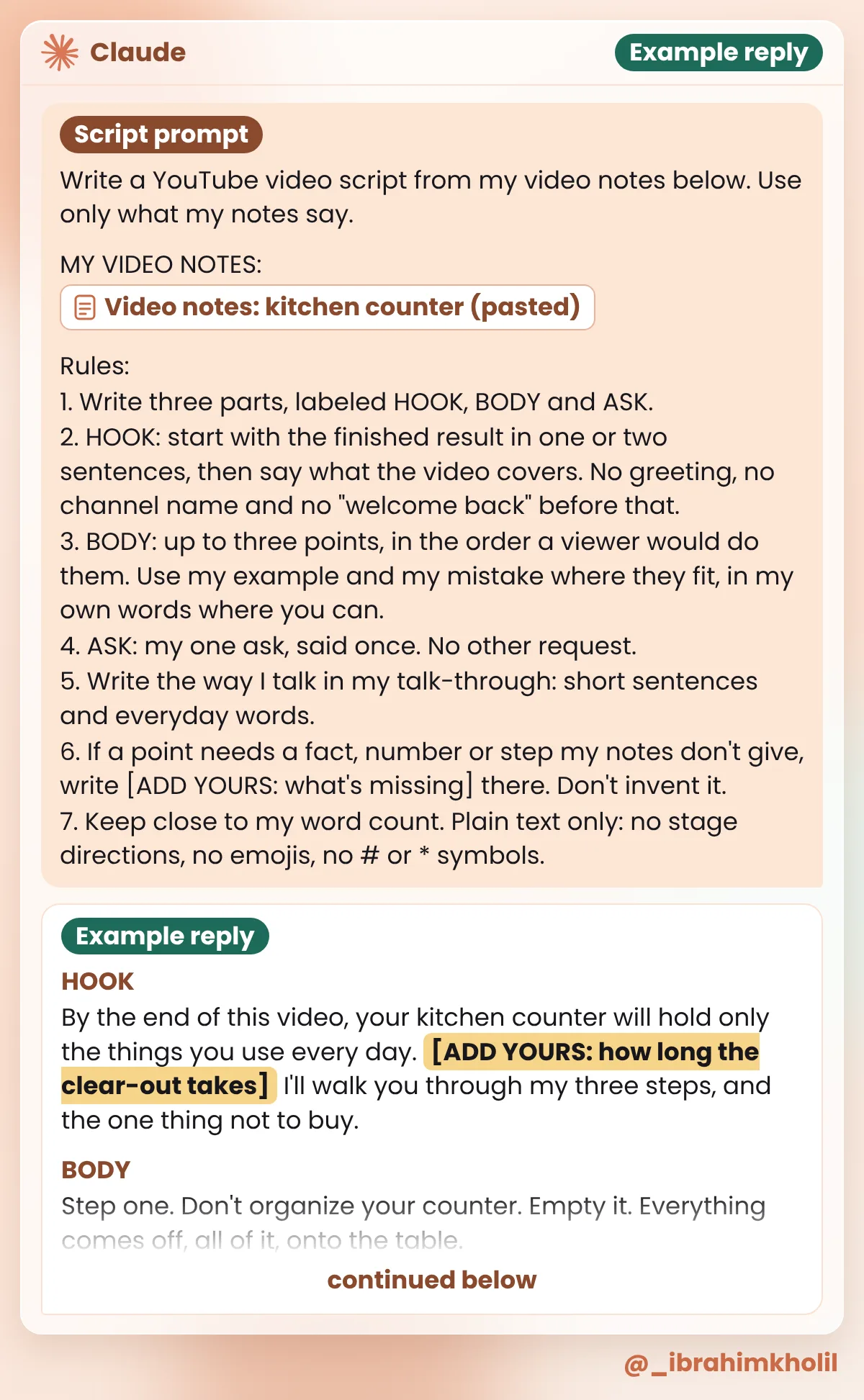
The rest of Claude’s reply (Example)
Step two. Pick things up one at a time and ask: did I use this today or yesterday? If yes, it can go back. If no, it needs a home somewhere else. A cupboard, a drawer or the donate box. And the donate box goes in the car the same day, or it walks right back into the kitchen.
Here’s a real one. I had a client with a bread maker on her counter. She used it maybe twice a year, and it took up a third of the space. It went in the top cupboard.
What earns a spot is different for everyone. For most people, it’s the kettle, the knife block, maybe the fruit bowl. Your rule is simple: if you used it, it stays.
Step three. Wipe the counter before anything goes back. A clean, empty counter is what makes you want to keep it clear.
One last thing: the big mistake I see is buying organizer trays first. Don’t. Empty it first, then see if you even need one.
ASK
Tell me in the comments: what’s the one thing you moved off your counter?
Hold it next to her notes and every point is hers: empty first, the today-or-yesterday question, the donate box in the car, the bread maker, the kettle and knife block, the wipe and the tray mistake. The ask is the one from her notes. The only thing Claude wanted and didn’t have, how long a clear-out takes, is marked in the HOOK rather than guessed. The draft comes to about 240 words, her word count.
A draft that reads smoothly can still say something you never said, or leave a gap you’d only notice halfway through filming. Both are easier to catch with a list in front of you than by rereading.
This prompt doesn’t touch the script. It reads the draft next to your notes and reports four things, and you decide what to change. If you wrote your script another way, it still works: paste the script as your “Script draft” and your own notes in place of the “Video notes”.
Step 4: what to do
The Check prompt, ready to copy:
Read my YouTube script the way an editor would, next to my video notes. List problems and leave every line of the script as it is.

MY VIDEO NOTES:
[PASTE YOUR "VIDEO NOTES" NOTE]

MY SCRIPT:
[PASTE YOUR "SCRIPT DRAFT" NOTE]

Reply in four parts:
PROMISE: quote the first sentence that tells viewers what they'll get by the end.
NEW: quote every sentence that says something my notes don't. Write NONE if there are none.
GAPS: list every [ADD YOURS] still in the script. Write NONE if there are none.
HARD TO SAY: quote every sentence that would be hard to say in one breath, or that uses a word a beginner might not know. Write NONE if there are none.
Run it once per script. Anything you change after it gets tested in Step 5, when you read the whole script aloud.
Looks right when: the reply has the four labeled parts, each with quotes or NONE, and no rewritten script.
Selma’s check (Example): she pastes her Video notes and her Script draft, still with the [ADD YOURS] gap in it. The image shows the reply.
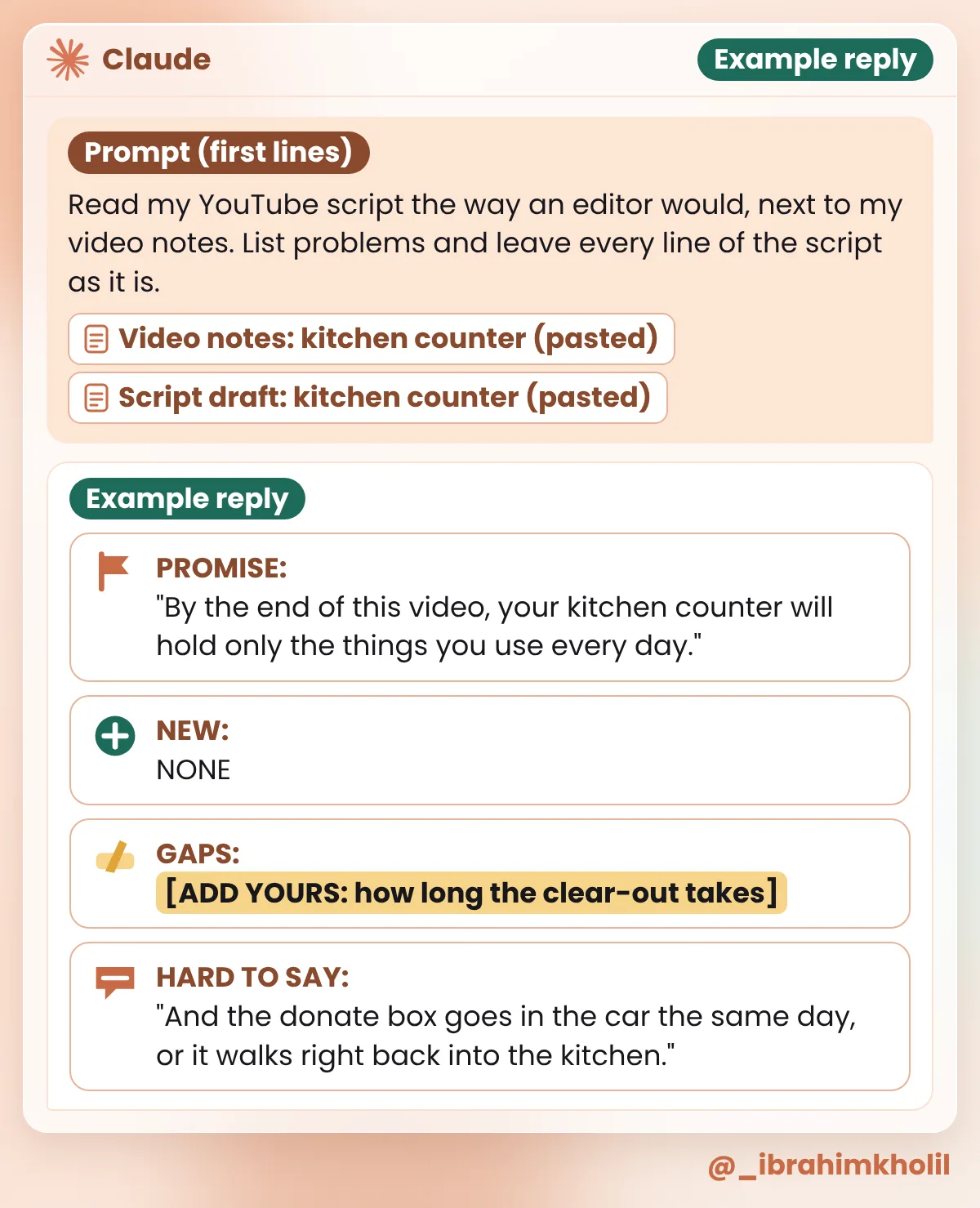
Selma’s fixes (Example): the PROMISE quote is the first line of her HOOK, so nothing moves. NEW says NONE. The gap asks how long a clear-out takes, and she has never timed one, so she deletes “[ADD YOURS: how long the clear-out takes]” rather than guess a number. She added no fact, so her talk-through stays as it is. She marks the donate-box line for Step 5.
A script can look fine on screen and still trip you up on camera. A sentence runs out of breath halfway, or a word comes out that you’d never really say. You only find those by saying them.
Reading with a stopwatch also tells you whether the length is right before you set anything up. This is the last check in the method, and it’s yours, not the AI’s.
Step 5: what to do
Looks right when: you can read the script start to finish without stumbling, close to the length you planned.
Selma’s read (Example): her first read takes 2:06 against a two-minute plan, so she’s 6 seconds over, even though the draft is close to her word count; her pauses between points add time, which is why the stopwatch has the last word. At her 120 words a minute, 6 seconds is 6 ÷ 60 x 120 = 12 words to cut.
She cuts “Your rule is simple: if you used it, it stays.” (10 words), because the “Step two” part of her script already says it, and drops “One last thing:” (3 words), starting that sentence at “The big mistake”. That’s 13 words, close enough.
The marked donate-box line comes out fine, so it stays. She trips on “Everything comes off, all of it, onto the table.” and changes it to “Take everything off and put it on the table.” Her second read lands just under two minutes, so she stops. Her two reads come to about 4 minutes and her cuts to a few more, which puts her whole script near the low end of the 25 to 35 minutes.
If a line still sounds stiff after this, my post on how to edit AI content so it sounds human has more fixes for that.
Once the video is live, you no longer have to guess which part of the script worked. YouTube Studio shows how viewers really watched it, and that tells you what to change in the next script.
According to YouTube’s Help page on audience retention, each video has a retention chart. A flat stretch means viewers watched that part start to finish. A gradual decline means interest slowly fading, which the page treats as normal. A dip means viewers left or skipped ahead at that point, and a spike means they rewatched or shared that part, or found it confusing. YouTube’s tips there include making your title and thumbnail match the video, trying different first 30 seconds, and putting your most interesting content earlier.
After upload: what to do
Looks right when: you see a retention line running across the length of the video, and an Intro figure for the first 30 seconds. YouTube may also show highlighted moments, but only on videos of at least 60 seconds with at least 100 views, so a new video may not show them yet.
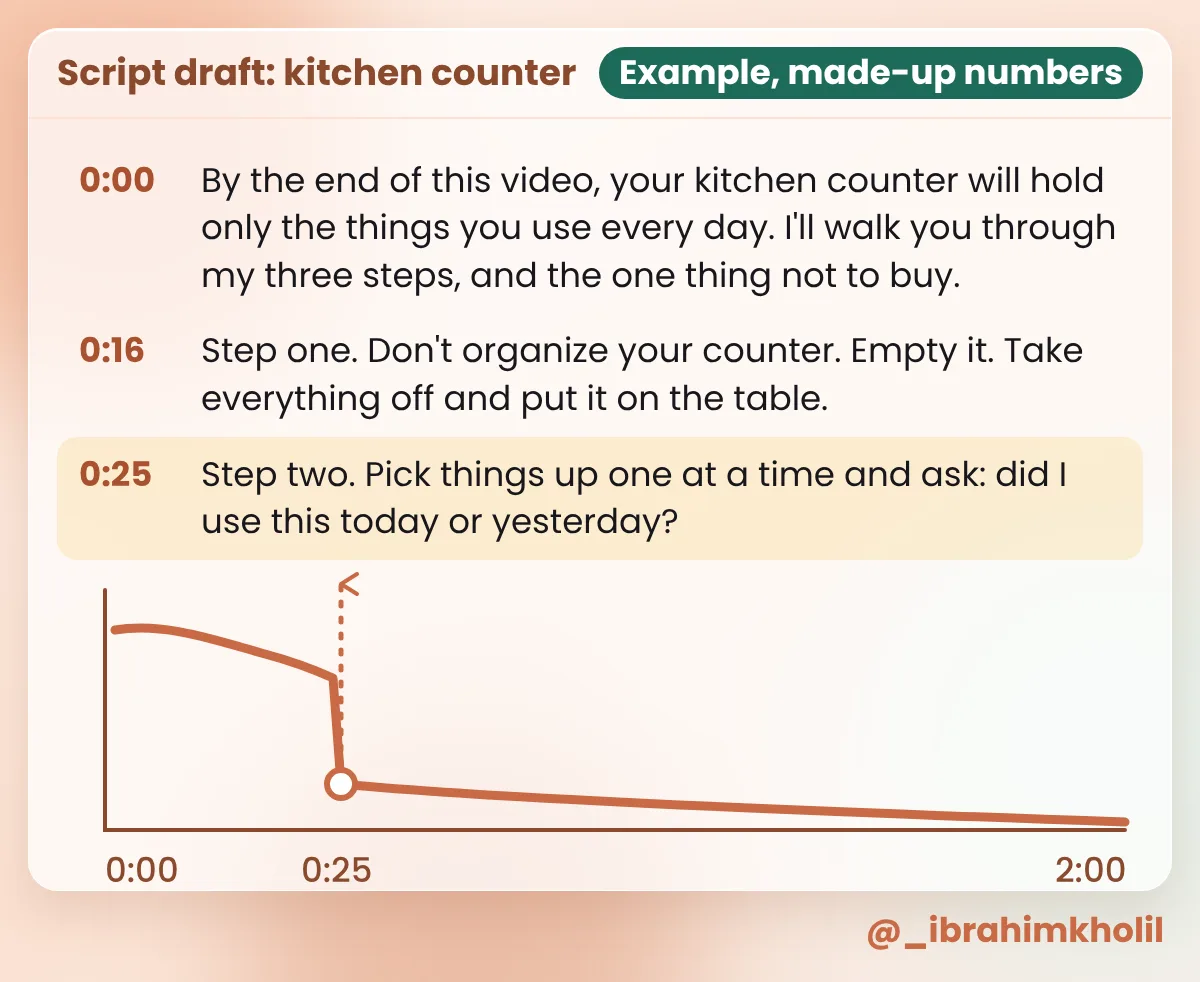
Selma’s chart (Example, made-up numbers): say her chart dips sharply at about 25 seconds. 25 ÷ 60 x 120 = 50, and the 50th word of her final script is where “Step two” begins, right after her HOOK and Step one (49 words together). Her guess, which the chart can’t confirm, is that her most interesting part, the bread maker story, comes too late. Her line for next time: tell the real example right after the HOOK.
No, according to YouTube’s Help page on altered or synthetic content. It lists using AI to create or improve a script, outline or title as production help, which doesn’t need to be disclosed.
Disclosure is for content that is meaningfully altered or synthetic and looks realistic. The page’s examples include making a real person appear to say or do something they didn’t, and showing a realistic scene that never happened. You set it with the “AI use” setting when you upload in YouTube Studio. If you disclose, YouTube adds a label, and the page says disclosing alone doesn’t limit your audience or your eligibility to earn money.
The script is covered; what you add to the video later may not be. The same page treats cloning your own voice for voice-overs as a minor edit, but it doesn’t spell out every kind of AI voice or face. If you add AI visuals or another AI voice, read the page again first.
Good to know: AI scripts and earning money on YouTube
YouTube’s monetization policies have a section called “inauthentic content”, renamed from “repetitious content” on July 15, 2025. Content that looks made from a template, or feels repetitive from video to video, can’t earn money there, and the page names AI-generated content made with generic templates that gives the impression of mass production.
The same page doesn’t ban AI. It says AI tools are fine when the final video shows your own creative vision and gives viewers value, and reusing the same intro or outro is fine if most of each video is different. Your talk-through is what puts that in every script. Policy pages change, so check the linked page for the current wording. This is general information, not legal advice.
What this method can’t do for you
The Script prompt in this post, saved in a notes app and run in a free Claude, ChatGPT or Gemini account, does the job without a paid tool. Free plans have usage limits that reset after a few hours, so if you hit one, wait or switch chats. Script websites are another route; whichever you use, your own notes are what stop the script from sounding like everyone else’s.
Yes. The same Script prompt works in ChatGPT, Claude and Gemini. In this method, your talk-through decides what the script says, whichever chat you use.
Not according to YouTube’s Help page: AI help with a script, outline or title counts as production help and doesn’t need disclosing. The rule is about realistic altered or synthetic content, such as a real person shown saying something they didn’t. The disclosure section has the details and the link.
It depends on how fast you talk. Read aloud for one minute, count the words and multiply by 5. At 120 words a minute, Selma’s made-up pace, that’s 600 words; a faster talker needs more.
Yes. Open the post, read one heading at a time, and say that part in your own words into the Talk-through line. You can paste the post itself instead, but in my view a script built from written sentences tends to sound read rather than spoken, and Step 5 will show you where.
YouTube’s supported-formats page lists timed files such as .srt, .vtt and .sbv, and does not list .txt. For a plain text script, check what Studio accepts under Without timing; the safe route is a timed .srt. To upload a subtitle file in YouTube Studio: in the left menu choose Subtitles, select the video, click ADD LANGUAGE and pick the language, click ADD under Subtitles, choose Upload file, pick With timing or Without timing, click Continue, choose the file and click Save.
Three ideas carry the whole method:
A script is written to be heard, so the final check is your own voice.
When the video is live, my AI social media caption generator post shows one way to write the post that tells people about it.
Your first move needs no AI at all: a phone, two quiet minutes and one video idea you know well. Talk it into a “Video notes” note today, and both prompts will be waiting when you sit down to script.

12+ years in digital marketing. I test every workflow on real work before I share it, free tools first.
More about me →Steps, a copy-paste prompt and the limits I found. Free, nothing to buy.
Get the Free Starter Kit →