Physical Address
304 North Cardinal St.
Dorchester Center, MA 02124
Physical Address
304 North Cardinal St.
Dorchester Center, MA 02124
Turn one published blog post into a short newsletter issue with a free AI chat: a five-line voice note, one saved prompt, a check for links and facts, and four kinds of issue to send.
Imran is made up, but his blog may look a lot like yours. He writes about riding a bike to work, a few dozen readers have signed up for his emails, and he has sent them exactly one. Every week he plans to find a free AI newsletter generator, turn the new post into an issue and send it. Every week the post goes live and the email doesn’t.
Much of the stall is the blank page. With no set shape, every issue means new decisions: how to open, what to pull out of 1,500 words, what to ask for at the end. Yet the people on his list signed up for exactly what he has already written.
Give every issue the same shape, and feed it a post that’s already finished. The shape has four parts, always in the same order: a hook, three takeaways, the link and one ask. Since the post already holds the facts and a five-line note holds your voice, the AI’s only job is arranging what’s already true, and a free Claude or ChatGPT account is enough for that.
Four kinds of issue come out of that one kit: a new post, a roundup of several, an answer to a reader’s question and an older post brought back. Setting it up takes about 10 minutes, once. After that, an issue takes about 20 minutes from copied post to sent email, by my estimate. Your first one will take longer.
What you’ll build
Your toolbox
On this page
A newsletter generator takes something you give it and writes an email you can send. Some are websites built for that one job. Any AI chat can do the same with a good prompt, and that’s the version used here, because you decide what goes in.
Here, what goes in is always one of your own published posts. So every fact in the issue already exists, you’ve already checked it, and it has a page to link to. The AI handles the parts that slow you down: picking three points, writing an opening and keeping it short.
Every issue gets the same four parts, in the same order:
One ask per issue is my rule, not a law of email. It means a reader never has to choose between two requests, and it gives the check prompt something simple to count.
Some email tools have an AI writer of their own. Mailchimp’s help pages, as they read in search results, describe Write with AI inside its email editor, but for Standard plans and higher, and only in some countries. So it isn’t a free route, and the kit below works with any email tool.
The kit itself is two saved notes. Here’s how to make them.
An AI chat doesn’t know how you talk to your readers. Without help, it writes in the same polite newsletter voice it gives everyone. Five lines change that, and you write them yourself, no AI needed.
Copy this template (voice note):
My newsletter voice
Who reads: [WHO SIGNED UP, IN A FEW WORDS]
Greeting: [HOW YOU START AN EMAIL]
Words I use: [3 TO 5 WORDS OR SHORT PHRASES]
Words I never use: [2 TO 4 WORDS]
Sign-off: [HOW YOU END, PLUS YOUR FIRST NAME]Imran’s note is in the image below. If you’d rather have AI interview you, the six-question voice file in my AI social media caption generator post works too; copy only the lines that fit these five.
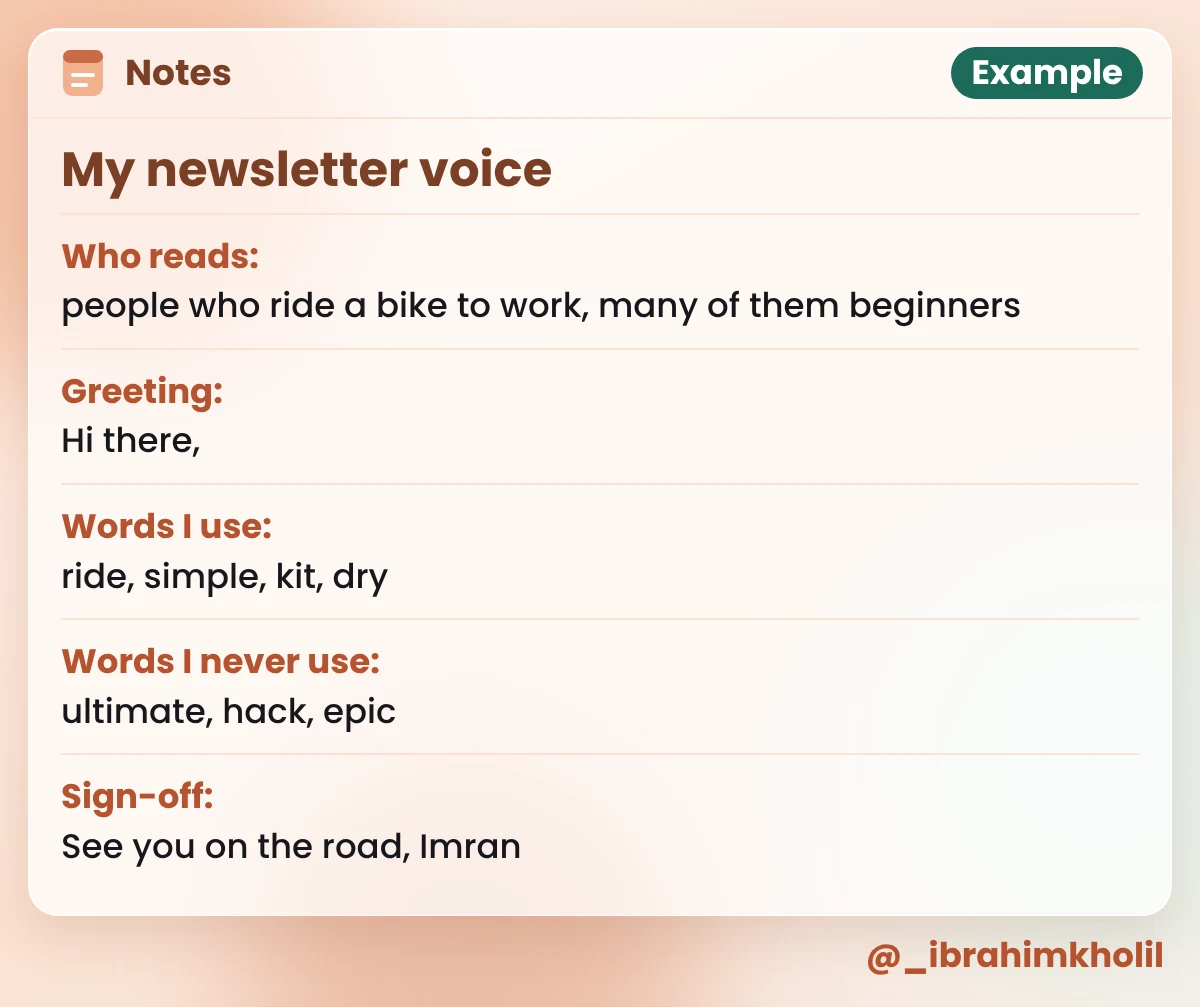
What you should see: a note whose first line reads My newsletter voice, with five filled lines and no brackets left.
Copy this prompt (Issue prompt):
Write one email newsletter issue from my blog post text below. Use only facts from my post text and my ANGLE line.

MY VOICE:
[PASTE YOUR "MY NEWSLETTER VOICE" NOTE]

ANGLE: [ONE LINE: WHY THIS ISSUE GOES OUT NOW]
MY ASK: [THE ONE THING READERS SHOULD DO]
POST TEXT (each post starts with its link on its own line):
[PASTE THE LINK, THEN THE POST TEXT]

Build the issue from 4 parts, in this order:
1. HOOK: a subject line, then one opening sentence about the reader's problem.
2. TAKEAWAYS: 3 short points from the post. With 2 or 3 posts, one point per post.
3. LINKS: one line per post saying what the full post adds, then its link exactly as I pasted it.
4. ONE ASK: MY ASK in one sentence. Ask for nothing else.

Rules:
- Greet and sign off the way MY VOICE says. Use its words and never the words it bans.
- Under 200 words, not counting the subject line.
- Never write a link I didn't paste. Never add facts, numbers or stories about me.
- If my ANGLE asks a question the post text doesn't answer, write [NOT IN THE POST] at that spot.
- Write "Subject:" and the subject line first. Then the email exactly as readers will see it, with no part labels.
The 200-word limit is my suggestion: enough for three points and a link, short enough to read on a phone in one go. The link rule is there because AI chats can write links that look right and lead nowhere. The [NOT IN THE POST] line matters most in Way 3.
Short version (Way 1 only, handy on a phone):
Turn the blog post below into a short newsletter issue in my voice. Use only facts and links from the post. Write "Subject:" and a subject line first, then the email with no labels: a greeting, one opening sentence, 3 short takeaways, one line with the post's link exactly as given, this one ask: [MY ASK], and my sign-off. Under 200 words.
MY VOICE: [PASTE YOUR "MY NEWSLETTER VOICE" NOTE]
POST: [PASTE THE LINK, THEN THE POST TEXT]
The Short version has no ANGLE line and no roundup or reader-question rules, so use the full prompt for Ways 2 to 4.
This is the issue to send on the day a post goes live. Your subscribers get the main points in the email, and the ones who want the detail click through.
It’s also the best way to learn the kit, because the other three ways change only what you put in.
Imran’s post (Example)
Imran and his blog are invented for this post, and imranrides.example is a made-up address. His newest post is “What to Pack for a Rainy Bike Commute”, at imranrides.example/rainy-commute-kit/. These are the five points it makes:
| # | What the post says (Example) |
|---|---|
| 1 | A waterproof bag or a plastic liner keeps your laptop dry. |
| 2 | Front and rear lights help drivers see you in gray weather. |
| 3 | Pack a spare pair of socks; wet feet make the whole day worse. |
| 4 | Mudguards keep road spray off your back. |
| 5 | Check the forecast the night before and pack then, not in the morning. |
What you should see: a first line starting with Subject:, then a greeting, one opening sentence, three short points, a line with your link, your ask and your sign-off. No HOOK or TAKEAWAYS labels. If the chat cuts off or says the text is too long, start again and paste only the post’s intro and its headings.
Imran’s two lines (Example): ANGLE: The rainy season starts this month. MY ASK: Reply and tell me the one thing you always forget to pack. His voice note and his post go in as they are.
Imran’s issue, as the chat wrote it (Example reply)
Subject: Rain is coming: pack these the night before
Hi there,
Last week, three readers told me rain is the reason they stop riding to work.
Three simple things keep you and your day dry:
– Put your laptop in a waterproof bag or a plastic liner.
– Use front and rear lights, so drivers see you in gray weather.
– Pack spare socks. Wet feet make the whole day worse.
The full kit list also covers mudguards and when to pack: imranrides.example/rainy-commute-kit/
Reply and tell me the one thing you always forget to pack.
See you on the road,
Imran
Points 1, 2 and 3 of the post became the takeaways, and the link line names points 4 and 5. The greeting, the words “simple”, “kit” and “dry” and the sign-off come from his voice note. The opening sentence deserves a second look, and the check below is built for lines like it.
Next, run the check, then paste it into your email tool.
If you publish more than once a week, one email per post can add up to a lot of email. A roundup sends one issue for two or three posts.
The Issue prompt already handles this. With two or three posts under POST TEXT, it gives one takeaway per post and one link line per post, so nothing in the prompt changes.
What you should see: one takeaway and one link line for each post you pasted, and no other links.
Imran’s roundup (Example): his second post this week is “Where to Lock Your Bike at Work”, at imranrides.example/lock-up-guide/. It makes two points: lock the frame, not only the wheel, and ask your office if there’s an indoor spot. His ANGLE is This week’s two posts, and MY ASK is Reply with the question you’d like my next post to answer. The link lines come back like this:
Two posts in, two links out, each copied exactly. Then run the check and paste it.
A question from one reader may be on other readers’ minds too. Answering it in an issue also shows your list that their replies get read.
The risk is an answer that goes further than your post does. That’s what the [NOT IN THE POST] rule is for: where your post has no answer, the chat leaves that marker instead of making one up.
What you should see: an issue that opens with the question and answers it from your post, with [NOT IN THE POST] wherever the post falls short.
Imran’s reader question (Example): a reader emailed, “Do I need special shoes for riding in the rain?” His rain post covers socks but not shoes. So his ANGLE is A reader asked: Do I need special shoes for riding in the rain? and the rain post goes under POST TEXT. One part of the reply:
Shoes: [NOT IN THE POST]. What the kit list does cover is socks: pack a spare pair, because wet feet make the whole day worse.Imran’s edit (Example): in his “Issue draft” note, he replaces the marker with a line he knows is true for him: “I ride in my normal trainers and change at work.” The check reads that note, so it quotes his new line under UNBACKED, because the post never mentions it. That’s expected. He knows it’s true, so it stays.
Then run the check and paste it.
People who joined your list last month may never have seen your posts from last year. An older post that still holds up is a ready-made issue for them.
What the AI can’t do is tell you which parts are out of date. It only knows what’s on the page. So read the post first and fix anything that has changed; my post on how to update old blog posts with AI covers that part.
What you should see: an issue that gives your reason for sending it now, with takeaways from the post as it reads today.
Imran’s old post (Example): “How to Plan a Bike Route to a New Office”, at imranrides.example/new-office-route/. It makes three points: try the route on a weekend first, pick quieter streets even if they’re longer, and note where you can lock up. He rereads it and finds nothing out of date, so his ANGLE has no “updated” line: January is when a lot of my readers start new jobs. MY ASK: Try your route this weekend and reply with how long it took. The reply opens like this:
Subject: New job in January? Ride your route before day one

Hi there,

A new office means a new ride, and the first morning is the wrong time to learn the way.
Then run the check and paste it.
An AI chat can slip even with clear rules. It can write a link that looks right and goes nowhere, or add a friendly detail you never gave it. The check prompt looks for exactly those two things, and it counts the asks, so the issue keeps one.
Copy this prompt (check prompt):
Here is my newsletter issue as it stands now:
[PASTE YOUR "ISSUE DRAFT" NOTE]

Compare it with the post text and the ANGLE line (if I gave one) from earlier in this chat. Only report; leave the wording alone.
LINKS: list every link in the issue. After each, write FOUND if it appears in my post text exactly, or NOT FOUND.
UNBACKED: quote every sentence that states a fact, number or story that my post text and my ANGLE line don't give. After each, ask me one question about it. If there are none, write NONE.
ASKS: count the things the issue asks readers to do, apart from opening the links, and list them.
Run the check once per issue. Anything you change after that gets its last check in the test email, in the next section.
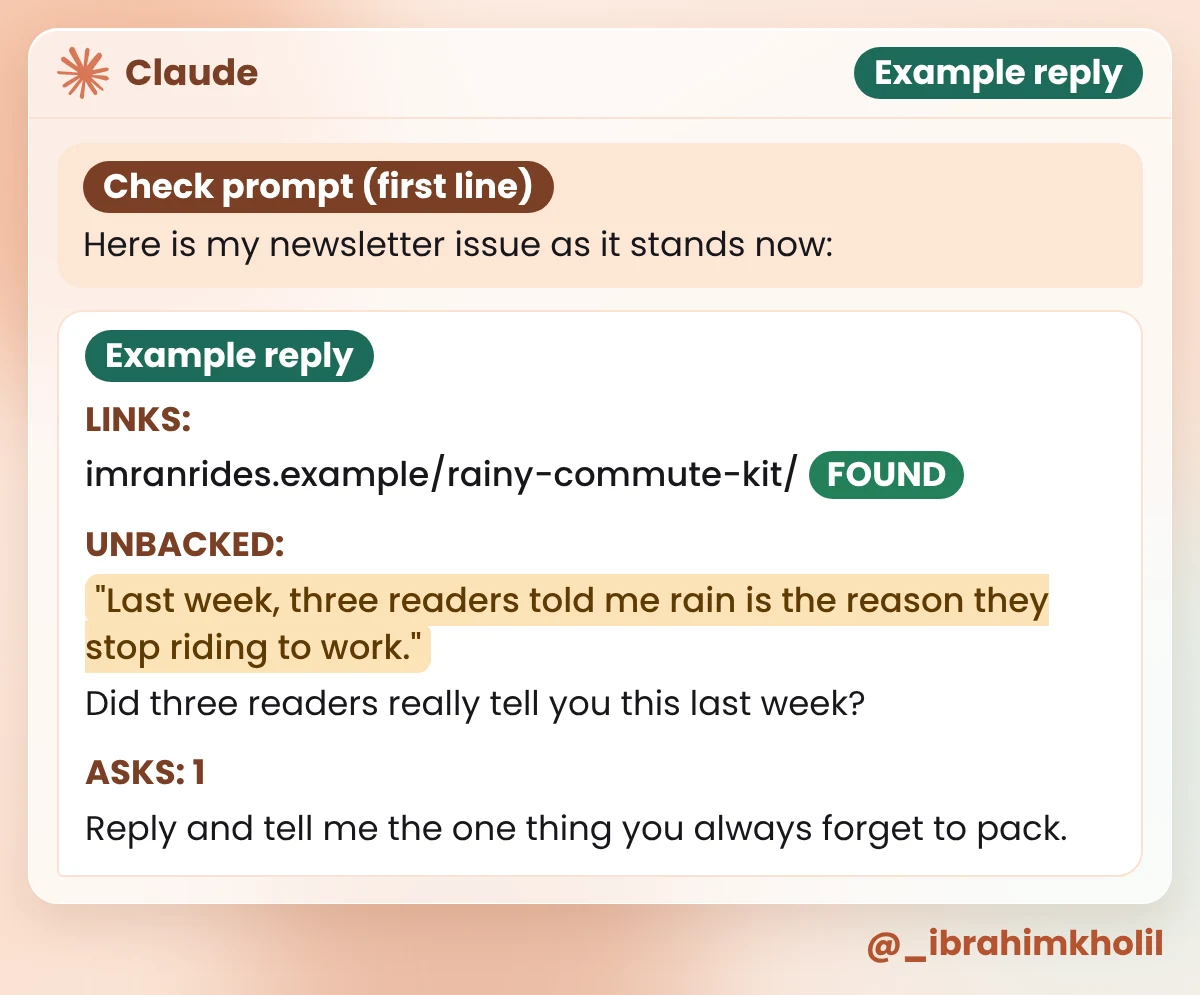
Imran’s fix (Example): the three readers are invented; Imran has heard nothing of the kind. In his “Issue draft” note he swaps the opening for: “The rainy season starts this month, and it doesn’t have to end your ride to work.” The link was found and there’s one ask, so that’s his only change.
The AI chat writes the issue. Your email tool holds your subscriber list and sends it. If you already use one, paste into that.
If you don’t have one yet, these all list a free option, as their pages read in search results at the time of writing. Free limits have changed in the past year and sources disagree on some of them, so I’ve left the numbers out. Check the pricing page on the day you sign up.
| Email tool | What search results show (check the page) |
|---|---|
| Kit (formerly ConvertKit) | A free Newsletter plan |
| beehiiv | A free plan, once called Launch |
| MailerLite | A free plan; its help page says the free limit was lowered in September 2025 |
| Mailchimp | A free plan; sources disagree on its current limits |
| Substack | Free to publish; it takes a fee only if you charge for subscriptions |
How to pick one today: if you already have subscribers in a tool, stay there, because moving a list is a job of its own. If you’re starting from zero, open two of these pricing pages, compare each free plan’s subscriber limit with the number of readers you hope to have in a year, and pick the one with room to spare.
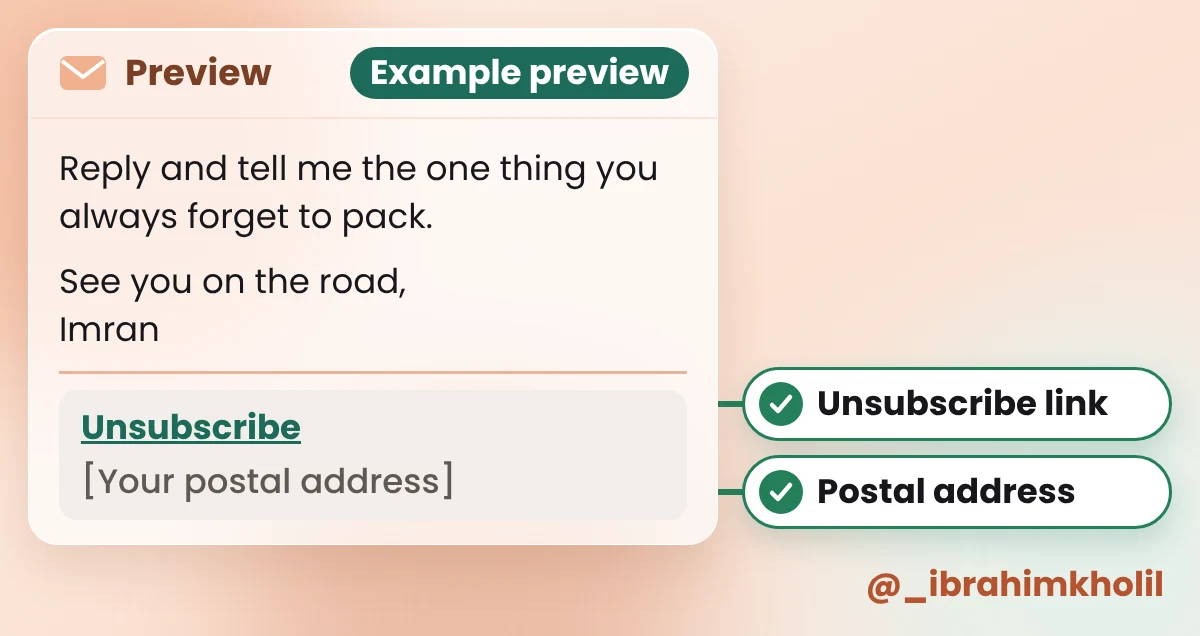
What you should see: a test email that reads like a short note from you, links that open the right posts, and a footer with an unsubscribe link and an address. Any fix you make here, you check here, by reading the test email and tapping the links. No need to go back to the chat.
Watch out: two footer basics (general info, not legal advice)
If any of your subscribers are in the US, the FTC’s CAN-SPAM compliance guide covers commercial email, and two of its points live in your footer. As the guide reads in search results:
Whether your issue counts as commercial is explained in the FTC’s guide. Rules differ by country, so check the linked page for current details. This is general information, not legal advice.
What this generator won’t do for you
Use the same post again
The post that fed your issue can feed your social posts too: my AI social media caption generator turns it into captions. You can run the promise check from my free AI headline generator post on a subject line as well. And if writing the post itself is the slow part, start with how to write blog posts faster.
The kit in this post is one. Your voice note and the saved Issue prompt, run in a free Claude or ChatGPT account, turn a post you’ve published into a short issue. Sites sold as newsletter generators are outside the scope of this post; if you try one, read its plan page first and run the same link and fact check on what it writes.
Yes. Paste the Issue prompt, your voice note and the post into a new chat, and it writes the issue. Then the check prompt lists the links and quotes any line your post doesn’t back.
There’s no single best one. Kit, beehiiv, MailerLite, Mailchimp and Substack all list a free option, as their pages read in search results, and the limits change. If you already have subscribers somewhere, stay there; if not, compare two free plans’ subscriber limits.
If you send commercial email to people in the US, the FTC’s CAN-SPAM guide, as it reads in search results, asks for a valid postal address, and a registered PO box or private mailbox can count. Other countries have their own rules. This is general information, not legal advice.
My suggestion is under 200 words: enough for three takeaways and the link, and short enough to read on a phone in one go. The full post is one tap away for readers who want more.
Mailchimp’s help pages, as they read in search results, describe Write with AI in its email editor for Standard plans and higher, in some countries. By that description, it isn’t part of the free plan. The prompts here work with Mailchimp’s free plan or any other email tool.
A free AI newsletter generator doesn’t have to be a website. A voice note, one prompt with a four-part shape and a quick check turn a post you’ve already written into an issue, and the same kit covers roundups, reader questions and older posts.
The part only you can do is small: say why now, choose the one ask, and fix any line that isn’t true.
Your newest post is the place to start. It’s live, it’s fresh in your head, and your subscribers haven’t heard about it yet. Fill in the five voice lines, run Way 1 on that post, and send your first issue this week.

12+ years in digital marketing. I test every workflow on real work before I share it, free tools first.
More about me →Steps, a copy-paste prompt and the limits I found. Free, nothing to buy.
Get the Free Starter Kit →