Physical Address
304 North Cardinal St.
Dorchester Center, MA 02124
Physical Address
304 North Cardinal St.
Dorchester Center, MA 02124

Seven AI SEO tools sorted by the job they do, four free to start, and the order to use them on one post that Google already shows.
Most lists of AI SEO tools open with big paid platforms built for agencies, so a one-person blog signs up for three free trials and still doesn’t know which post to work on first. Meanwhile, a post on page two of Google keeps showing up in searches and gets very few clicks.
The first tool a small blog needs is free, and it isn’t an AI tool at all. It’s Google Search Console, the report that shows which of your posts Google already puts in front of people. Every AI tool in this post does better work once you hand it those numbers.
One sitting with the free tools here gets you three things: one post picked by its own numbers, a new title and meta description built on the searches it already shows up for, and a short list of what the post is missing. It’s roughly a 35-minute job (my estimate), not counting the time you spend writing the new parts. The paid tools come last, for when doing it by hand gets slow.
In short
What you need
On this page
An AI SEO tool here means a tool that uses AI to do an SEO job for you: read your numbers, write a title, compare your post with others or check AI answers. Search Console isn’t on the list because it has no AI in it. It’s the free data the first two tools read.
| Tool | Its job on your blog | Cost to start |
|---|---|---|
| 1. Claude | Picks the one post to fix from your Search Console rows | Free plan |
| 2. ChatGPT | Rewrites that post’s title and meta description from its real searches | Free plan |
| 3. Perplexity | Shows what the pages it cites cover that your post doesn’t | Free account |
| 4. Frase AI Visibility Checker | A quick look at whether ChatGPT mentions your site | Free check |
| 5. Rank Math AI | AI features inside WordPress | Paid subscription |
| 6. Semrush AI Visibility Toolkit | Asks AI tools your chosen questions on a schedule | Listed at $99 a month |
| 7. Otterly.AI | The same job, on a smaller plan | Listed from $29 a month |
How to pick today: run tools 1, 2 and 3 on one post, in that order. Claude and ChatGPT can swap places, since both prompts below work in either, so use the one you already have open. Add tool 4 when you want a quick second opinion on AI answers. Leave tools 5 to 7 until the free round takes more time than you have.
Two SEO jobs are left out on purpose, because they have their own posts. Finding new keywords is in AI keyword research tools, and checking AI citations month by month is in generative engine optimization tools. If you’d rather have one prompt per SEO chore, my post on how to use AI for SEO has eight.
Felix’s balcony garden blog (Example)
To show what each tool gives back, this post follows one invented blog: Felix’s notes on growing vegetables on a city balcony. His Search Console rows, his searches and every reply shown are made up for this post.
A blog with 30 posts has 30 things you could improve, and nothing on the dashboard says where to start. So the work either gets spread thin or never starts.
Search Console’s Performance report lists clicks, impressions (how often a page appeared in Google’s results), click-through rate (CTR, the share of people who clicked) and average position for your pages. The post worth fixing first is one Google already shows a lot, just not near the top. My rule of thumb, not something Google publishes: an average position between about 5 and 20.
You could sort the rows yourself. Claude does it faster, explains its pick in plain words and tells you why every other page was left out.
No Export option, or on a phone? Type the five numbers for your 10 pages with the most impressions into a note by hand. Ten rows is enough for this job.
What you should see: one row per page, with the five columns. Felix’s rows (Example):
| Page | Clicks | Impressions | CTR | Position |
|---|---|---|---|---|
| /tomatoes-in-pots/ | 41 | 3,900 | 1.1% | 11.4 |
| /balcony-herbs/ | 88 | 2,100 | 4.2% | 6.2 |
| /best-soil-for-containers/ | 12 | 2,600 | 0.5% | 24.8 |
| /watering-schedule/ | 9 | 310 | 2.9% | 8.0 |
| /about/ | 3 | 140 | 2.1% | 3.5 |
CTR is clicks divided by impressions. For his tomato post, that’s 41 ÷ 3,900 = about 1.1%.
Copy this prompt (Fix finder):
Help me pick ONE blog post to improve this week.
Below are rows from my Google Search Console Pages report for the last 3 months.
Columns: page, clicks, impressions, CTR, average position.

MY ROWS:
[PASTE YOUR ROWS]

MINIMUM IMPRESSIONS: [NUMBER]

Rules:
- Use only the numbers in my rows. Don't guess traffic, keywords or anything else.
- Skip every page with fewer impressions than my minimum.
- From the rest, pick the page with an average position between 5 and 20 and the most impressions.
- If no page fits, write "No page fits" and pick the page with the most impressions.
- Reply in exactly 4 lines:
PICK: the page
WHY: the numbers that made you pick it
SKIPPED: every other page, with the reason in a few words
NEXT: Open this page's searches in Search Console.
How to choose the minimum (my suggestion): start with 500. If fewer than 3 of your pages reach it, use 100 instead. Felix used 500.
What you should see: four lines, and every row you pasted named either in PICK or in SKIPPED. Felix’s reply (Example) is in the image.
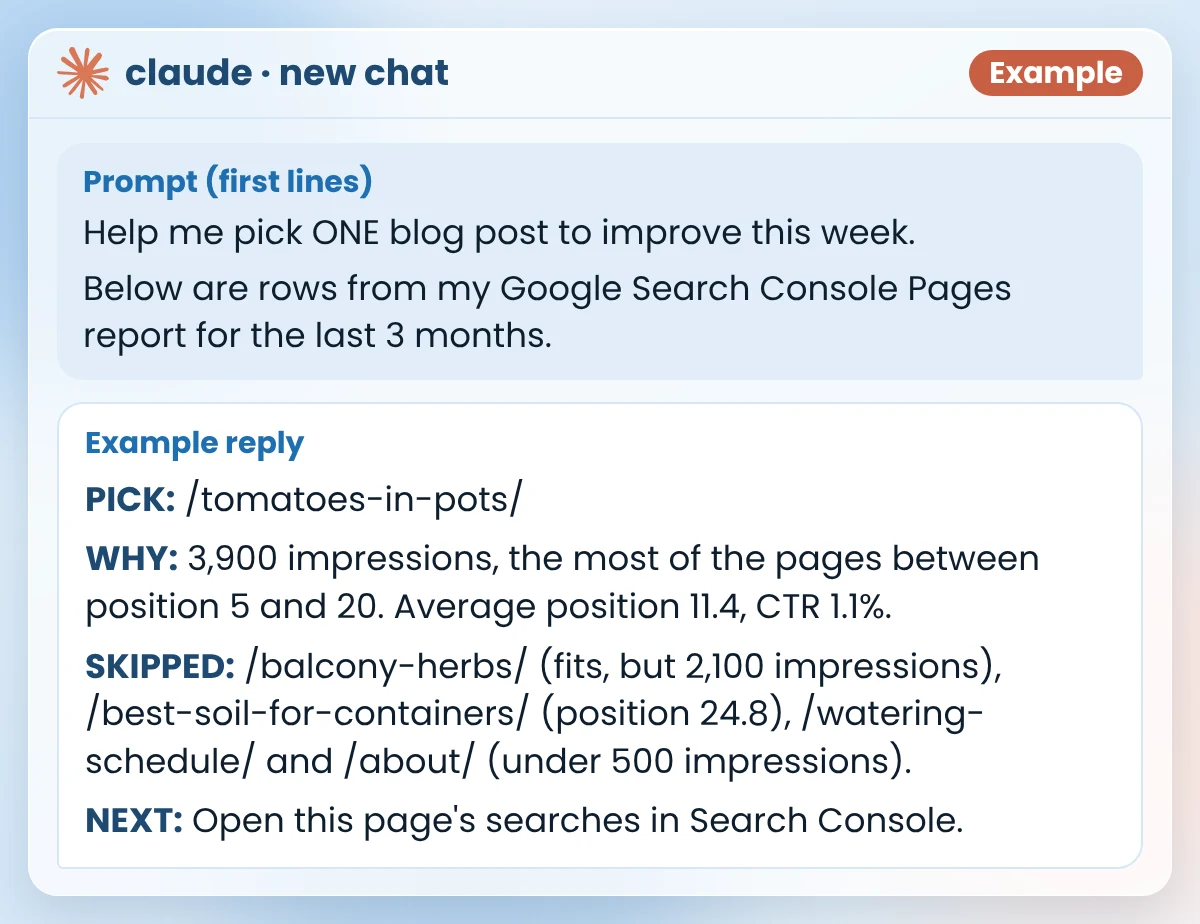
Before you act, hold the WHY line next to your own row. The numbers must match. An AI reply can misread a number, and your Search Console rows are the record.
Your rows are your own site’s data. Check the chat tool’s privacy settings first, and paste only the five columns the prompt asks for.
Knowing which post to fix is half the job. The next tool works on the line people see first in Google: the title.
Posts often show up for searches their title never mentions. Felix’s tomato post is called “My Tomato Adventure on the Balcony”, while people find it by typing things like “how to grow tomatoes in pots”. The title doesn’t tell them they’ve found the answer.
Google’s guide to title links asks for titles that are descriptive and concise, without keyword stuffing. Its page on snippets says it sometimes shows your meta description under the title, when that describes the page better than text taken from the page. So the fix is to write both around the searches the post already gets.
No Search Console data yet? Write “Searches: NONE” in your Fix note and go on. The prompt below has a rule for that case.
What you should see: a list of searches with clicks, impressions and position for that one page. Felix’s top 5 (Example):
| Search | Impressions | Position |
|---|---|---|
| how to grow tomatoes in pots | 1,200 | 12.1 |
| tomatoes in pots on balcony | 640 | 9.8 |
| best tomatoes for pots | 510 | 14.0 |
| how often to water tomatoes in pots | 380 | 10.5 |
| tomato pot size | 290 | 13.2 |
Copy this prompt (Title and meta):
Write new SEO titles and meta descriptions for one of my blog posts.

WHAT THE POST REALLY COVERS:
[3 TO 5 SHORT LINES]
CURRENT TITLE: [PASTE IT]
CURRENT META DESCRIPTION: [PASTE IT, OR NONE]
SEARCHES THAT SHOW THIS POST: [PASTE THE 5 SEARCHES, OR NONE]

Rules:
- Write 3 titles of 60 characters or less and 2 meta descriptions of 150 characters or less.
- Use the words of the searches where they fit naturally. If the searches line says NONE, use plain words from the "really covers" lines.
- Promise only what the "really covers" lines say. No numbers, years or freebies the post doesn't have.
- Under each title, write "Built on:" and the search it uses (or the "really covers" line, if there are no searches).
How to fill “really covers”: open your post and read its headings. Write one short line for each main thing the post explains today, not what you plan to add.
Felix’s lines (Example): first-time growers, cherry tomatoes in 20-litre pots on a sunny balcony / the soil mix I use / watering in hot weeks / the 2 cherry tomato varieties that did well for me / what went wrong in my first year. His current title is “My Tomato Adventure on the Balcony”, and he has no meta description, so he wrote NONE.
What you should see: 3 titles, each with a “Built on” line, and 2 meta descriptions. Felix’s reply (Example):
Title 1: How to Grow Tomatoes in Pots on a Balcony (Beginner Guide)
Built on: how to grow tomatoes in pots; tomatoes in pots on balcony
Title 2: Tomatoes in Pots: Pot Size, Soil and Watering on a Balcony
Built on: tomato pot size; how often to water tomatoes in pots
Title 3: Best Tomatoes for Pots: 2 Cherry Types That Did Well for Me
Built on: best tomatoes for pots
Meta 1: Grow tomatoes in pots on a sunny balcony: the pot size, soil mix and watering I use, plus 2 cherry tomato varieties that did well.
Meta 2: New to growing tomatoes in pots? A balcony grower’s notes on pot size, soil, watering in hot weeks and what went wrong in year one.
Felix held each title against his lines before choosing. “Beginner Guide” matches first-time growers, pot size matches the 20-litre pots, and the 2 cherry types match his varieties line, so none promises something the post lacks.
Felix’s choice (Example): title 1, because it’s built on his two biggest searches (1,200 and 640 impressions). He took meta 1 and swapped “the pot size” for “the 20-litre pot”, a detail his post really covers. You’ll see the result in the before-and-after card further down.
A clearer title brings people in with a question. If the post skips part of that question, they go back to Google for the rest. Most bloggers can’t see those gaps in their own writing, because they know what they meant to say.
Perplexity is an AI answer tool that lists its sources with every answer. Ask it your post’s main search, and it shows you which subtopics the pages it found cover. Then it can compare that list with your headings. Use it to find topics, never to copy wording.
Copy this prompt (Gap check):
[YOUR MAIN SEARCH]

First, answer it briefly.
Then list the subtopics your sources cover, one line each, with the source number.
Last, read my post's headings below. Under "NOT IN MY HEADINGS", list only the subtopics my headings don't cover.

MY HEADINGS:
[PASTE YOUR H2 HEADINGS]
Felix’s input (Example): the first line is “how to grow tomatoes in pots”. His headings are “Why I grow tomatoes on my balcony”, “The pot and soil I use”, “Watering in hot weeks”, “My 2 cherry tomato picks” and “What went wrong in year one”.
What you should see: a short answer with numbered sources, a list of subtopics with source numbers, and a short “NOT IN MY HEADINGS” list at the end. Felix’s list had three lines. Here they are in his Fix note, marked (Example):
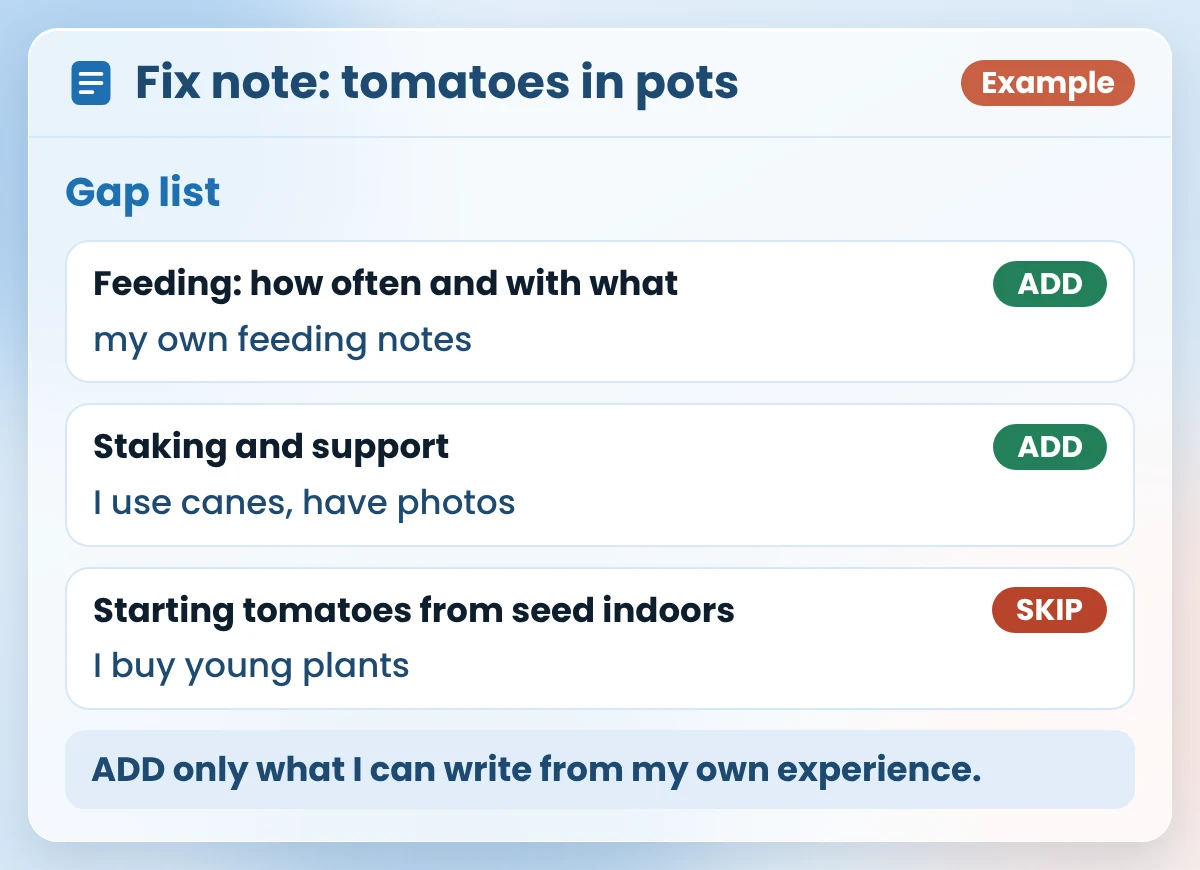
He kept the two subtopics he can write from his own notes and let the third go. Don’t rerun the prompt hoping for a longer list. A new run can name the same subtopics in new words, so work from the first list.
Writing the ADD sections is your own work, and it’s the part that makes the post better than the pages Perplexity found. My steps on how to update old blog posts cover adding a section to a live post.
Search Console only counts Google clicks, so it can’t show whether ChatGPT mentions your blog. Frase, which sells SEO software, has a free AI Visibility Checker for a quick look. Its page, as shown in search results, says the ChatGPT check needs no sign-up, and the Perplexity and Gemini report asks for your email.
Expect an offer for Frase’s paid tools after the result. For a free check you can repeat every month and trust more, the question method in my generative engine optimization tools post does the same job by hand.
Everything above is free and done by hand. The paid tools do a different job from fixing one post: they watch your whole site. One works inside WordPress, and two ask AI tools your questions on a schedule and report when your site comes up. None of them picks your post or knows what your readers ask, so the free round stays useful even after you pay.
Rank Math makes a popular SEO plugin for WordPress. As its pages read in search results, its AI features (Content AI, AI Link Genius and AI Visibility) are now grouped as Rank Math AI, which needs a paid subscription, and free trials exist. I couldn’t find a price, so check Rank Math’s own page before you sign up. It fits best if Rank Math already runs your blog.
Semrush is a large SEO platform. Its help page for the AI Visibility Toolkit, as shown in search results, lists $99 a month for 1 domain and 25 tracked prompts (questions), with no free trial.
Otterly.AI does the same scheduled asking on a smaller plan. Review sites list its Lite plan at $29 a month for 15 prompts; older listings say 10. Its own pricing page wasn’t checked for this post, so confirm there.
What that costs in a year: $29 × 12 = $348 for Otterly.AI Lite, and $99 × 12 = $1,188 for the Semrush toolkit, at the listed prices. When to pay (my suggestion): once you ask AI tools about your site by hand more than about 15 questions a month (the size of the smallest listed plan here) and it eats into your writing time. Until then, they are a later step, not part of fixing one post.
Where AI SEO tools fall short
Each tool above does one job. Run in this order on one post, they turn a row of numbers into a finished fix. The times are my estimates for someone who has done it once.
| Move | Tool | About |
|---|---|---|
| 1. Copy your Pages rows | Search Console | 5 min |
| 2. Run the Fix finder | Claude | 5 min |
| 3. Copy the post’s top 5 searches | Search Console | 5 min |
| 4. Title and meta, pasted into your plugin | ChatGPT + your SEO plugin | 10 min |
| 5. Gap check, marked ADD or SKIP | Perplexity | 10 min |
| Total, before writing the ADD sections | about 35 min |
Here’s Felix’s post before and after moves 4 and 5 (Example):
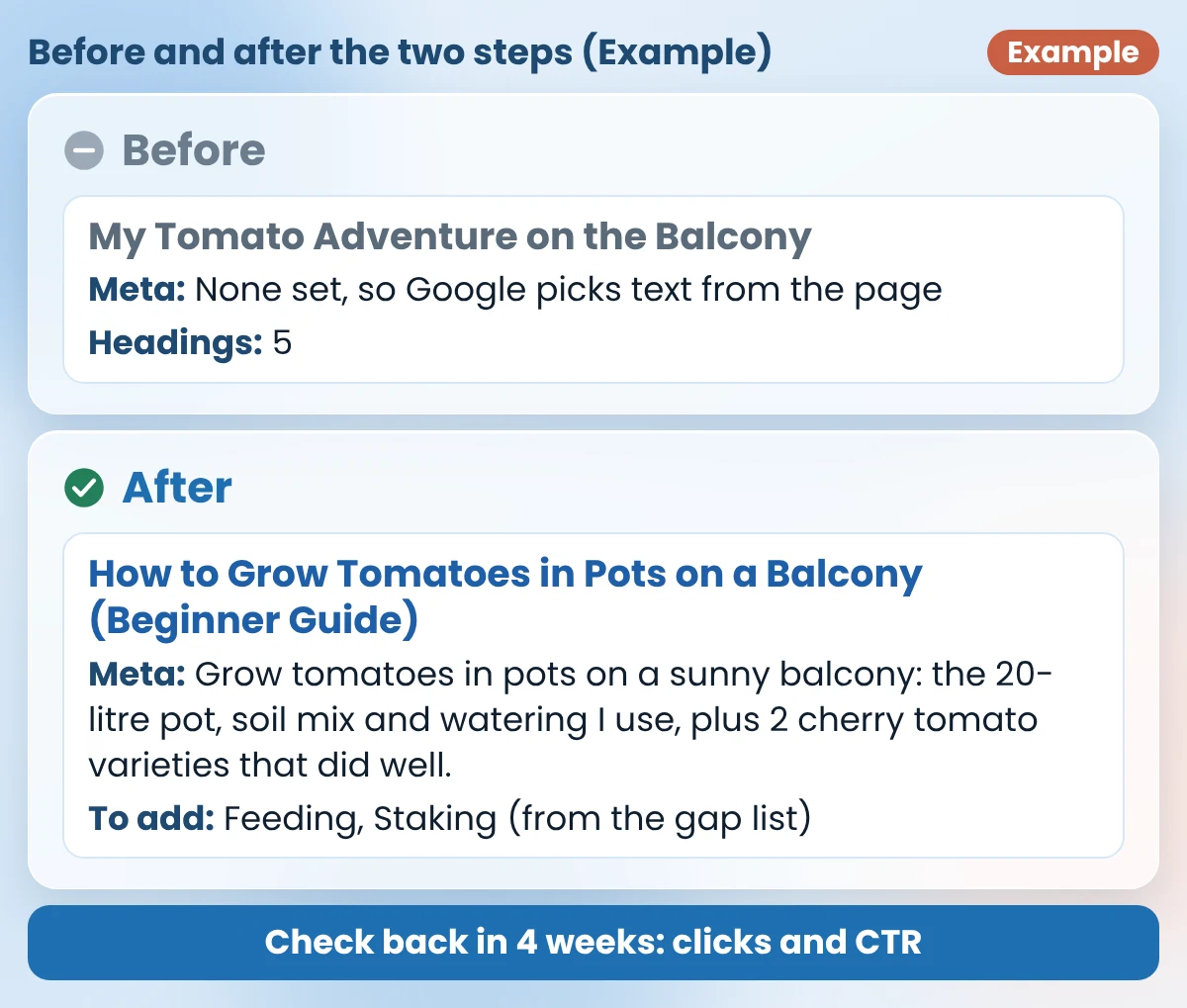
Check back in 4 weeks (my suggestion). In the Performance report, filter to the page again and use the date setting to compare the 4 weeks after your change with the 4 weeks before. Look at clicks and CTR. If nothing moved, try one of the other titles from your Fix note.
The week after, run the Fix finder again without the post you just fixed. For Felix, the rule would land on /balcony-herbs/, the only other page between position 5 and 20 with more than 500 impressions.
Start with Claude or ChatGPT on a free plan, a free Perplexity account and Frase’s free AI Visibility Checker. Pair them with Google Search Console, which is free but has no AI in it. That covers picking a post, rewriting its title and meta description, and finding gaps.
They can do parts of the work: sort your numbers, draft titles and spot missing subtopics. The choices and the facts stay with you. You decide which post to fix, which title is true to it and what to add from your own experience.
No. The free round in this post needs no paid tool. A paid tracker starts to make sense when you check more than about 15 questions a month by hand, which is my suggestion based on the smallest listed plan.
For the two prompts here, either works, because both read what you paste and follow the rules in the prompt. Use the one you already have open. What matters more is pasting real Search Console numbers instead of asking for keywords from memory.
Google’s guidance says using AI is allowed, as long as the content meets its spam policies. The risk is pages made in bulk that add nothing for readers. A title rewritten from real searches, and a new section from your own experience, is the opposite of that.
One Google already shows a lot but not near the top. My rule of thumb is an average position between about 5 and 20, with the most impressions. The Fix finder prompt applies that rule to your own rows.
The cheapest SEO win on a small blog is usually a post Google already shows. Search Console tells you which one, and the free AI SEO tools do the reading and drafting around it. The paid tools can wait until checking by hand takes too long.
Today, copy ten rows from your Pages report and run the Fix finder in Claude. In a few minutes, you’ll know which post gets your attention this week.
My free AI Workflow Starter Kit has more copy-ready workflows like the ones in this post.

12+ years in digital marketing. I test every workflow on real work before I share it, free tools first.
More about me →Steps, a copy-paste prompt and the limits I found. Free, nothing to buy.
Get the Free Starter Kit →