Physical Address
304 North Cardinal St.
Dorchester Center, MA 02124
Physical Address
304 North Cardinal St.
Dorchester Center, MA 02124
Five free routes to AI meeting notes, what each free plan really gives, and one copy-ready prompt that turns any transcript into action items and a client email.
The last minute of a client call is where work goes missing. Someone says “Great, I’ll send that over,” everyone says goodbye, and two days later nobody is sure who was meant to send what. Free AI meeting notes can catch that minute for you, as long as you know what “free” really covers.
Two things get in the way. The AI notes button in Google Meet and Microsoft Teams belongs to paid plans, and each free note-taker app caps something different: meetings, minutes or summaries. And even good notes arrive as a wall of text, so pulling out the tasks and writing to the client is still your job.
Each kind of call has its own free route, with its own section: Zoom calls, lots of video calls, short in-person meetings, phone calls and face-to-face talks, and Teams or Meet. Every route ends in the same place: a transcript, which is the call written out word for word. One copy-ready prompt then turns it into a 3-line summary, the decisions, action items with an owner, and a short email for your client.
Four of the five routes need no paid plan or technical setup, only a free account or an app you already have. The fifth, Teams, needs a Teams licence through work. That’s what “easy” means here. For a short call, the recap and the email take roughly 15 minutes by my estimate. Most of that is checking the reply, and a longer call takes longer because you tidy more text. Your first one may take longer.
In short
Before the call
On this page
An AI note-taker does two jobs. It turns speech into text, and it writes a summary of that text. Free plans usually limit one or both jobs, and the limits differ from tool to tool. That’s why the transcript is the part to hold on to.
The table shows what each free route gives you and where its catch is. Every number comes from search-result snippets of the makers’ pages or from third-party guides, so treat it as a starting point and check the linked page before a call that matters.
| Route | Best for | The free catch (as reported) | What you get |
|---|---|---|---|
| 1. Zoom AI Companion | Calls you host on Zoom | AI notes in 3 meetings a month | A summary from Zoom |
| 2. Fathom | Lots of video calls | Advanced AI summaries on the first 5 calls a month; transcripts not capped | A transcript and a summary |
| 3. Otter Basic | Short meetings in person | 300 minutes a month, 30 minutes per conversation | A transcript and a summary |
| 4. Phone recorder + AI chat | Phone calls, face-to-face talks | The iPhone transcript doesn’t name who is speaking | A transcript |
| 5. Teams transcript + AI chat | Work calls on Teams | Needs a Teams licence through work; guests can’t count on it | A transcript |
How to pick one today: start with the app your calls already happen in. If you host on Zoom, use Route 1 for your first three calls each month. If you have more video calls than that, set up Fathom. If there’s no video app at all, use your phone. Google Meet has no free AI notes route I could confirm, so Meet users get their options in the Teams and Meet section.
Watch out: before you press record
If you host your calls on Zoom, the free route may already be in your account. AI Companion is Zoom’s built-in AI assistant, and it can summarize a meeting and take notes during it.
In December 2025, TechCrunch reported that free (Basic) users get AI Companion in 3 meetings a month. A Zoom page, as it reads in search results, lists the same 3 uses a month for AI notes, with a 40-minute limit per meeting on the free plan. A Zoom community answer adds that it counts meetings you host and can depend on account settings. Limits like these change, so check Zoom’s plans page at the time you read this.
What you should see: a written summary of the meeting’s main points. It’s a summary, not the full transcript, so the Recap prompt gets less detail to work with. Check names and dates in it with extra care.
Watch out: after your third meeting
Zoom’s free plan can still save a recording to your computer, though not from the phone app. Zoom community answers say Zoom’s own transcripts come only from cloud recordings, which need a paid plan, so that saved file has no text. For your fourth call of the month, switch to Fathom instead.
Three calls a month is enough for some people and nowhere near enough for others. If you’re in the second group, the next route has a different kind of limit.
Fathom is a note-taker that joins your video calls, records them and writes out what was said. As its pricing page and Capterra’s listing read in search results, the free plan doesn’t cap recordings, call length, transcripts or storage.
The catch is the AI part. Fathom’s help center, as it reads in search results, says the advanced AI summaries cover your first 5 calls each month, and after that you get a simpler summary layout. Its “Ask Fathom” questions are also capped at 5 calls a month.
From call six on, the transcript is still there, and the Recap prompt can write the summary from it. That’s why this is the route for people with many calls.
What you should see: the call in your Fathom list with its recording and transcript, plus a summary. If you’ve had more than 5 calls this month, that summary is the simpler one.
Good to know
Secondary sources report that Fathom and Otter may use de-identified call data to improve their AI, with an opt-out in settings. I couldn’t confirm that on their own policy pages. Read each tool’s privacy page and look through its settings before you record client calls.
Otter turns speech into text, in its phone app and in the browser. Because it runs on your phone, it also works when you meet someone in person.
Third-party pricing guides list the free Basic plan at 300 transcription minutes a month and 30 minutes per conversation, plus 3 imports of an audio or video file in total. I couldn’t open Otter’s own pricing page, so check otter.ai/pricing before you rely on those numbers.
To see what they mean in practice: 300 minutes is ten 30-minute calls a month. A longer call may get cut off at the 30-minute mark, so it suits short check-ins best.
What you should see: the conversation written out as text. Long pauses and crosstalk can come out garbled, so check any numbers in it against your memory.
Plenty of client talks never touch a video app: a phone call, a site visit, a coffee. For these, your phone’s recorder makes the transcript and a free AI chat does the rest.
Reviews from Tom’s Guide and Android Authority say Apple added transcripts to the iPhone’s Voice Memos app with iOS 18. Newer iPhones may be needed, and Apple’s own page I found covers only the Mac version, so check on your phone before the meeting. The same reviews say the transcript doesn’t separate speakers. That’s why the Recap prompt writes NOT SAID when the text doesn’t make clear who does a task.
If your phone’s recorder shows no transcript, use the Otter app from Way 3 to record in person instead. Its free plan also takes 3 file imports in total, per third-party guides, which can turn a few saved recordings into text.
What you should see: the recording as one block of text, with no speaker names. Paste that text into the AI chat, not the audio file. I couldn’t confirm that free chat plans accept audio files.
Meet and Teams both show an AI notes feature, and both put it in paid plans. Google’s help center, as it reads in search results, lists “Take notes for me” under paid add-ons, and a Google blog post from June 2026 adds Google AI Pro and Ultra subscribers. Microsoft Learn says the AI recap in Teams needs a Teams Premium or Microsoft 365 Copilot license.
On Teams, the free part may be the transcript. A university IT page says Teams license holders can use live transcription without a Copilot license, then download the transcript and upload it to the free Microsoft Copilot. That isn’t Microsoft’s own text, so treat it as something to check in your account, not a promise.
What you should see: a file with the call written out line by line. If you don’t see a transcription option at all, your account probably doesn’t include it. Use Fathom or your phone for that call.
On Google Meet, I couldn’t confirm a free transcript route. For Meet calls, use Fathom if its site lists Meet, or record on a second device with everyone’s OK (Way 4).
Whichever route you used, you now have a “Call text” note. The next part turns it into something your client can answer.
A transcript is a record, not a to-do list. What you need from it is buried somewhere in the middle: what you agreed, who does what, and what to tell the client. The Recap prompt pulls those out in the same four parts every time.
It works with all five routes, and with a Zoom or Fathom summary too, though a summary gives it less to work with. The prompt’s last rule matters most: anything the text doesn’t say becomes NOT SAID, never a guess.
Petra’s call (Example)
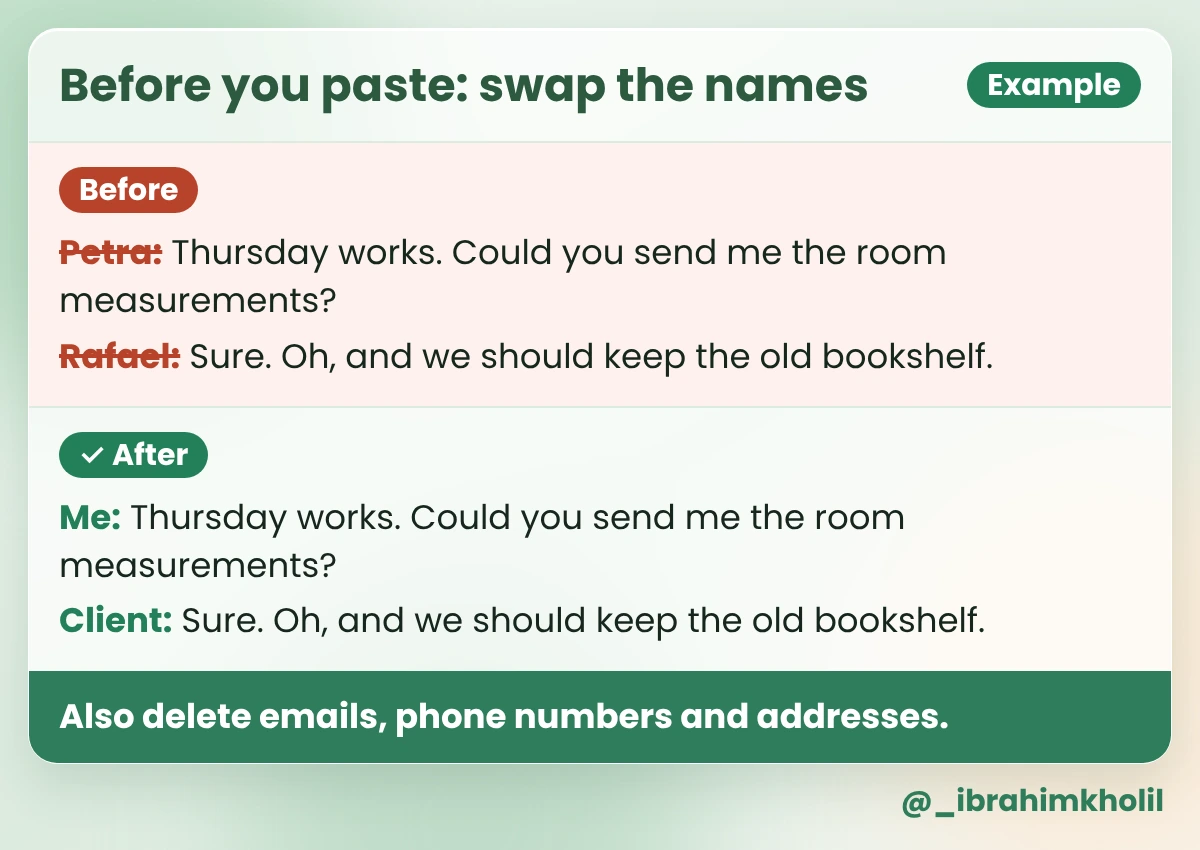
Petra is made up for this post. She’s a freelance interior designer who just finished a short video call about a client’s home office. Here is her transcript after Step 2, with names already swapped. The steps below run it through the prompt.
| Speaker | What they said (Example) |
|---|---|
| Me | Thanks for making time. So the goal is a home office you can work in all day. |
| Client | Yes. Right now the desk faces the wall, and the light is terrible. |
| Me | Then let’s move the desk under the window. I’ll draw two layouts. |
| Client | Great. Can you have them by Thursday? |
| Me | Thursday works. Could you send me the room measurements? |
| Client | Sure. Oh, and we should keep the old bookshelf. |
| Me | Got it, the bookshelf stays. What about a new chair? |
| Client | Maybe. Someone should look at a few chairs. |
| Me | OK. Let’s talk again after you’ve seen the layouts. |
Open your “Call text” note from the route you used. If you haven’t made it yet, copy the full transcript (or summary) and paste it into a new note with that name. Work in the note, not in the chat box, so you can tidy it first.
Copy this prompt (Recap prompt):
Turn this call into a recap. Use only what the text below says.

ABOUT THE CALL: [ONE LINE: WHAT THE CALL WAS ABOUT]
MY FIRST NAME: [YOUR FIRST NAME]
TEXT (a transcript or notes, names replaced with Me and Client):
[PASTE THE TEXT]

Write 4 parts:
1. SUMMARY: 3 lines in plain words.
2. DECISIONS: everything we agreed, one line each.
3. ACTION ITEMS: one line each, as Task | Owner | Due. Owner is Me or Client. If the text doesn't say who does it or by when, write NOT SAID.
4. CLIENT EMAIL: under 150 words. Start with "Hi [CLIENT NAME]," and keep [CLIENT NAME] exactly like that. One line of thanks, then the decisions and the action items for both of us. End with one question about the next step. If any action item says NOT SAID, use that question to ask about the most important one. Sign with my first name.

Check before you answer:
- Every decision, task, owner and date must appear in the text. Don't invent, guess or add anything.
- Where the text is unclear, write NOT SAID instead of filling the gap.
- No prices, payment terms or personal details unless they are in the text.
The 150-word limit is my suggestion, so the email fits on one phone screen. The prompt leaves the client’s name as [CLIENT NAME] on purpose: you type it in your email app, so the name never goes into the chat.
Petra’s two short lines (Example): ABOUT THE CALL: Home office redesign, first call. MY FIRST NAME: Petra. Her transcript from the box above goes under TEXT.
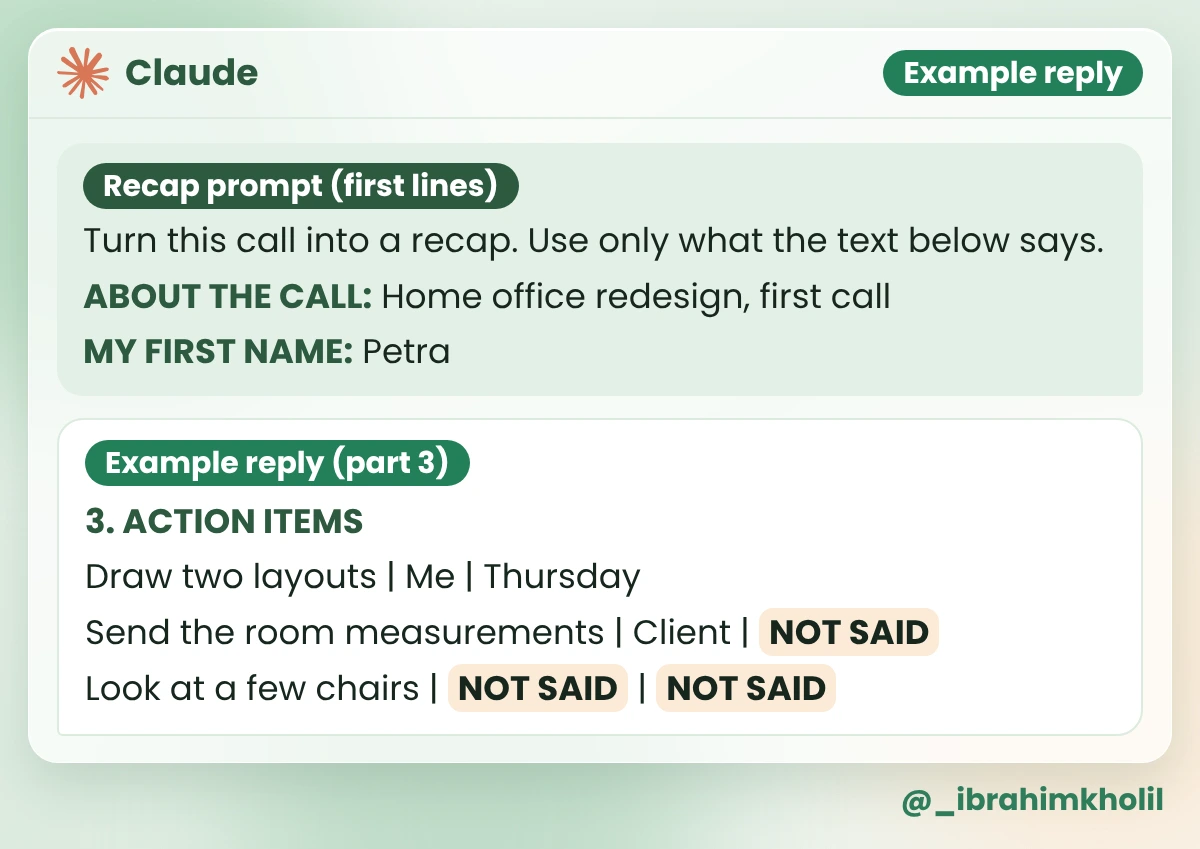
What you should see: four numbered parts, with NOT SAID wherever the text left a gap. The image shows part 3 of Petra’s reply; the table below holds the other three parts.
| Part | Example reply for Petra |
|---|---|
| 1. Summary | The client wants a home office they can work in all day. Right now the desk faces the wall and the light is poor. We agreed to move the desk under the window and keep the old bookshelf. |
| 2. Decisions | Move the desk under the window. Keep the old bookshelf. Talk again after the client has seen the layouts. |
| 4. Client email | Hi [CLIENT NAME], Thanks for making time for our call about your home office. We agreed to: – Move the desk under the window. – Keep the old bookshelf. – Talk again after you’ve seen the layouts. Next steps: – I’ll draw two layouts by Thursday. – You’ll send me the room measurements. – Someone will look at a few chairs. Who would you like to look at the chairs, you or me? Petra |
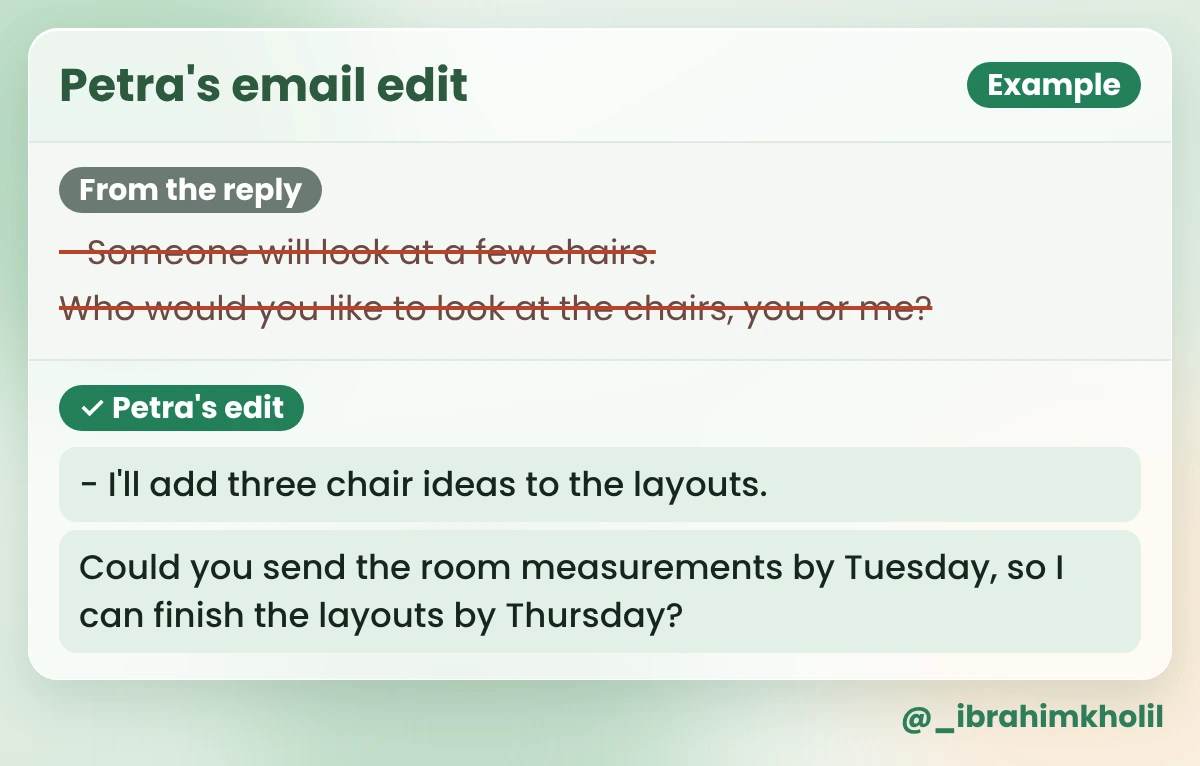
The chairs line has no owner in the transcript, so the email asks about it instead of making one up. That’s the check rule doing its job.
Petra’s check (Example): her searches for window, bookshelf, layouts, measurements and chairs all turn up in the transcript, so nothing gets deleted. Two gaps are left. The measurements have no due date, and she needs them before she can draw, so that becomes her one question. She decides to handle the chairs herself and writes that in. The image shows her edit.
If the client doesn’t reply, my post on the AI follow-up email generator has prompts for a polite nudge. If the call was about a new project and you want a written list of what’s in and out of the job, the scope list in my guide to AI tools for freelancers works from the same “Call text” note.
Watch out: what the prompt can’t fix
Every free plan has a limit somewhere. Of the ones here, Fathom’s looks the most generous as its pricing page reads in search results: recordings and transcripts aren’t capped, but the advanced AI summaries are, at 5 calls a month. Check each tool’s pricing page for today’s limits.
They can turn a transcript into notes, and that’s what the Recap prompt does. I couldn’t confirm that their free plans accept audio files, so get the text first with one of the five routes, then paste it in.
Check whether your phone’s recorder shows a transcript for it, as Voice Memos on recent iPhones does, per reviews. If not, third-party guides say Otter’s free plan allows 3 file imports in total. Then paste the text into the Recap prompt.
It depends on where you and the client are. Some US states need everyone’s consent, and other countries have their own rules. The safe habit is to ask everyone at the start and record only if they agree. This isn’t legal advice.
It differs by tool. Fireflies’ privacy FAQ says it doesn’t use meeting content to train AI models. Secondary sources report that Otter and Fathom may use de-identified data, with an opt-out. Read each tool’s privacy page, and remove names before you paste anything into a chat.
Not that I could confirm. Google’s help center puts “Take notes for me” in paid plans and add-ons. For Meet calls, use Fathom if its site lists Meet, or record on a second device with everyone’s OK.
Free AI meeting notes are easy to get once the tool matches the call: Zoom’s AI Companion for a few hosted calls, Fathom for many, Otter for short in-person meetings, your phone for everything off-screen, and the Teams transcript at work.
The notes are only half the job. The Recap prompt and a careful check turn them into an email your client can answer the same day.
Before your next call, choose your route from the table and save the Recap prompt in a note. Then the only thing left to do on the call is ask, “Is it OK if I record this?”

12+ years in digital marketing. I test every workflow on real work before I share it, free tools first.
More about me →Steps, a copy-paste prompt and the limits I found. Free, nothing to buy.
Get the Free Starter Kit →