Physical Address
304 North Cardinal St.
Dorchester Center, MA 02124
Physical Address
304 North Cardinal St.
Dorchester Center, MA 02124
Count last week's jobs, find the one that eats your hours, then give one free tool a 7-day test. Six tools: 3 with AI inside, 3 simple helpers, each free plan's limit shown first.
Your website says you’re a designer, a coach or a consultant. Your week says something longer: writer, receptionist, note-taker, bookkeeper, admin clerk and designer, mostly before the paid work starts. AI tools for solopreneurs are supposed to take some of those jobs off your desk.
The hard part is choosing which job to hand off first. Most people choose from memory, and memory picks the job that annoyed them most recently, not the one that took the most time. So the new tool fixes a ten-minute problem while the three-hour one stays exactly where it was.
This post starts with a count instead of a tool. A 15-minute tally of last week shows which job really took your hours. Then the one tool for that job gets a 7-day test on real work, and your own numbers decide whether you keep it, pay for it or drop it.
Six tools are covered, one for each line of the tally. Gemini, Fathom and Adobe Express have AI inside. Cal.com, Invoice Ninja and Make are simple helpers, used here without any AI. Every free plan below was read on its maker’s page on November 27, 2026. Give the tally about 15 minutes and your first tool about an hour; both times are my suggestion, not a timed test.
The short answer
Before you sign up for anything
On this page
One solo business, start to finish: Anika (Example)
Anika is invented for this post. She builds simple websites for small local businesses and does every other job herself. You’ll see her count her week, set up the one tool her count points to, and run the 7-day test. Her enquiries, prices, dates and minutes are examples.
When you work alone, the jobs between the paid work never feel big one at a time. A reply here, a call time there. Added up over a week, though, one of them is usually much bigger than the rest, and that’s the one worth a tool.
The tally finds it. For each job you write how often it happened last week and roughly how long one took, then multiply. Each line also says where its count comes from, so you’re counting from records wherever you can and estimating only where you can’t.
Count your week (about 15 minutes)
The One-job tally (copy it):
ONE-JOB TALLY (last 7 days; minutes are my estimate)
Replying to new enquiries (sent emails): __ times x __ min = __
Agreeing call times (sent emails about times): __ emails x __ min = __
Writing up call notes (calendar: calls held): __ calls x __ min = __
Making and chasing invoices (sent invoices and reminders): __ times x __ min = __
Copying details between apps (estimate): __ times x __ min = __
Making social graphics (posts published): __ times x __ min = __
Biggest total:
What you should see: six lines with a total each, and one job named on the last line. The table in the next section shows which tool goes with it.
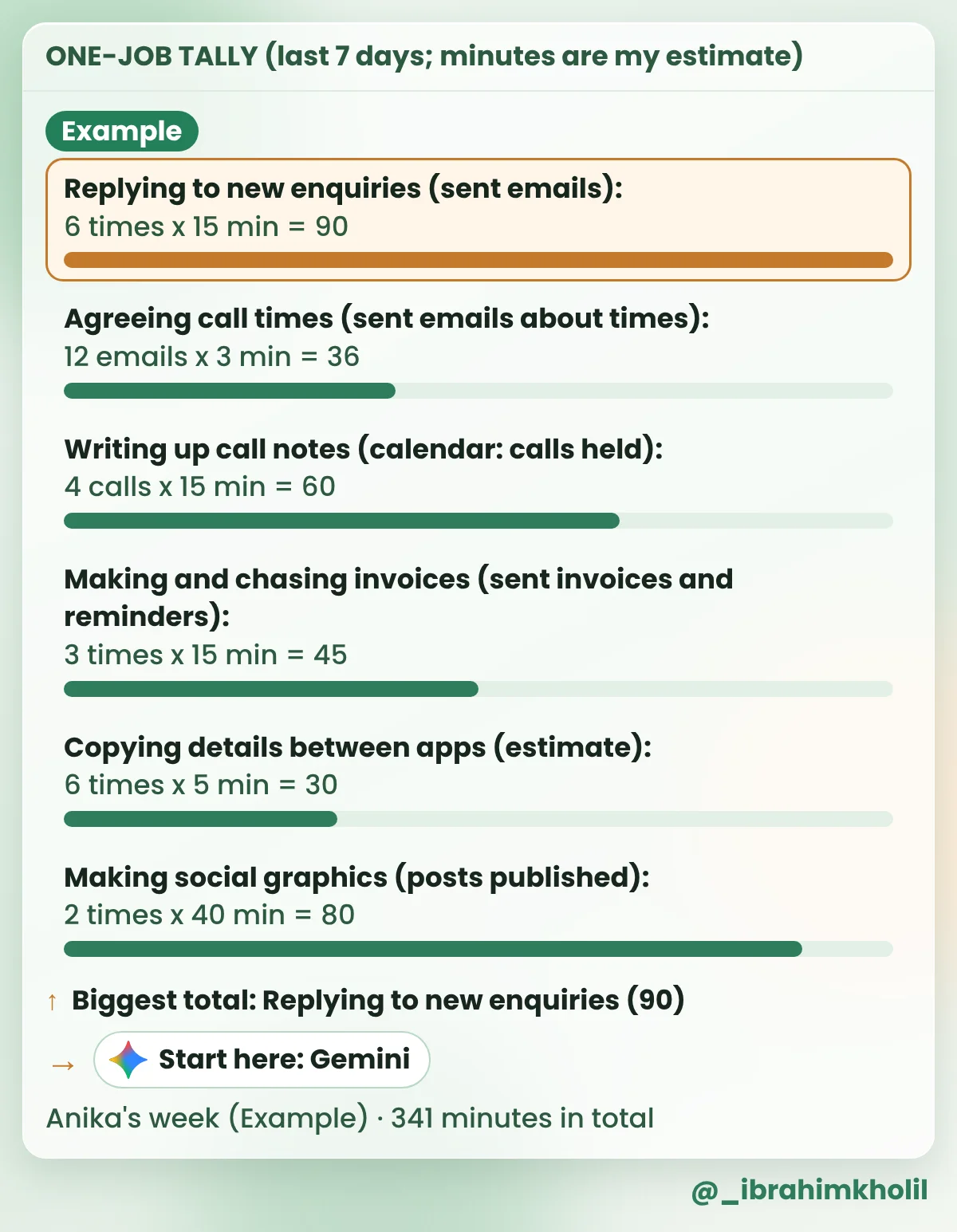
Anika’s result (Example): her six lines add up to 341 minutes, a little under six hours. Replies to new enquiries take 90 of them, about a quarter (90 ÷ 341 = 0.26). Social graphics come second at 80. So Gemini is her one tool for the next seven days, and graphics wait until the test is over.
With one job named, the side-by-side table tells you which of the six tools to open and what its free plan gives you.
Read across from your biggest tally line. The “Where the AI is” column names the part of the job the AI does, or says none is used, so a helper never passes for an AI tool.
| Tally line | Tool | Where the AI is | Free plan gives you |
|---|---|---|---|
| Replying to new enquiries | Gemini | Gemini drafts the reply | The Gemini app with usage limits that refresh every 5 hours, plus a weekly limit |
| Agreeing call times | Cal.com | None used here | Unlimited booking links and meetings for 1 user |
| Writing up call notes | Fathom | Fathom writes the call summary | Unlimited recordings and transcripts, AI call summaries |
| Making and chasing invoices | Invoice Ninja | None in Invoice Ninja; Gemini drafts the reminder | Unlimited invoices for up to 5 clients |
| Copying details between apps | Make | None used here | 1,000 credits a month |
| Making social graphics | Adobe Express | Free daily AI generations, optional; the steps here use a template | Templates, stock assets and free daily AI generations |
The pick rule: open only the tool in the row of your biggest total, and only that one until your 7-day test is done. A second account set up in the same week makes it impossible to tell which tool saved the time.
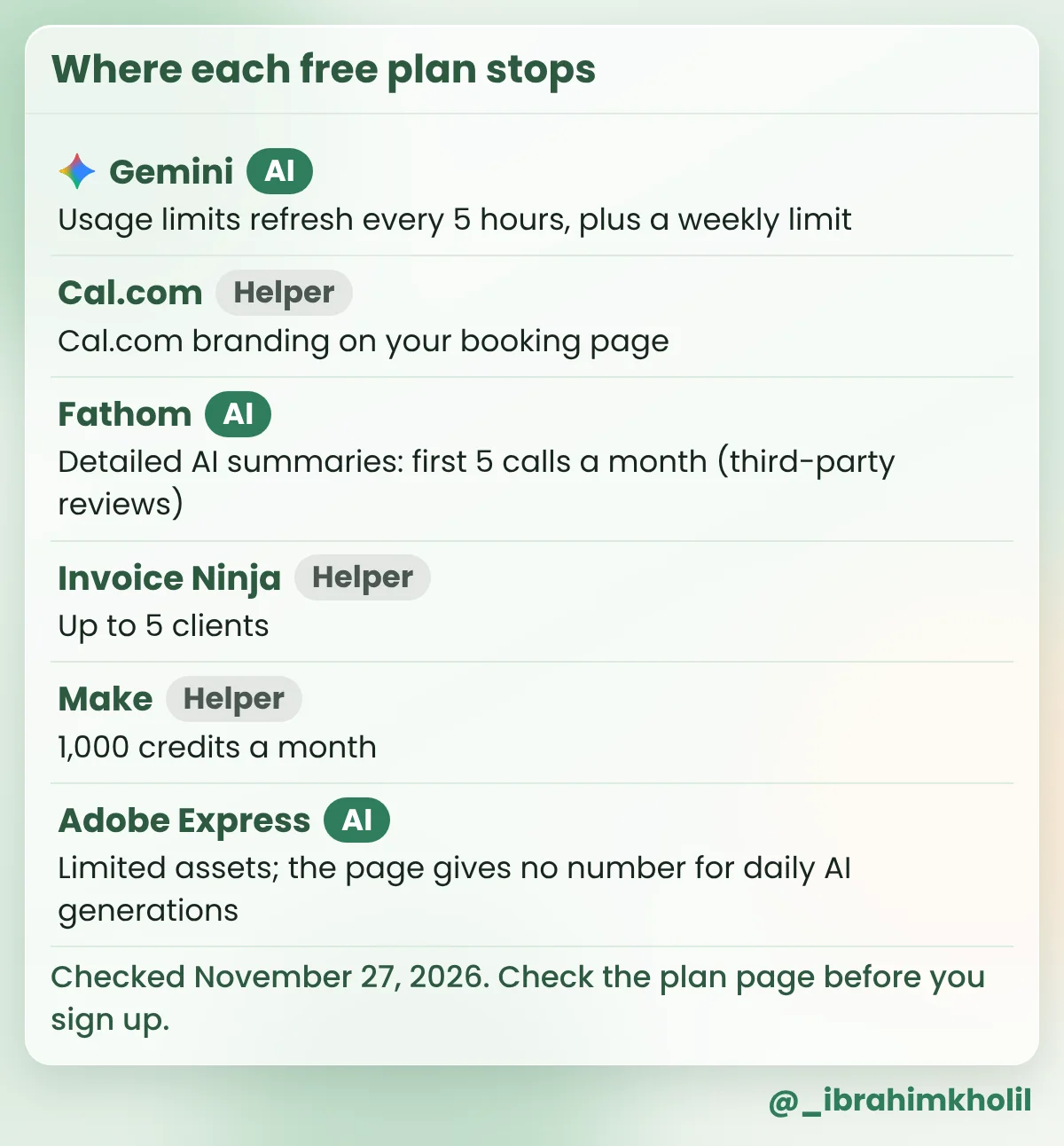
Each section below works on its own, so you can jump straight to your row. Anika’s row is the first one.
New enquiries tend to ask the same three things: what it costs, how long it takes, and whether you can do one extra thing. Writing each answer from scratch is slow, and a rushed reply to a good lead is worse than a slow one.
Gemini is Google’s AI assistant, and it’s free with a Google account. Given your own facts and the enquiry, it drafts a reply in seconds. The prompt below adds one more thing: when your facts don’t cover a question, it leaves a marked gap instead of making something up.
| Gemini | Free plan, checked November 27, 2026 |
|---|---|
| Job it takes | Drafting replies, emails and other short texts |
| Free plan includes | “Standard limits”: usage limits that refresh every 5 hours, plus a weekly limit |
| Free plan stops at | Those limits, and a smaller memory for long chats (32k tokens; a token is a small piece of a word). Heavy features such as Deep Research “may be unavailable during periods of high demand.” |
| Paid plans | Google AI Plus gives 2x the standard limits and Google AI Pro 4x. Reported prices: $7.99 and $19.99 a month in the US. |
Getting started: the Reply prompt
The Reply prompt (copy it):
Write a reply to a new client enquiry. I run my business alone.

ABOUT ME:
[WHAT YOU DO, IN ONE LINE]
[YOUR STARTING PRICE, OR "I give a quote after a call"]

THE ENQUIRY (names, emails and phone numbers removed):
[PASTE THE ENQUIRY]

Rules:
1. Answer every question in the enquiry. If my ABOUT ME lines don't give the answer, write [NEED FROM ME: what is missing] instead of guessing.
2. Never promise a date, price or result that isn't in my ABOUT ME lines.
3. End by inviting them to book a 20-minute call. Write [YOUR BOOKING LINK] where the link goes.
4. Under 120 words, friendly and plain, no exclamation marks.
5. Start with "Hi [FIRST NAME]," and end with "[MY NAME]".
The [NEED FROM ME: …] line is the part that protects you. A chat that doesn’t know your timeline will often invent a likely one, and a client who reads “about two weeks” will hold you to it. A [NEED FROM ME: …] gap can’t be sent by accident, because the next step searches for it.
What you should see: a short reply that starts with “Hi [FIRST NAME],”, answers each question in the enquiry or shows a [NEED FROM ME: …] gap for it, and ends with the call invitation (your booking-link tag, or the two time tags if you swapped rule 3) and [MY NAME].
Anika’s first reply (Example): she has no booking link, so her saved note uses the two-times version of rule 3. A bakery owner asks what a website with their menu and cake orders for pickup would cost, how long it takes, and whether she can help with photos. Anika removes the owner’s name and phone number, pastes the rest and sends. The image shows her full prompt and Gemini’s reply.
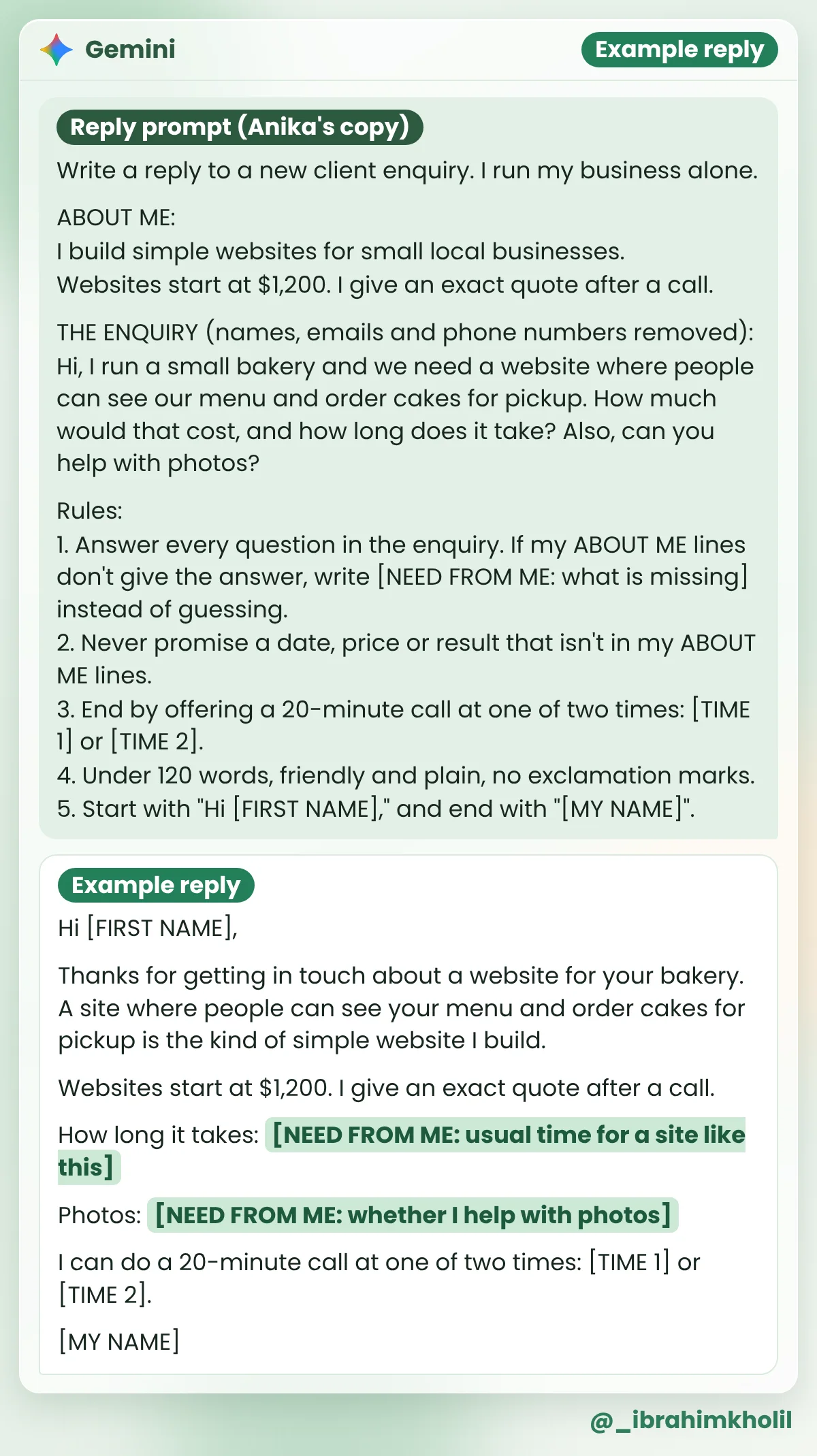
The price line comes straight from her ABOUT ME lines. Her facts say nothing about timing or photos, so both come back as [NEED FROM ME: …] gaps instead of a made-up “two weeks” or a promise to take photos.
Before you send the reply
Anika’s fix (Example): over the two gaps she types “Most sites like this take me about four weeks from our call.” and “I don’t take photos myself, but I can use yours.” She types Tuesday at 2 p.m. and Thursday at 10 a.m. over the time tags. Then she adds both gap answers under ABOUT ME in her saved note, so it now has four ABOUT ME lines and the next enquiry gets those answers without a gap.
Good to know: Claude or ChatGPT work too
The Reply prompt isn’t tied to Gemini. Paste it into a free Claude or ChatGPT chat and the rules work the same way. If you already use one of them, keep it; my post on AI tools for freelancers shows those two at work on client pitches.
“Does Tuesday work?” “Tuesday’s full, how about Thursday?” Agreeing one call time can take three or four emails, and every one of them waits for the other person to answer.
A booking link ends that. Cal.com connects to your calendar and shows clients the times you’ve set as free; they pick one and it lands in your calendar. No AI is used here, and none is needed. If you also use the Reply prompt, this link goes over its [YOUR BOOKING LINK] tag.
| Cal.com | Free plan, checked November 27, 2026 |
|---|---|
| Job it takes | Letting clients book a call time themselves |
| Free plan includes | “Free forever” for 1 user: unlimited booking links, calendars and meetings, several meeting lengths, email and SMS notifications, 100+ integrations, Stripe and PayPal payments, a mobile app |
| Free plan stops at | Cal.com’s branding shows on your booking page. Removing it, adding your own logo, a custom subdomain, round-robin, group and recurring meetings, a redirect after booking, and insights all need a paid plan. |
| Paid plans | Listed on the pricing page |
Getting started: one intro-call link
What you should see: your test booking in your own calendar, and a booking page that shows only the hours you set, with Cal.com’s branding on it.
Example: a 20-minute “Intro call” that can be booked on weekday afternoons only. Every email that used to say “When suits you?” now ends with one line: “Pick any time that works here:” and the link.
On a client call you’re listening, thinking and talking at once. Typing notes as well means something gets missed, and it’s usually the small detail the client cares about most.
Fathom records the call, writes a transcript (every word, as text) and gives you an AI summary when the call ends. You talk; it keeps the notes.
| Fathom | Free plan, checked November 27, 2026 |
|---|---|
| Job it takes | Call notes and a summary of every client call |
| Free plan includes | “Unlimited recordings + transcriptions”, instant AI call summaries, clips, playlists and search across your calls, and a choice of recording with a bot that joins the call or without one (the bot-free option is in beta, meaning still being tested) |
| Free plan stops at | The pricing page marks some features “Limited use” without saying exactly which limits apply to Free. Third-party reviews report that the free plan gives the more detailed AI summaries for your first 5 calls a month, then a general summary. |
| Paid plans | Premium: $20 a month, or $16 a month billed yearly |
If you do decide to pay, the yearly bill is the cheaper one: $20 x 12 = $240 a year paid monthly, against $16 x 12 = $192 paid yearly. That’s $48 saved, but only worth it once your test week shows you’ll keep using it.
Getting started: your first recorded call
What you should see: the call in your Fathom account with a transcript and a summary. If the summary says something you don’t remember being said, find that part in the transcript before you act on it.
Example: a line you can say as the call starts: “Is it OK if I record this so I don’t miss anything? I’ll only use it for my notes.” Afterwards, the next steps go into a note named after that client, not into a pile of call recordings.
For other free ways to get call notes, including Zoom’s own tools and phone recordings, see my post on free AI meeting notes.
Invoicing is easy to put off when the paid work feels more urgent, but every day the invoice waits, your money waits too. Chasing one that’s overdue is worse, because the email feels awkward to write.
To be plain about it, Invoice Ninja is not an AI tool at its core. It’s a simple invoicing tool that keeps your clients and invoices in one place. The AI part of this job is the awkward email: Gemini drafts the payment reminder from five facts.
| Invoice Ninja | Free plan, checked November 27, 2026 |
|---|---|
| Job it takes | Making, sending and keeping track of invoices |
| Free plan includes | “Forever free”: unlimited invoicing for up to 5 clients, 4 invoice templates, your own logo |
| Free plan stops at | 5 clients. Invoices also carry a “Created by Invoice Ninja” line. |
| Paid plans | Ninja Pro: $14 a month, or $140 a year, for unlimited clients and invoices, 11 templates and no “Created by Invoice Ninja” line |
The 5-client limit is the number to watch. If you bill the same few clients every month, it may never bite. On the paid plan, yearly is cheaper: $14 x 12 = $168 a year paid monthly, against $140 paid yearly, which saves $28 and works out at about $11.67 a month.
Getting started: your first invoice, then a reminder
The Reminder prompt (copy it):
Write a short, polite payment reminder email.

FACTS:
Invoice number: [NUMBER]
Amount: [AMOUNT AND CURRENCY]
Due date: [DUE DATE]
Days late: [DAYS]
How to pay: [HOW THE CLIENT PAYS, NO ACCOUNT NUMBERS]

Rules:
1. Use only the facts above. No late fees, interest or warnings.
2. Write as if the client simply missed it.
3. Give one subject line first, then the email.
4. Under 80 words. Start with "Hi [FIRST NAME]," and end with "[MY NAME]".
What you should see: a subject line, then a short email that names your invoice number, amount and due date, says how many days late it is, says how to pay, and adds nothing else.
Example (a made-up invoice, reminder sent on December 11, 2026): the FACTS lines read Invoice number: 0012; Amount: $600 (USD); Due date: December 4, 2026; Days late: 7; How to pay: Bank transfer, details on the invoice. Gemini’s reply:
Subject: Invoice 0012: a quick reminder

Hi [FIRST NAME],

Just a quick note in case this one slipped by. Invoice 0012 for $600 was due on December 4, 2026, so it's now 7 days late.

You'll find the bank transfer details on the invoice.

If you've already paid, please ignore this note. Thank you.

[MY NAME]
Tick them off: 0012, $600, December 4, 2026, 7 days, bank transfer. Nothing else made it in, and no fee or warning appears, as rule 1 asks. If your country or your contract sets rules for late payment, those come from you or your accountant, never from the chat.
Prefer a document to an app? My free AI invoice generator post builds an invoice in Google Docs from a saved prompt, and the invoicing section of my freelancers post compares two other free invoicing apps.
Some jobs are pure copying: a form comes in, you paste the details into your list, and you send the same “thanks, I got your message” email you sent last time. Each one takes a few minutes, and they add up.
Make connects apps so that one event starts the next steps by itself. Make calls one of these chains a scenario. In the route below, a new form entry adds a row to a sheet and sends a short thank-you email that you wrote once. No AI is used.
| Make | Free plan, checked November 27, 2026 |
|---|---|
| Job it takes | Copying details between apps and sending a fixed email |
| Free plan includes | 1,000 credits a month (each run of a scenario uses credits) |
| Free plan stops at | The 1,000 credits. Third-party guides also report a limit of 2 active scenarios on Free, which Make’s page didn’t show when checked. |
| Paid plans | Third-party price reports disagree, so read the current price on Make’s pricing page |
Getting started: form in, row and email out
What you should see after the test: your test entry as a new row in “Enquiries”, with each answer under the right heading, and your thank-you email in the test inbox.
What you should see after the first real entry: a new row you didn’t type, and the person’s answer in the right columns. Their email address is in the Email column, which is where the thank-you went. If no row appears after the gap you chose, open the scenario and check that it’s switched on. Look at your credit use in your Make account after a few days to see how fast it’s going.
Example thank-you text: “Thanks for your message. I reply to every enquiry within one working day, usually with a link to book a short call.” It promises one working day, so only use a line like that if you can keep it.
A social post that should take ten minutes can swallow an hour when you start from a blank page, choose fonts and nudge things around. When you’re also the person who should be doing client work, that hour hurts.
Adobe Express starts you from a ready-made template, so you change words and a photo instead of designing. Its free plan also includes free daily AI generations, for example for images or text effects. The steps below use a template only, so the AI part is there if you want to try it, not something the job depends on.
| Adobe Express | Free plan, checked November 27, 2026 |
|---|---|
| Job it takes | Social posts, simple promo graphics and client visuals |
| Free plan includes | 345,000+ templates, 1M+ Adobe Stock assets, 5,000+ Adobe Fonts, 5GB storage, 10 days of version history, scheduling to 1 account per social network, free daily AI generations (images, text effects, templates, webpages, adding or removing objects, 5-second video) |
| Free plan stops at | “Basic editing tools and limited assets”. The page gives no number for the daily AI generations. |
| Paid plans | Premium: US$9.99 a month, billed monthly. Prices vary by country. |
Premium works out at $9.99 x 12 = $119.88 a year in the US. Set that against the minutes your tally shows for graphics before you decide it’s worth it.
Getting started: one post from a template
What you should see: a finished post saved in your Adobe Express account that you can copy and reuse, with only the words and photo changed each time.
Example: one saved Instagram post design with a headline, a photo and your handle. Each week only the headline and photo change, so the template does the designing once and the weekly job shrinks to the words.
A limit on a pricing page tells you what could stop you. Only a week of real work tells you whether it does, and whether the tool saves you time at all. So the test below ends with a second count, compared with your first.
Your test week
| What your week shows | Your next move |
|---|---|
| The job took less time, and the free plan never stopped you | Stay on Free. Test the tool for your second-biggest tally line next week. |
| The job took less time, and the free plan stopped you once or twice | Stay on Free and work around it (for Gemini, wait for the limit to refresh). |
| The free plan stopped real work 3 or more times | Read the paid plan on the maker’s page. Pay monthly for one month first, then yearly only if you keep it. |
| You used it all week and it never stopped you, but the job took the same time or longer | The tool isn’t saving time on this job. Drop it, or set it up again only if you skipped a step in its section. Then test the tool for your second-biggest line. |
| You stopped using it by midweek | Drop it. Try the tool for your second-biggest line instead. |
Anika’s test (Example): in her test week she gets five enquiries and replies to each with her saved prompt, using Gemini and nothing else. She logs no limit messages. Her new tally line reads 5 times x 6 min = 30 minutes, against 90 the week before (made-up numbers, there to show the comparison; yours will differ). Her row is the first one, so she stays on Free and tests Adobe Express the week after, because graphics were her second-biggest line.
Watch out: client details and recordings
The best one is the one that matches your biggest weekly job, which your tally shows. Here, the tools with AI inside are Gemini for replies, Fathom for call summaries and Adobe Express, whose free daily AI generations are optional. Cal.com, Invoice Ninja and Make are simple helpers used without AI. All six had a free plan when checked on November 27, 2026.
No. Start with one, the tool for your biggest tally line, and test it for a week. Add a second only after that, so you always know which tool saved the time.
Not at its core. It’s a simple invoicing tool. The AI part in this post is the payment reminder, which Gemini drafts from five facts you give it.
Yes. The Reply prompt and the Reminder prompt work the same in a free Claude or ChatGPT chat. Each one has its own usage limits, shown on its own site.
When the free plan stops real work again and again, not when a paid feature merely looks nice. My suggestion is 3 or more times in a test week. Pay monthly first, and switch to yearly only once you know you’ll keep it; for Fathom and Invoice Ninja, yearly saves $48 and $28 at the prices checked on November 27, 2026.
Remove what identifies the client first: name, email address, phone number and anything similar. The Reply prompt only needs the questions they asked, and you type their first name into the email yourself.
These AI tools for solopreneurs and their helpers aren’t a stack to install in one go. Three have AI inside, three are simple helpers used without AI, and each covers one job you already do every week. Your tally picks the first one, and a week of real use decides whether it stays.
Count your week, test one tool for seven days, and let the two counts decide.
Your next step takes about 15 minutes: copy the One-job tally into your notes app, fill it in from last week’s sent emails, calendar and social accounts, and open the section for your biggest line.

12+ years in digital marketing. I test every workflow on real work before I share it, free tools first.
More about me →Steps, a copy-paste prompt and the limits I found. Free, nothing to buy.
Get the Free Starter Kit →